Accessing the EN-204 via a Web Browser
41
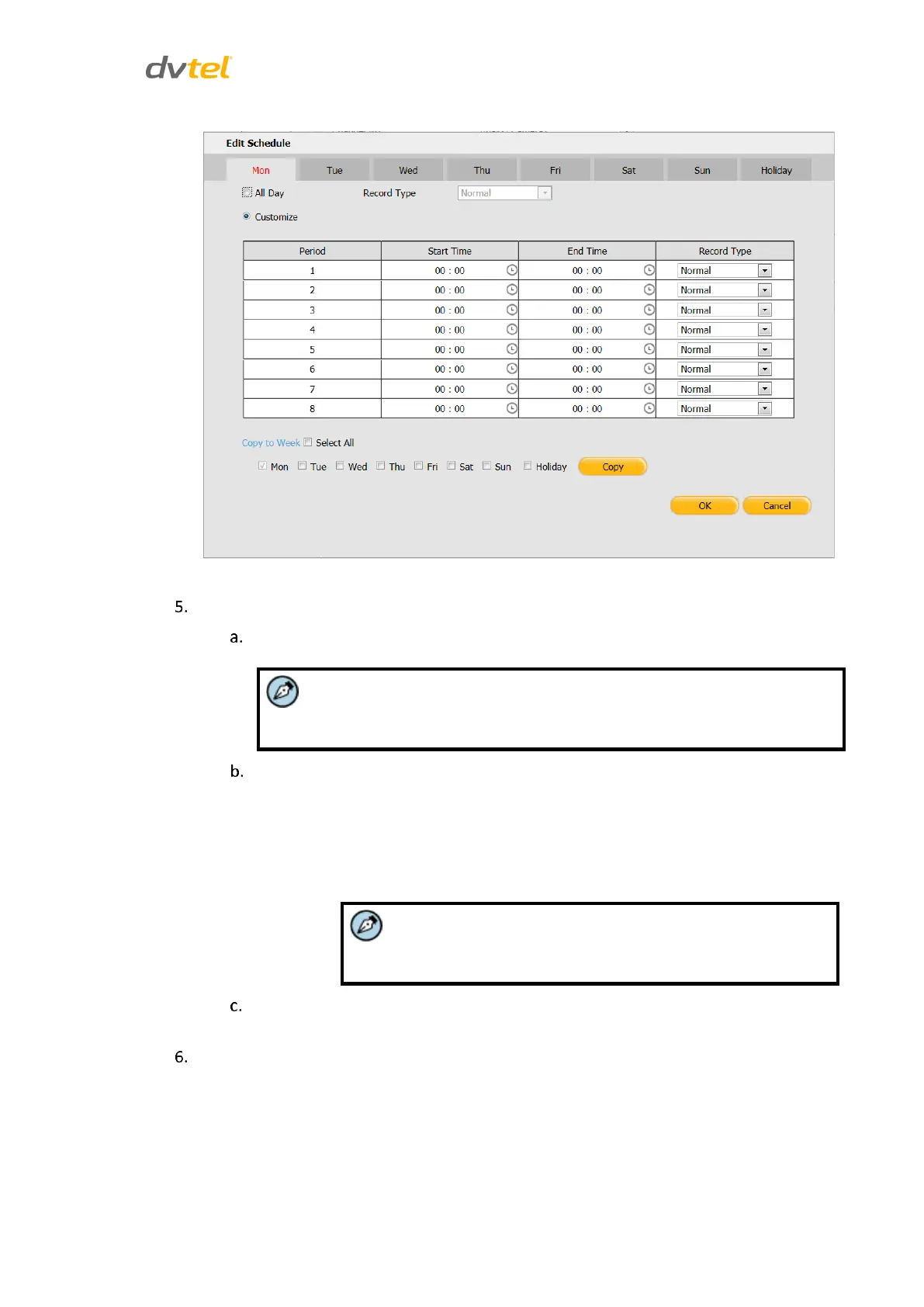
Figure 41: Recording Edit Schedule Screen
Configure the following settings:
From the tabs at the top of the screen, select the day of the week or holiday to
configure a scheduled recording.
The Holiday tab is not displayed by default. To enter a holiday, see
Holiday Settings (page 56).
Do one of the following:
To set a recording schedule for an entire day, check All Day.
To set a recording schedule during different time periods, check
Customize.
o Set the Start Time and End Time for each period.
Up to 8 periods can be configured. The time of each period
cannot be overlapped.
Select a Record Type for the entire day or time period from the following options:
Normal, Motion Detection, Alarm, Motion | Alarm, or Motion & Alarm.
To copy the settings to other days of the week, in the Copy to Camera area, do one of the
following:
Check Select All to copy settings of a particular day to the whole week.
Check the day(s) and click Copy to copy settings of a particular day to
another day.



 To Next Page