EFIS Operation
FlightDEK-D180 Pilot’s User Guide 5-5
window, a descending tone is sounded. The visual climb or descend alert clears after recapturing the target altitude or 30
seconds. Flying back inside the 150-foot capture window re-arms the alerter without any user interaction.
If your system is configured to output voice via an HS34 or AP74 module, the voice alerts “climb” or “descend”
are sounded, instead of tones. Additionally as you approach the altitude bug, the voice alert “altitude” is
sounded when crossing 500 feet away from the bug.
To simulate the altitude alerter on the ground, SYNC the altitude bug to your current altitude and then adjust the
altimeter setting up or down. When you adjust the altimeter setting enough that the altitude is outside the 200-foot
window, observe that the audio alert triggers and the bug alternates red and yellow.
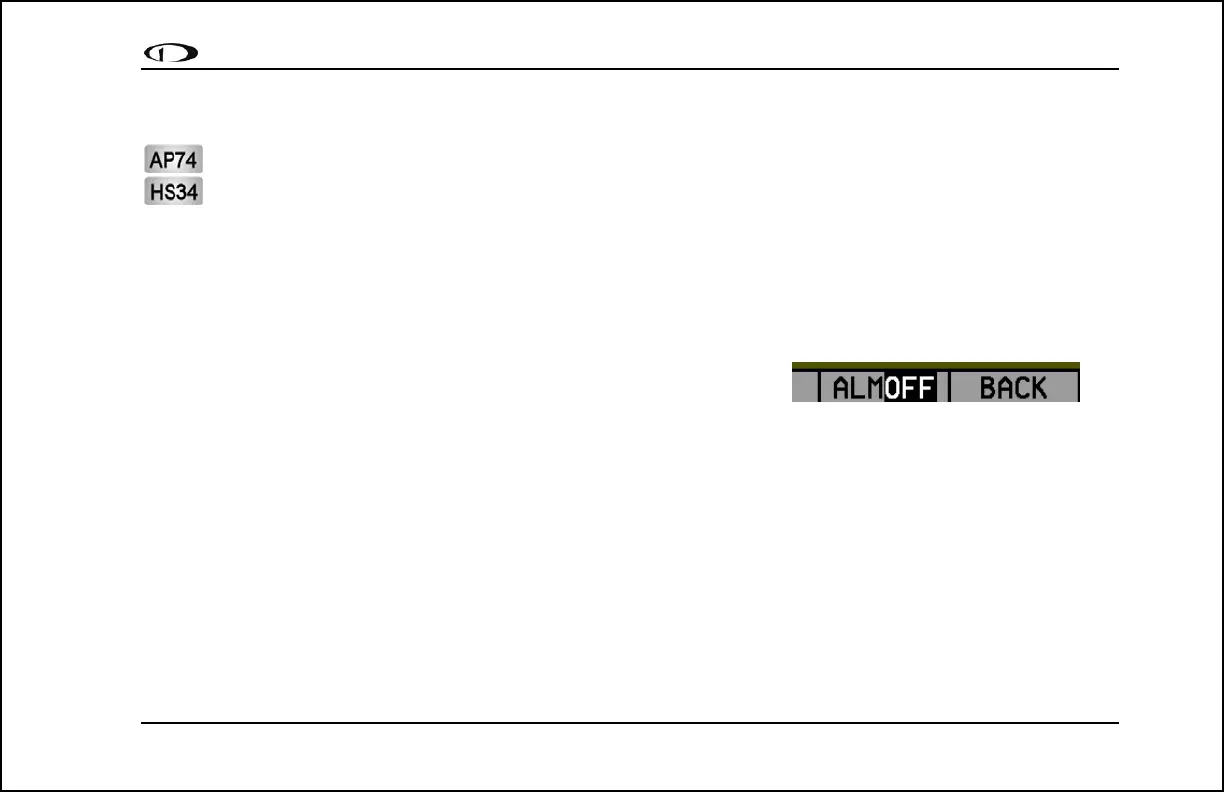
If you do not wish to use the altitude alerter function, push the ALM button in
the BUGS menu to toggle it to OFF.
LISTS – Using Checklists and Data Panels
Note that the lists accessed from the EFIS and EMS menus are the same. Only one set of lists are uploaded via the
Dynon Support Program.
The Dynon Support Program allows you to enter your own checklists or select from included data panels. These
checklists and data panels can then be uploaded to your FlightDEK-D180 for quick access from the main menu or from
your screen rotation. Data panels and checklists can be included beneath 5 user-configurable categories and each
category can contain up to 5 checklists or data panels. By default the FlightDEK-D180 is loaded with the following 5
categories: CHKLIST, RADIO, POH, EMGNCY and MISC. Each checklist/data panel can contain up to 14 lines of text
and 40 characters per line.
To load checklists and data panels onto your FlightDEK-D180, you must upload them as described in the Dynon Product
Support Program help file. Pushing the LIST button displays the 5 main categories as set up in the Dynon Support



 To Next Page