EMS Monitoring Functions
9-4 FlightDEK-D180 Pilot’s User Guide
including positional data (if a GPS is connected) over longer periods of operation allows you to spot potential problems
before they cause costly damage or result in a flight emergency. The FlightDEK-D180 provides two options for logging
data. You may configure the FlightDEK-D180 to log data to its internal memory for later retrieval or you may record
streaming data serial output to an external device (such as a laptop computer) in real-time from the EMS and EFIS serial
ports. The former option has the advantage that it does not require an external device in the aircraft while recording.
Additionally, the internal storage logs provide an indication of alarm events, while the real-time output does not. When
data logging is activated, two logs are recorded - “all data” and “MIN/MAX”. Both logs can be downloaded using the
“Retrieve Logged Data” option of the Dynon Support Program. On certain Dynon Avionics EFIS and EMS units, a
“SNAPSHOT” log is also recorded and can be downloaded. The snapshot log records the value of all parameters
anytime an alert occurs.
INTERNAL LOGGING
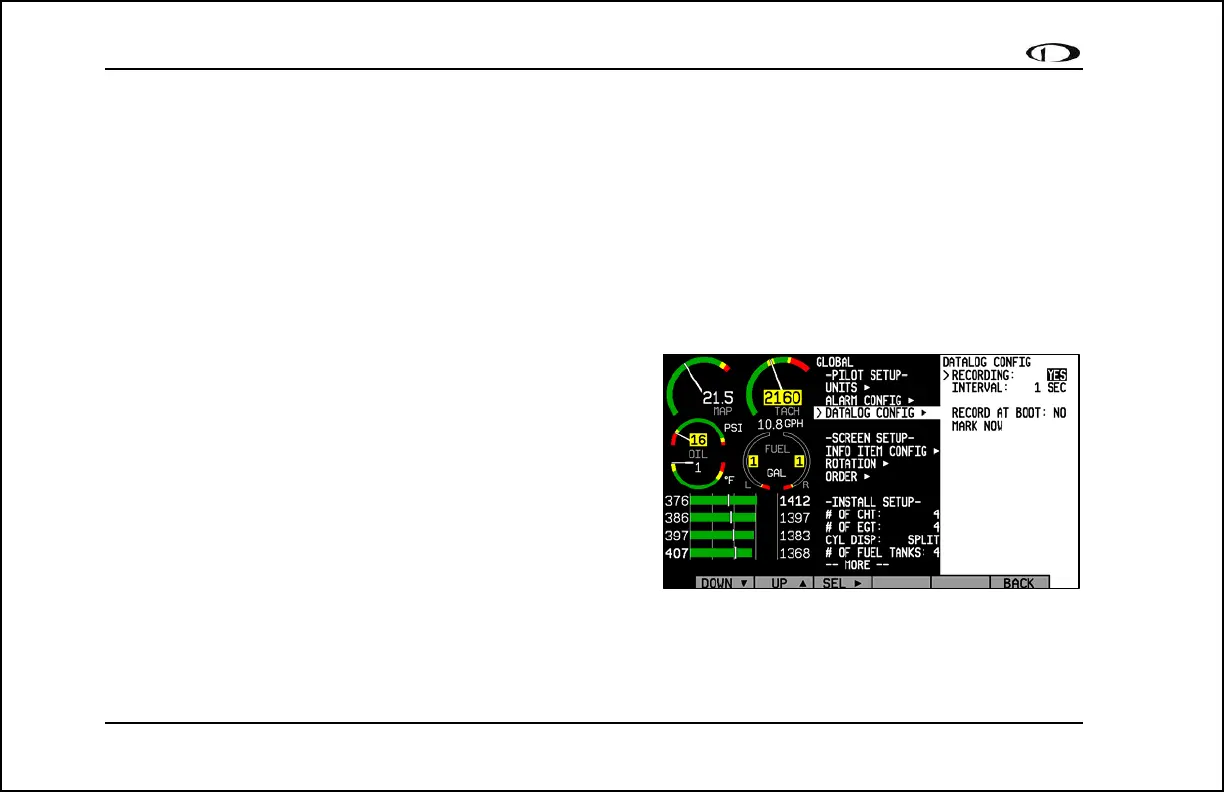
To activate internal data logging, enter the EMS > SETUP >
GLOBAL > DATALOG CONFIG menu or the EFIS > SETUP >
DATALOG menu (different routes to the same menu) and set
RECORDING to ON. Set the INTERVAL depending on how
frequently you wish data to be stored. Data can be stored at
intervals of 1, 3, 5, 10, 30, and 60 seconds. Leaving the RECORD
AT BOOT option set to NO causes the RECORDING option to be
reset to OFF every time power to the FlightDEK-D180 is cycled.
Setting it to YES ensures that the FlightDEK-D180 begins logging
data automatically at boot up. If you wish to mark the data log at
any point, select the MARK NOW function and press SEL►. This inserts a notation in the data log retrieved by your
PC, allowing you to quickly find the place in your data when you marked the record. For information about retrieving
data and reading the file produced, please see the help file included in the Dynon Product Support Program (version 5.0
and higher).



 To Next Page