MAINTENANCE
6.2. SOFTWARE UPDATE
If your XRGI
®
system already has the latest software installed, please
proceed to section 6.3. REGULATION OF EMISSIONS.
STEP 1 – SYSTEM DATA
Once the software has been updated, all settings and operational parame-
ters are set to factory settings.
Software-Release 1.9.17 (or higher): after the software update, all
system data must be entered manually.
Software-Release 1.14.6 (or higher): after the software update, recover
all system data with the configuration request function.
Before updating the software, note all current settings and operational parame-
ters of the XRGI
®
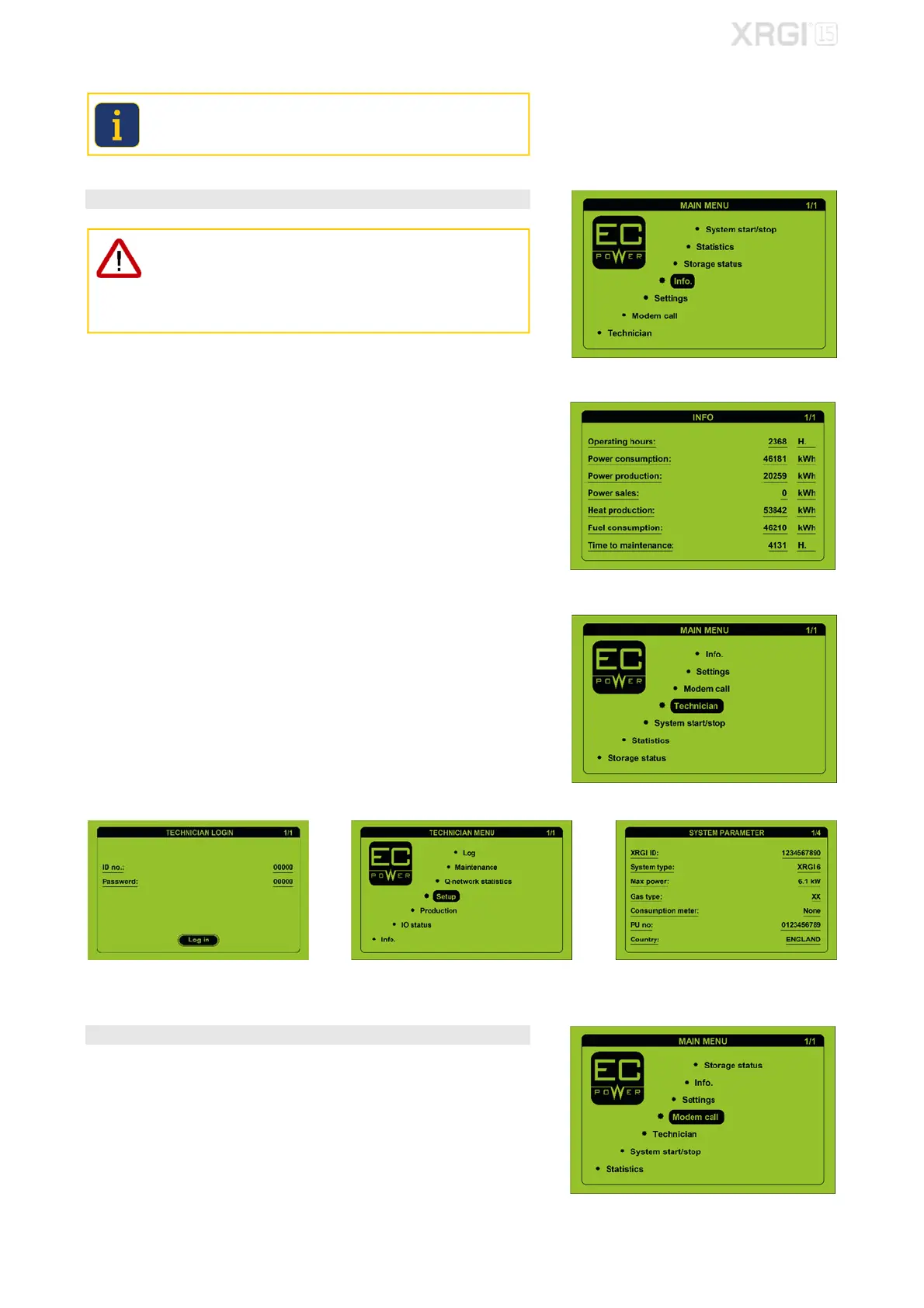
system. Please refer to the main menu under Info and in the
technician menu under Settings.
Press any key on the user interface to activate the display and enter the
menu.
Move the cursor to Info by using the ▲▼ buttons and press OK on the user
interface.
Press ESC on the user interface to return to the menu.
Move the cursor to Technician by using the ▲▼ buttons and press OK on
the user interface.
Log on.
In the technician menu, move the cursor to Setup by using the ▲▼ buttons
and press OK on the user interface.
STEP 2 – DATA TRANSMISSION
Ensure that the latest data from the XRGI
®
system are send to the EC POWER
service database by making a manual modem call before the software update.
In the main menu, move the cursor to Modem call by using the ▲▼ buttons
and press OK on the user interface.
Fig. 6.14
Fig. 6.15
Fig. 6.16
Fig. 6.17 Fig. 6.18 Fig. 6.19
Fig. 6.20



 To Next Page