57
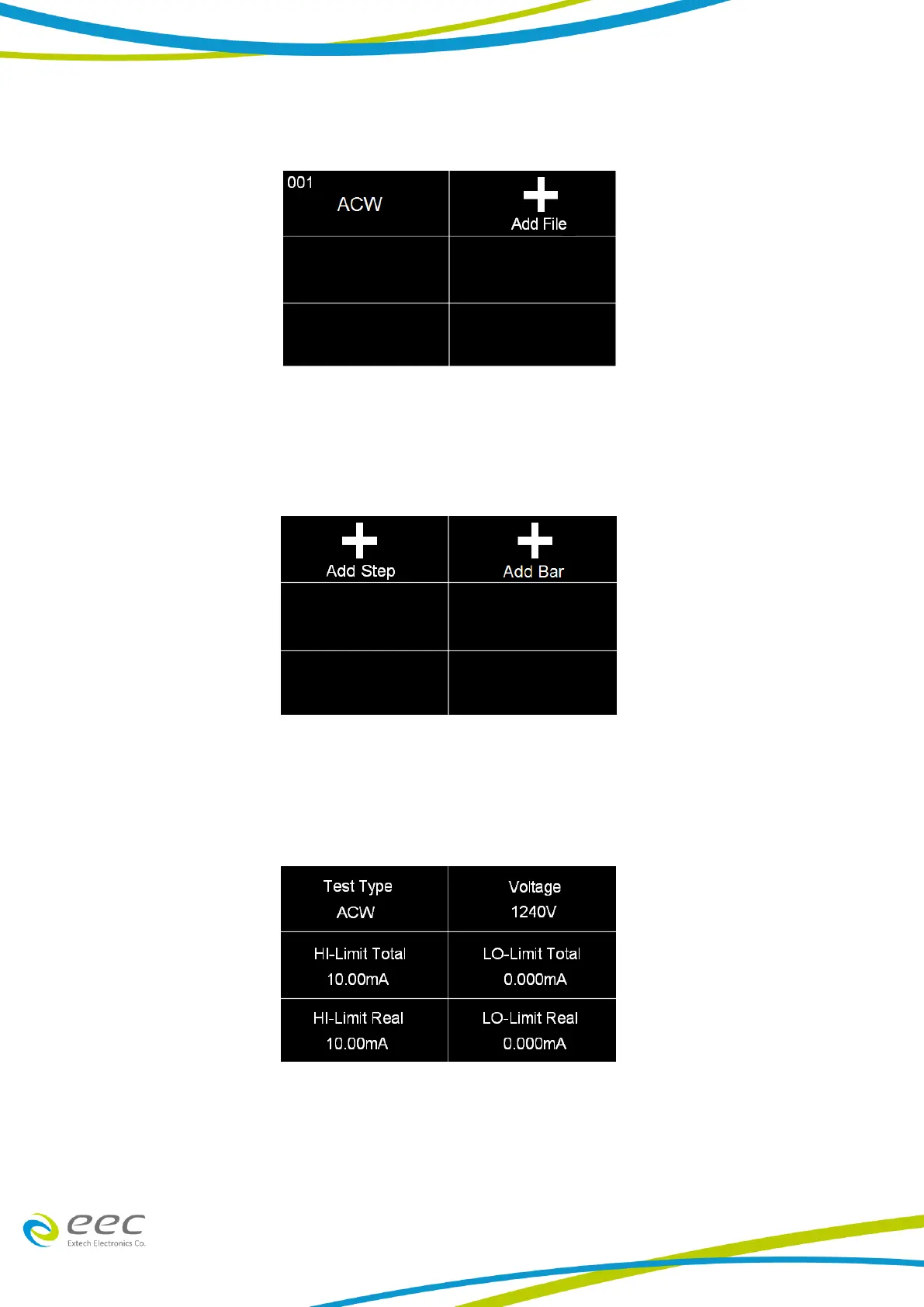
From the Main Menu select Setup Tests and the following screen will appear:
Touch the Add File icon and enter a name for the new file using the touchscreen keypad and use
the enter key (↵) to save the name and move to the next screen.
Next, add a test to the newly created test file:
Touch the Add Step icon to enter the test parameters screen. In this screen, the test type is
selected and all the relevant test parameters are programmed and saved:
Touch the add Bar icon to enter the barcode number. When you scan the barcode number the
same as this parameter that the instrument will recall the test file.
Touch Test Type icon and the following screen will appear:



 To Next Page