33
Chapter4UsingSmartFunction
Chapter 4 Using Smart Function
4-1. Using Smart Function “Smart Detection” “Smart
Resolution” “Smart Insight”
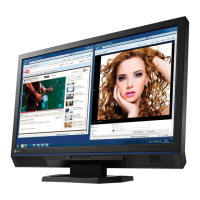
SmartDetection Thisfunctionallowsyoutoselecttheareaonthescreentowhichthe“Smart
Resolution”or“SmartInsight”settingisapplied(onlyanimatedimagesorwhole
screen).
SmartResolution Thisfunctionadjuststheperceivedresolutionoftheimagessothattheblursare
reducedandimagesaredisplayedvividlyandclearly.
Inaddition,youcancorrectthecolorofskinandtextaffectedbythe“Smart
Resolution”settings.
SkinToneEnhancer: Detectstheskintoneintheimage,andcorrectstheskin
tonetolooknatural.
TextEnhancer: Detectsthetextintheimage,andcorrectsthecoloringof
thetextandblurringaroundthetext.
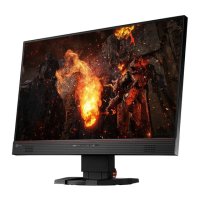
SmartInsight Thisfunctionanalyzestheimageandcorrectsthebrightnessforeachpixelto
makedarkareaofimagesvisible.
Itiseffectiveforimageswithdarkareathatarelessvisibleandforbright
environments.
Attention
• “Smart Insight” detects the displayed scenes and corrects the screen brightness
automatically. Therefore, the brightness may change slowly, for example, during
scene transitions.
The setup for these functions is performed in the “Smart Functions” menu.
Attention
• When “Eco” or “sRGB” is selected from the color mode, the “Smart Functions” menu is not displayed. (When you press
on the remote control, “This operation is not available on current status” is displayed.)
Note
• Set “Smart Resolution” or “Smart Insight” to “Off” to disable the function.





 To Next Page