20
Dual Screen Apps
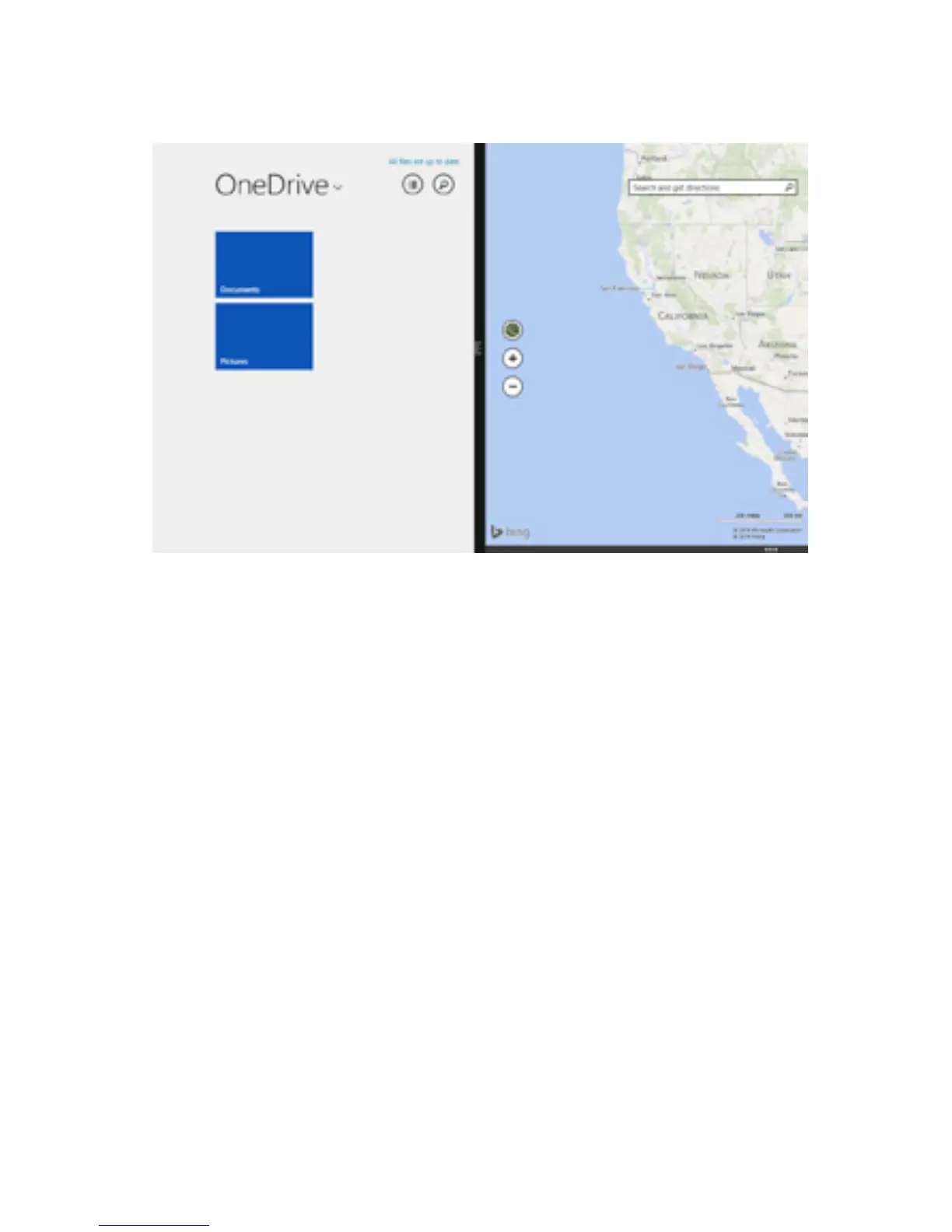
You can arrange and view two apps side-by-side.
1. Open the apps you want to use.
2. Open your recently used apps tab (swipe in from
left edge, then swipe out).
3. Choose the app you want and drag you see a black
vertical line divide the screen in half. Let the app go.
To change one of the apps, open a new app from the
Start screen or Apps view. The new app will appear
above the other two apps. Tap left or right to choose
where to place the app.
From the top edge, swipe and drag app down off the
screen.
Close Apps
App Commands
Swipe down from the top edge or or up from the bot-
tom edge of the screen to pull up the app commands.


 To Next Page