19
1. Ensure that the computer in use has an Ethernet
Controller port (RJ-45 Ethernet Port). For more
information,verifywithyourcomputer’susermanual.
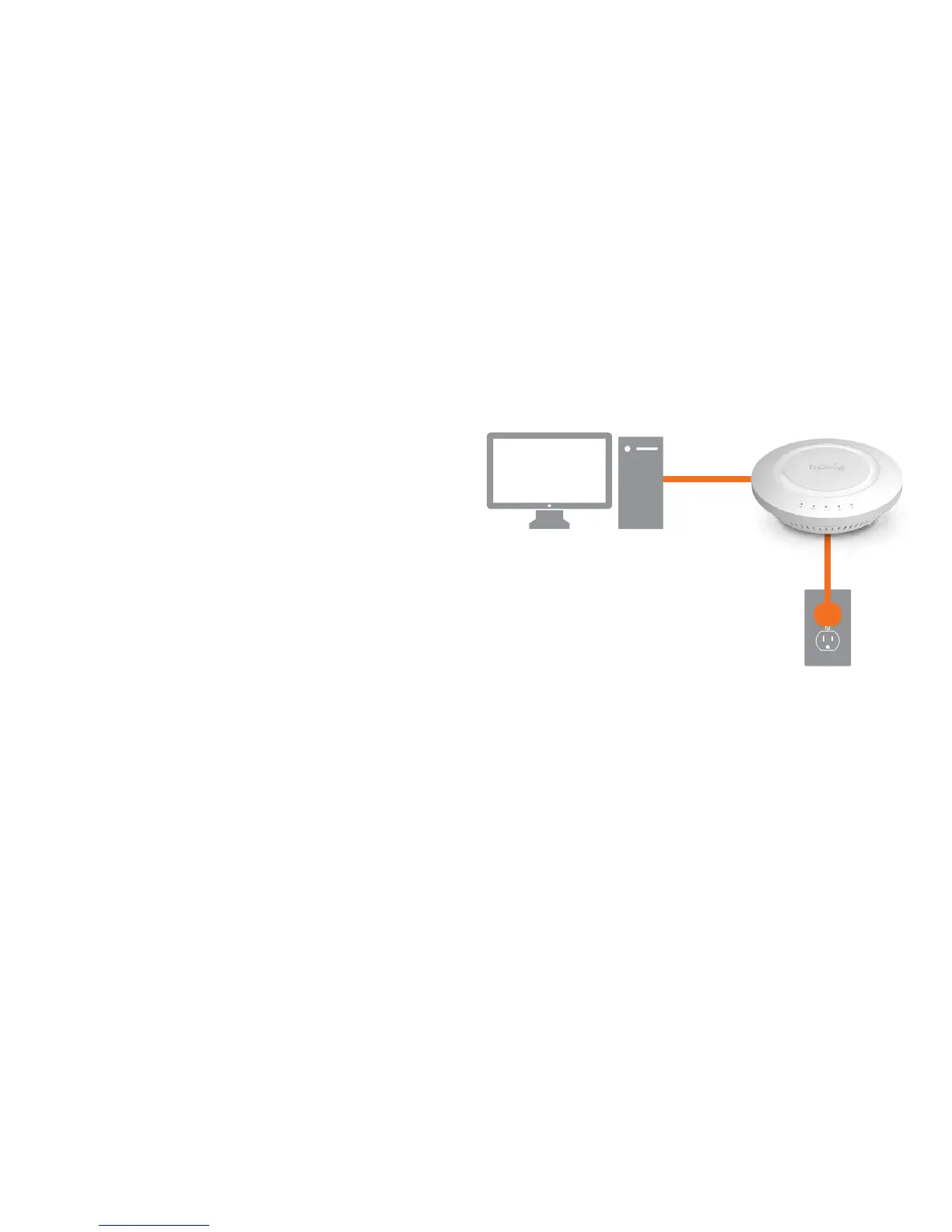
2. Connect one end of the Category 5e Ethernet cable into
theRJ-45portoftheEAP1750Handtheotherendto
theRJ-45portofthe computer.Ensurethatthecable
is securely connected to both the EAP1750H and the
computer.
3. Connect the Power Adapter DC connector to the DC-IN
port of the EAP1750H and the Power Adapter to an
available electrical outlet. Once both connections are
secure,verifythefollowing:
a)EnsurethatthePOWERlightison(itwillbeorange).
b)Ensurethatthe2.4GHz/5GHzWLANlightison(itwill
be bluefor2.4G,andgreenfor5G).
c) EnsuregthatgthehLANg(ComputergEAP1750HgConnection)
lightison(itwillbeblue).
d)Once all three lights are on, proceed to set up the
Access Point using the computer.
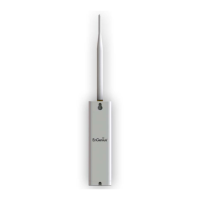
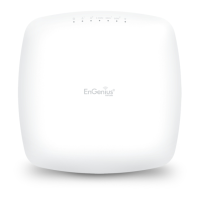
Thisdiagramdepictsthehardwareconguration.
Hardware Installation
Ethernet
PC
Power
Outlet
AC/DC
Cable



 To Next Page