14
2.4 Hardware Installation
1. Ensure that the computer in use has an Ethernet Controller (RJ-45 Ethernet Port). For more information, verify with your
computer’s user manual.
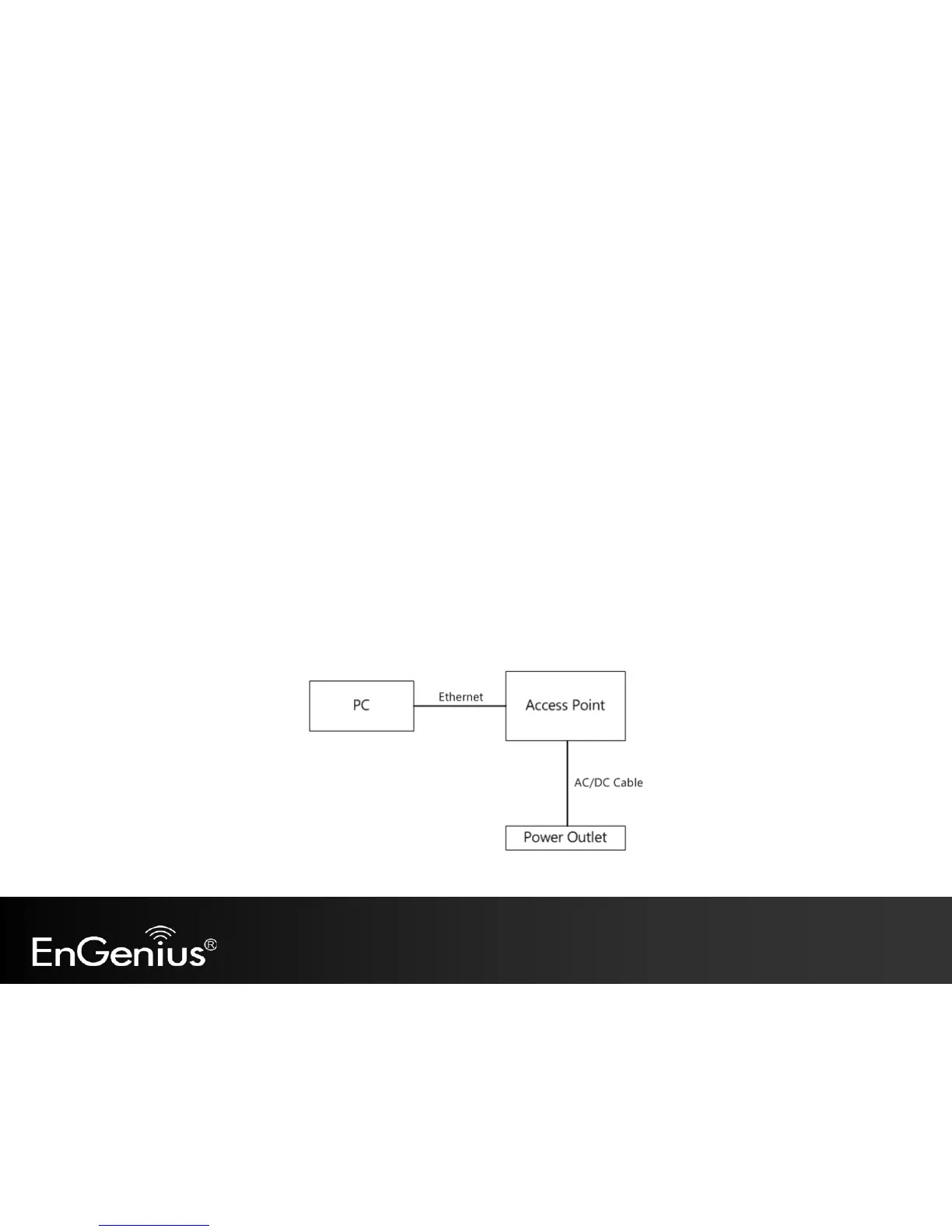
2. Connect one end of the Category 5e Ethernet cable into the RJ-45 port of the EAP600 and the other end to the RJ-45
port of the computer. Ensure that the cable is securely connected to both the EAP600 and the computer.
3. Connect the Power Adapter DC connector to the DC-IN port of the EAP600 and the Power Adapter to an available
electrical outlet. Once both connections are secure, verify the following:
a) Ensure that the POWER light is on (it will be orange).
b) Ensure that the 2.4GHz/5GHz WLAN light is on (it will be green for 5G, blue for 2.4G).
c) Ensure that the LAN (Computer/EAP600 Connection) light is on (it will be blue).
d) Once all three lights are on, proceed to set up the access point using the computer.
This diagram depicts the hardware configuration.


 To Next Page