11g Wireless Client Bridge/AP Version 1.36
13
4 Bridge Mode – Web Configuration
4.1 Logging In
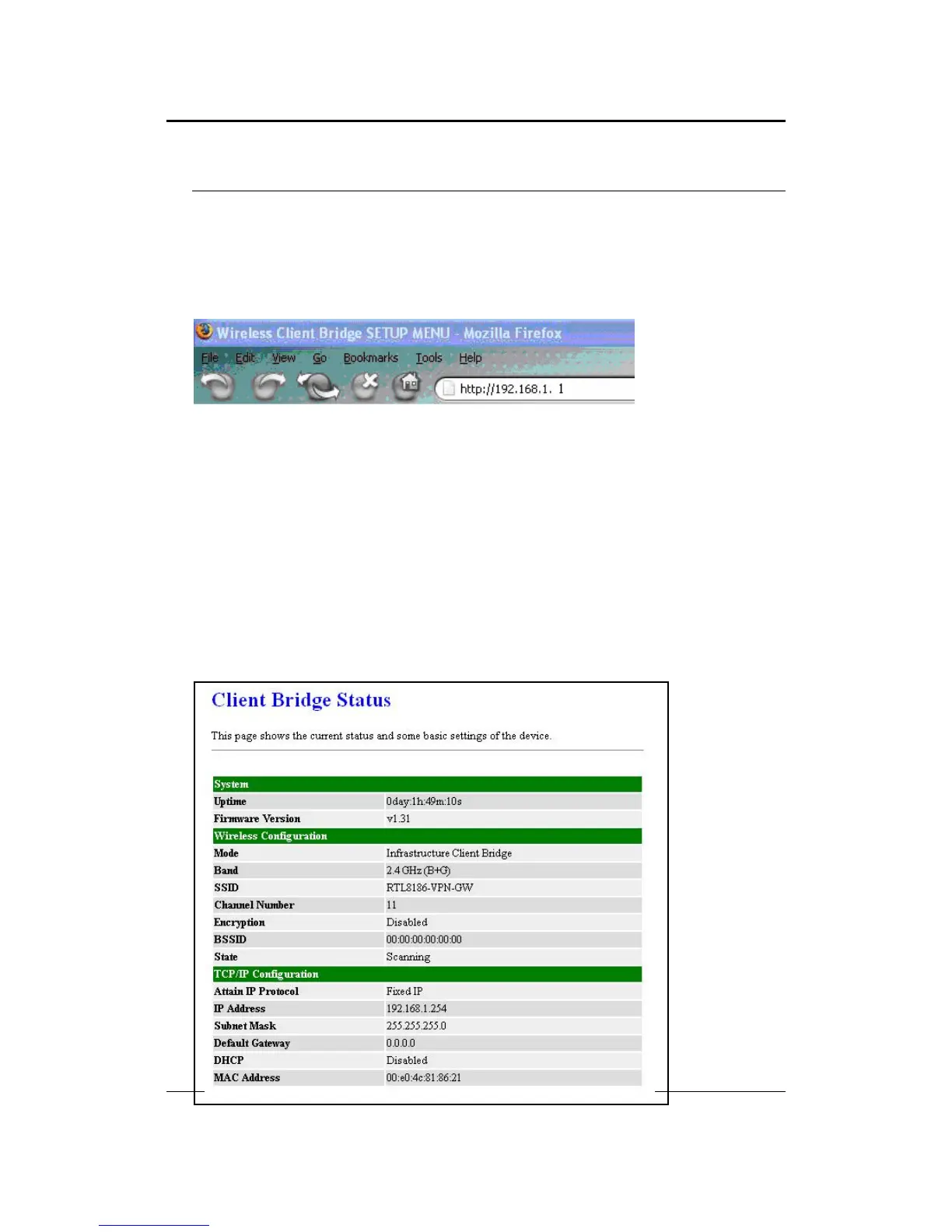
To configure the Bridge through the web-browser, enter the IP address of the Bridge
(default: 192.168.1.1) into the address bar of the web-browser and press Enter.
Make sure that the Bridge and your computers are on the same subnet. Refer to
Chapter 2 in order to configure the IP address of your computer.
Username:admin; Password:admin
After logging in you will graphical user interface (GUI) of the bridge. The navigation
drop-down menu on left is divided into three main sections:
1. Management: This includes operation mode, status, statistics, logs, upgrade
firmware, save/reload settings, and password.
2. TCP/IP Settings: This includes the configuration of the LAN port and settings for
the LAN IP, subnet mask, DHCP client, spanning tree and MAC cloning.
3.
Wireless: This includes the basic, advanced, security and site-survey settings for
the wireless interface.
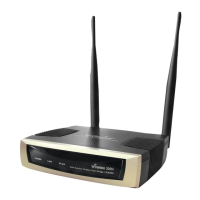
The Bridge status page is also displayed once you have logged in. This includes
details about the system, wireless, and TCP/IP configuration.


 To Next Page