38
WDS Bridge Configuration
Step 1 Login to the web-based configuration interface with default IP 192.168.1.1
Select your country or region’s regulation.
Step 3 Change Operation Mode to WDS Bridge under System Properties.
Set the device’s IP settings under System -> IP Settings
Step 5 Set the WLAN settings under Wireless Network.
Configure WDS Link Settings under Wireless.
Step 7 Specify the MAC address of the bridge(s) which you would like to connect with.
Press Apply under Save / Reload to process all of the configurations.
Step 9 Verify the device’s settings by browsing to Status -> Main. View the WDS link status.
* Each WDS bridge device must use the same Subnet, Wireless Mode, Wireless Channel, and
Security Setting.
* With the MAC secured based WDS bridge network, only WEP encryption is available
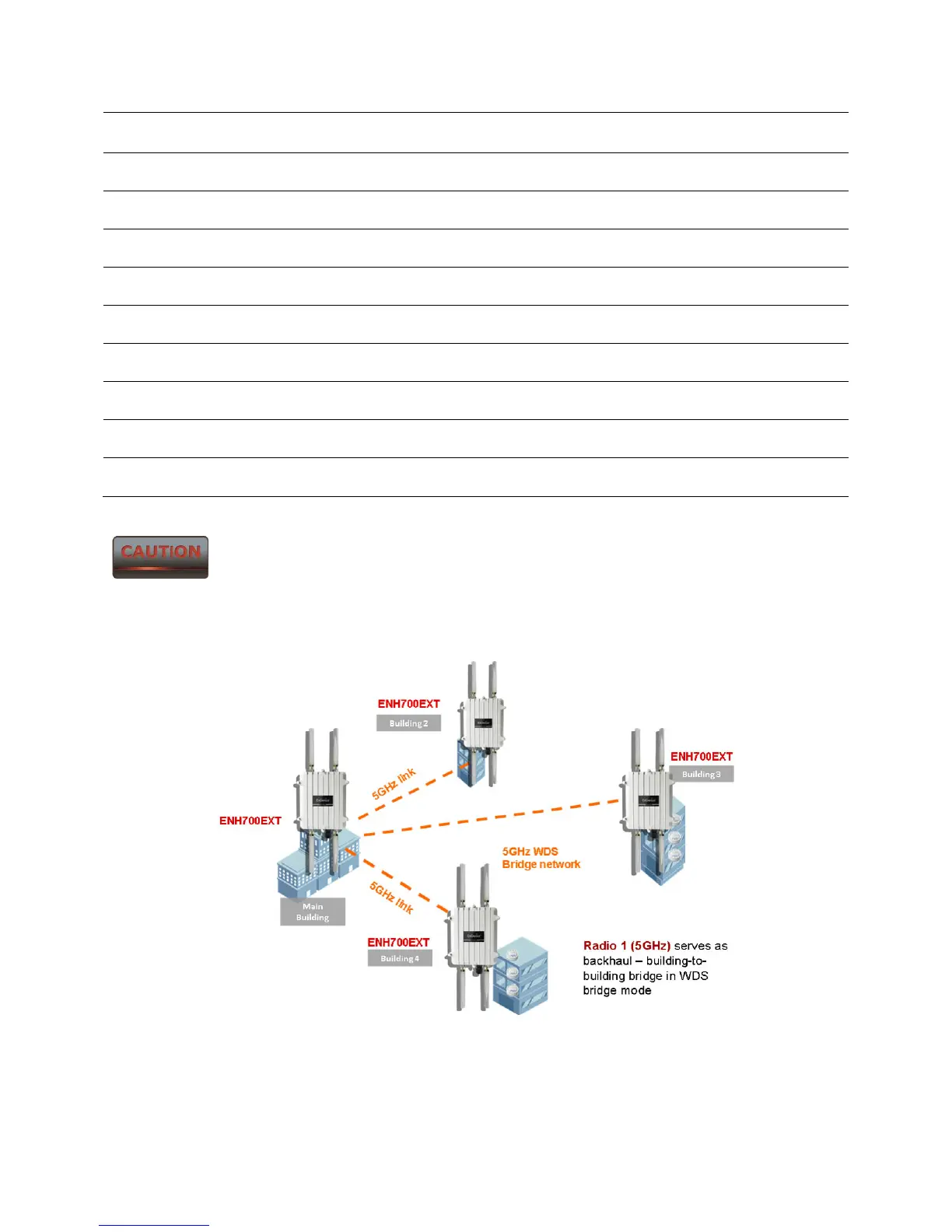
ENH700EXT multiple buildings bridged network (WDS)



 To Next Page