7
Connecting the LanDrive to Your Computer
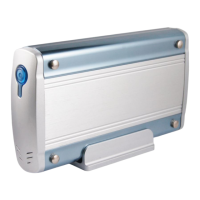
The LanDrive is a multifunctional hard drive enclosure. In addition to being a network
storage device, you can also use it as a standalone external hard drive.
Installing the drive on Mac OS X
Driver installation is not required for systems using Mac OS 10.1.2 or higher. Simply
connect the LanDrive using the included USB cable and access the data by clicking the
“Untitled” HDD icon on your Desktop.
Installing the drive on Windows ME/XP/Vista/7
Driver installation is not required for Windows ME or higher. Simply connect the LanDrive
using the included USB cable and access the data via “My Computer” on your Desktop.
Installing the drive on Windows 98
To utilize the drive via USB on Windows 98, you must install the drivers from the included
CD. Be sure to install the device drivers before connecting the drive to your computer. After
completing the driver installation, reboot your computer before connecting the LanDrive.
Note: You can also access the data in the LanDrive by connecting it to
your computer via Ethernet. The LanDrive will have a default IP of
169.254.0.1 when connected directly.
Connecting the drive to your Network
Plug the LanDrive into a wall outlet or power strip. Connect one end of the network cable to
the LAN port on the back of the LanDrive and the other end to a port on your hub, switch,
or router.
Note: The Ethernet port on the LanDrive is Auto-MDI/MDIX, which
means you can connect it using either patch or crossover cable.


 To Next Page