VUDU Movies
VUDU Movies
4746
— R: Movies rated R or lower and all TV shows will be displayed.
— FAM: Movies rated PG-13 or lower, “Unrated” movies with a
“family friendly” designation, and TV shows rated TV-14 or lower will be
displayed.
— PG-13: Movies rated PG-13 or lower and TV shows rated TV-14 or lower
will be displayed.
— PG: Movies rated PG-13 or lower and TV shows rated TV-PG or lower will
be displayed.
— G: Movies rated G and TV shows rated TV-G and TV V-Y7 will be
displayed.
Setting or Changing Passcode: In order to modify parental controls, you
must select a four (4) digit passcode. Once a passcode has been established,
you will be required to enter the passcode in order to make any changes on
the parental controls screen. You may change the passcode anytime using
the “Change Passcode” option at the bottom of the screen.
NOTE: Once a passcode has been established, the only way to recover or reset the
passcode is by contacting VUDU Customer Care at 1-888-554-VUDU (8838).
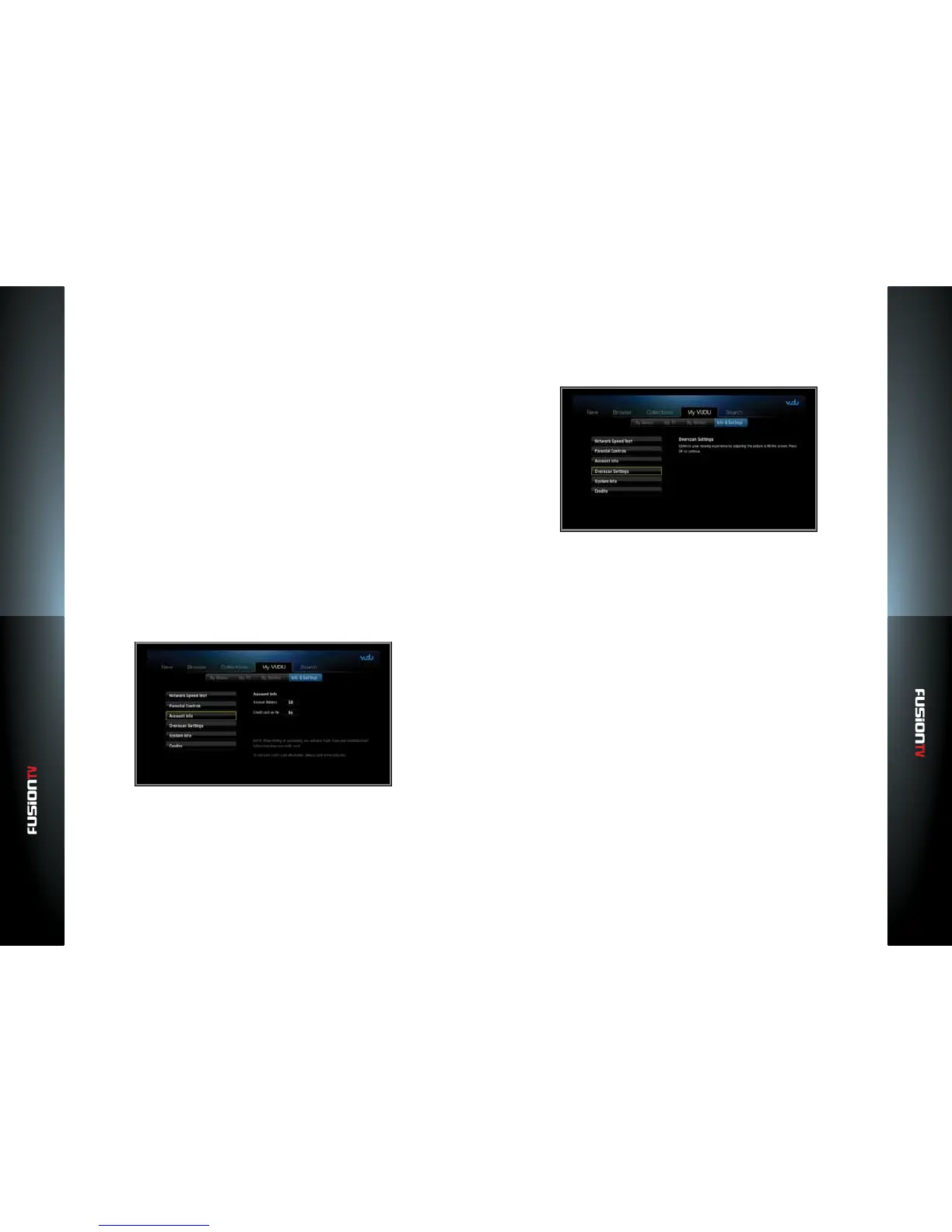
Account Info
This screen displays your account balance and credit card info associated with
your VUDU account.
Overscan Settings
This setting allows you to ensure you are using the optimal amount of your
HDTV screen for watching movies on VUDU. You will only need to use this if you
experience image cropping when watching movies on VUDU. Please follow the
on-screen instructions on how to adjust the picture size.
Perform the following to adjust the picture size:
1. Navigate to the VUDU icon on the Main Menu or press the BLUE button on
your Entone remote control to launch VUDU.
2. The VUDU Apps Main Menu appears. Navigate to the left menu and select
“INFO & SETTINGS”.
3. Press OK to enter the “Overscan Settings”.
To get the maximum viewing area for your TV, move the arrows until the
tips are positioned at the edge of the screen.
4. To move the arrows, press OK to enter into the Left, Right, Bottom, or Top
direction.
5. Use the ARROW KEYS on the remote to pull the arrows closer or push them
out to the edge of the screen.
6. Once you have the arrows at the edge of the viewable screen, press OK
again to exit that direction.
7. Repeat steps 4, 5, and 6, if needed for the other directions.
8. Select “Back to Settings” or press the BACK button to return to the “Info &
Settings“ menu.
9. Select “Back to Home” or press the BACK button to return to the VUDU
Apps menu.


 To Next Page