Setup Wizard
7
Setup Wizard
6
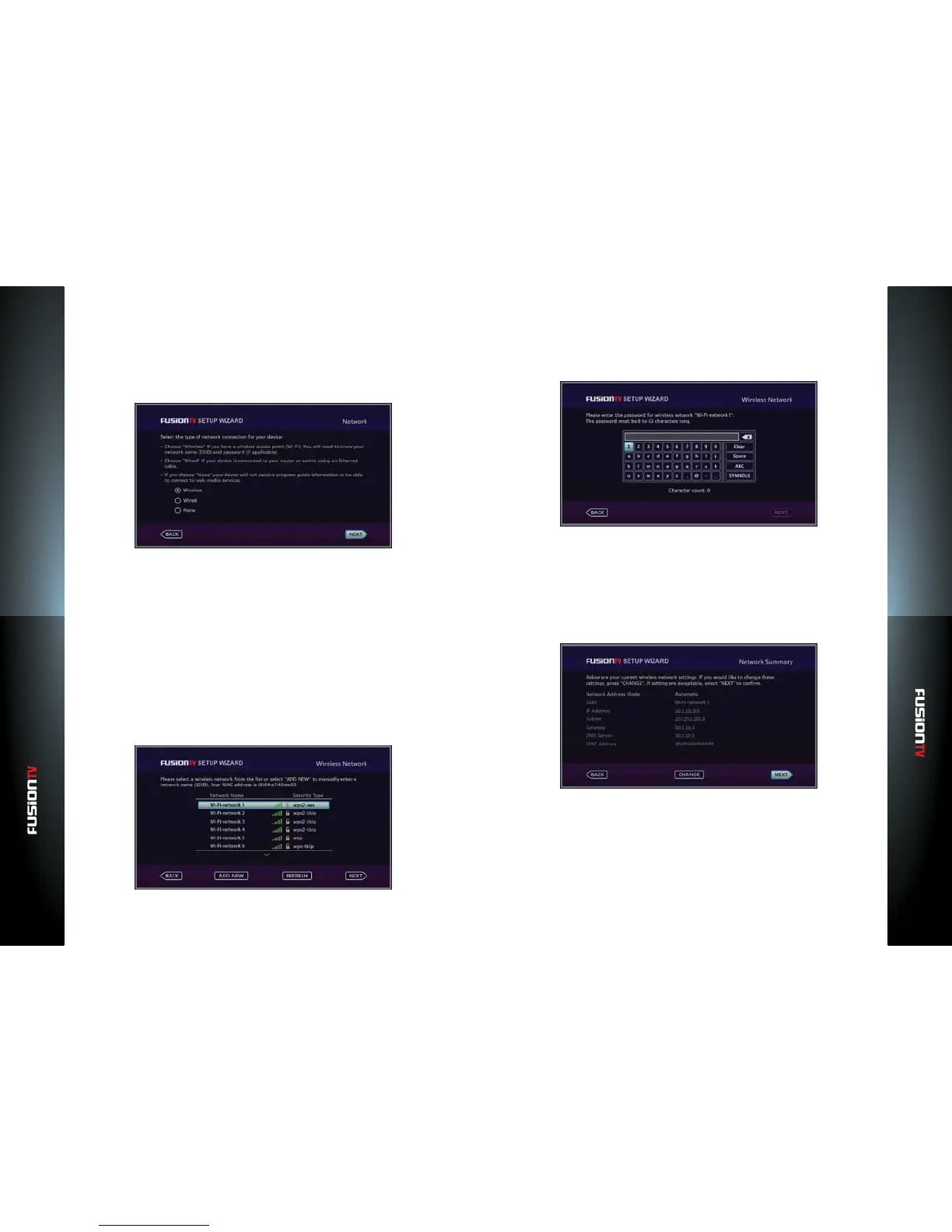
Step 3 of 4: Selecting your Network
If you plan to connect FusionTV to the internet, this step will help you select the
correct network connection. The choices are “Wired” (Ethernet) and “Wireless”
(Wi-Fi). Setting up a network connection is required to use the Program
Guide and broadband-based services such as VUDU and various Web media
applications on your device.
Connect to a Wireless Network (Wi-Fi)
If you’re setting up a wireless connection, make sure you have the following
information handy:
Wireless network name (also known as the SSID).
Network password or passphrase (if your network is secured).
Security method (supported types are: WEP, WPA, and WPA2).
NOTE: WPA-TKIP is not supported when connecting to a 802.11n router or wireless access point.
1. While the “Wireless” button is chosen, press OK. A list of available wireless
networks (SSID) will display.
2. Choose your wireless network by using the ARROW KEYS and press OK.
3. Press OK to continue to the next step.
4. Enter the network password (if required) using the remote control and the
on-screen keyboard.
NOTE: Minimum of 8 characters is required for a secured wireless network connection.
5. Use the ARROW KEYS to select “NEXT” and press OK to continue to the
next screen.
6. A summary of your Wireless Settings will display. Select “NEXT” to continue
with the setup wizard process. If FusionTV is unsuccessful in connecting to
your Wireless Network, you will be presented with an error screen and be
requested to re-select the correct Wireless Network and enter the password
if applicable.
To setup the wireless network manually, perform the following:
1. When you arrive to the Network page, select the “Wireless” button, press
OK. When the “NEXT“ is highlighted, press OK.
2. Use the ARROW KEYS to select “ADD NEW” and press OK.
3. Enter Wireless Network Name (SSID) using the remote control and the
on-screen keyboard, then press OK.


 To Next Page