Setup Wizard
8 9
Setup Wizard
4. Use the ARROW KEYS to select “NEXT” and then press OK.
5. Select the type of security used by the wireless network, press OK then
select “NEXT” and press OK.
6. Enter the network password using the remote control and the on-screen
keyboard, then select “NEXT” and press OK.
7. The device will try to connect to the wireless network.
8. If successful, you will see a Wireless Network Summary screen.
9. Press OK to proceed to the next step.
10. If your changes cause the network connection to drop, return to the
previous networking conguration. See the SETTINGS chapter (page 73)
for more information on this feature.
Connecting to Wired Networks (Ethernet)
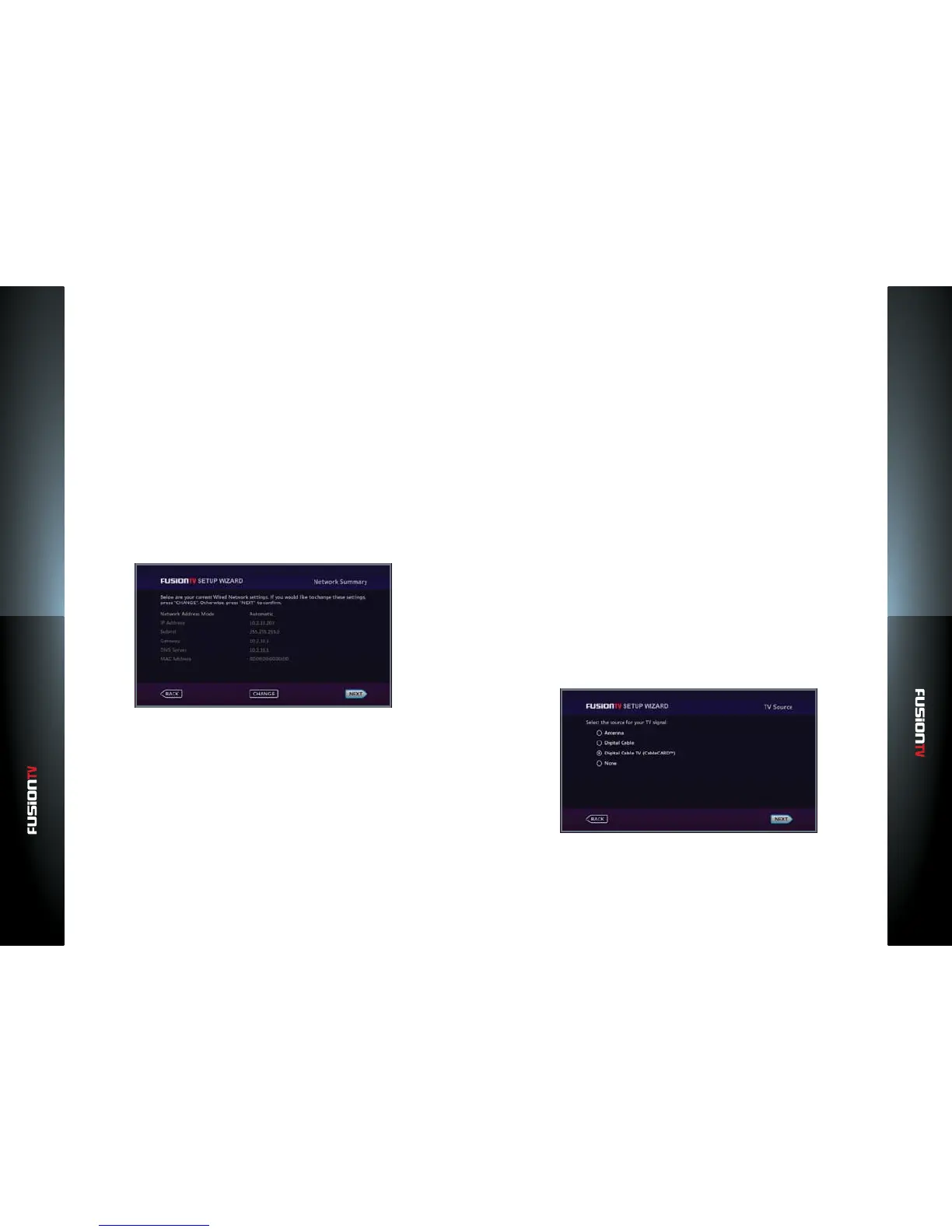
1. If your network connection type uses an Ethernet cable, choose “Wired”.
The Wired Network Summary screen will display the network summary for
your device. The device will automatically acquire your network information
from your router or modem.
NOTE: If your router is DHCP enabled, then you will see Network Address Mode to be Automatic.
2. Press OK to continue.
To setup the wired network manually or make changes, perform the
following:
1. Use the ARROW KEYS to select “CHANGE” and press OK.
2. Select “Manual” and press OK.
3. Use the ARROW KEYS and press OK to select a category.
4. Use the NUMBER KEYS to enter new values and press OK to lock in new
values.
5. Repeat steps 3 and 4 to change other category values. Select “SAVE”, and
press OK to continue.
6. Use the ARROW KEYS to select “NEXT” and press OK to proceed to the
next step.
Step 4 of 4: Selecting your TV Source
FusionTV works with your Entone device which has built-in dual or quad TV
tuners that support Antenna (ATSC) and Digital Cable TV via ClearQAM or
CableCARD connections.
NOTE: Digital Cable TV (Clear QAM) is basic unencrypted cable that may be provided by your
local cable company or other providers of video services within your community.
CableCARD is a PCMCIA card that allows access to premium digital cable
programming. CableCARDs are available from your local cable service provider.
Only select “None“ if you do not intend to use the device to watch or record
HDTV from an Antenna, Clear QAM, or CableCARD cable source. If you select
“None“, your device will only have access to VUDU and Personal Media Content.
For Antenna or Digital Cable TV (Clear QAM) Connections
1. Select “Antenna” or “Digital Cable” and Press OK.
2. Press OK to continue.


 To Next Page