22
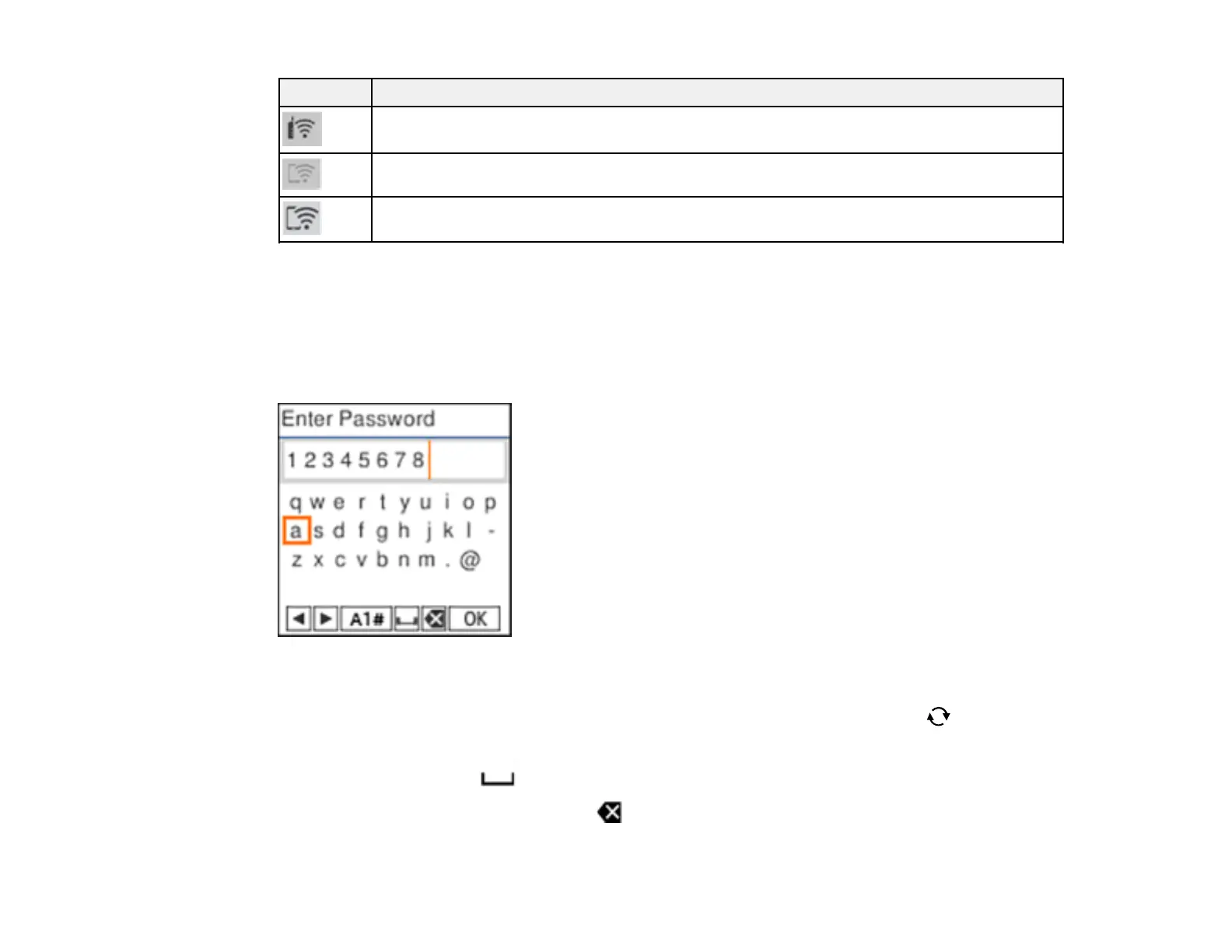
Icons Description
The product is connected to a wireless network; the number of bars indicates the
connection's signal strength
Wi-Fi Direct (Simple AP) is disabled
Wi-Fi Direct (Simple AP) is enabled
Parent topic: Using the Control Panel
Entering Characters on the LCD Screen
Follow these guidelines to enter characters for passwords and other settings. Use the arrow buttons on
the control panel to navigate the on-screen keyboard, and press the OK button to select the desired
character.
• To move the cursor, select the left or right arrows.
• To change the character case or enter numbers or symbols, select A1# or press the reset button
on the control panel.
• To enter a space, select .
• To delete the previous character, select .
• Select OK, then press the OK button when you are finished entering characters.



 To Next Page