27
Changing the Power Off Timer Setting from the Control Panel
You can use the product's control panel to change the time period before the printer turns off
automatically.
1. Press the home button, if necessary.
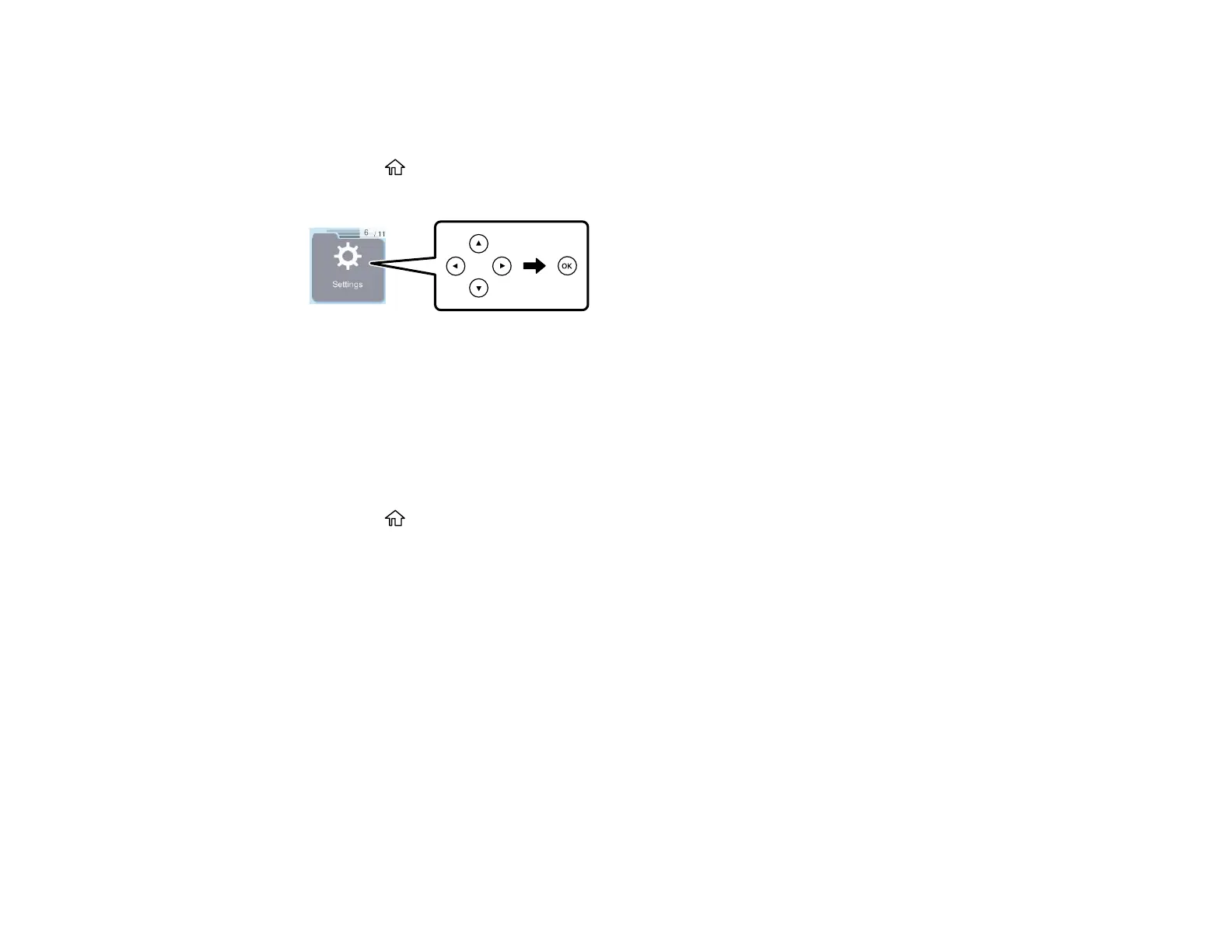
2. Press the arrow buttons to select Settings, then press the OK button.
3. Press the arrow buttons to select Printer Setup and press the OK button.
4. Press the arrow buttons to select Power Off Timer and press the OK button.
5. Select the length of time after which you want the product to automatically turn off when it is not in
use. Then press the OK button.
Note: Increasing the time will affect the product ’s energy efficiency.
6. Press the home button to exit.
Parent topic: Using Power Saving Settings
Using the Epson Smart Panel Mobile App
Use this free Apple and Android app to set up and control your Epson product. Epson Smart Panel also
lets you check product status.
Note: App features may vary depending on your Epson product.
1. Visit epson.com/connect (U.S.) or epson.ca/connect (Canada) to learn more about Epson Smart
Panel and check the compatibility of your mobile device.
2. Download Epson Smart Panel from the Apple App Store or Google Play.
3. Do one of the following:
• If your Epson product is already connected to a wireless network, connect your mobile device to
the same network. Then open Epson Smart Panel and select your Epson product, if necessary.



 To Next Page