71
Copying
See the information here to copy documents or photos using your product.
Note: Copies may not be exactly the same size as your originals.
Copying Documents or Photos
Copying Options
Copying Documents or Photos
You can copy color or black-and-white documents or photos onto various sizes and types of paper,
including Epson special papers.
1. Place your original document or photo on the scanner glass.
2. Load the paper you want to print on.
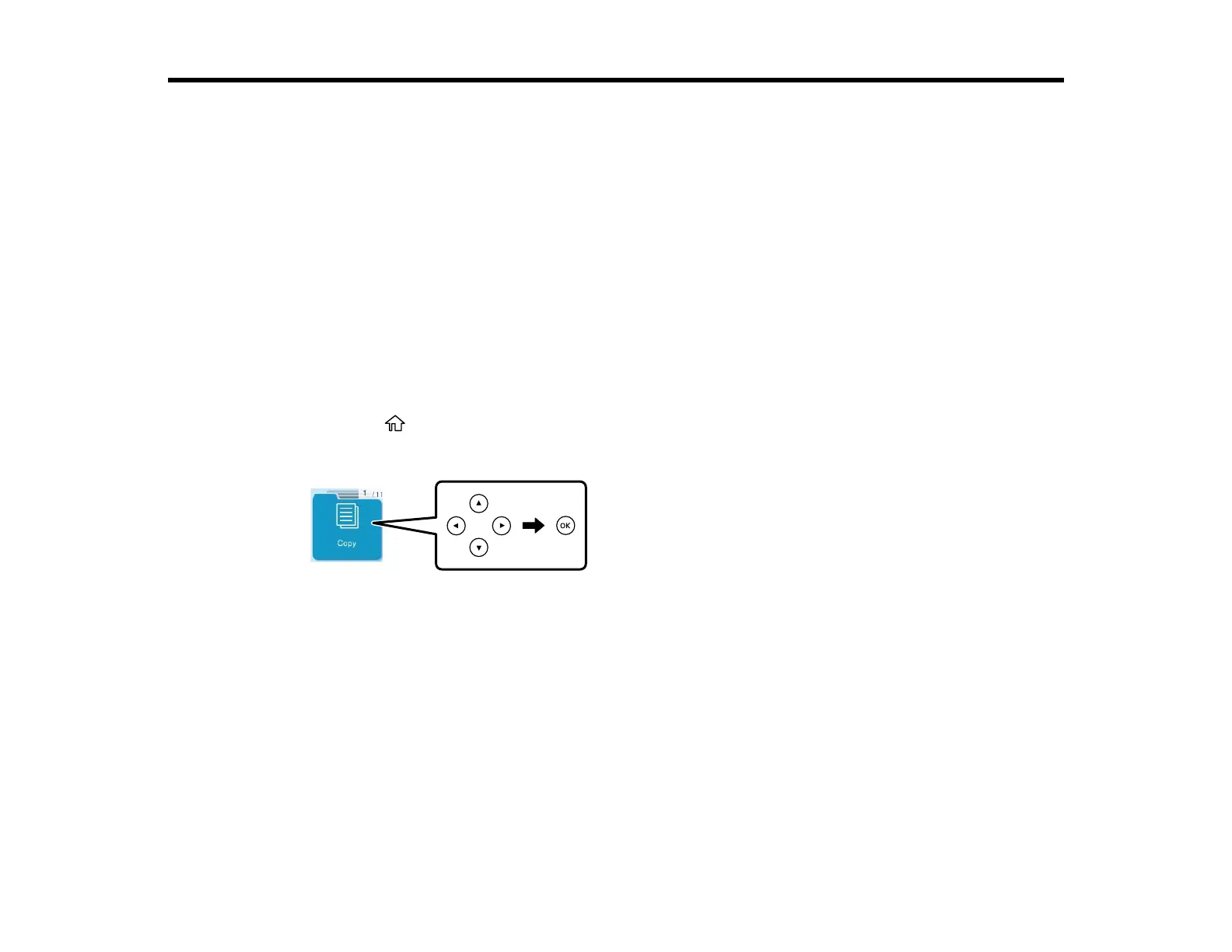
3. Press the home button, if necessary.
4. Press the arrow buttons to select Copy, then press the OK button.
5. Press the left or right arrow button to select one of the following:
• Color: for color copies
• B&W: for black-and-white copies
6. To print more than one copy, press the number buttons on the numeric keypad to enter the number
(up to 99).
7. Press the OK button to view the print settings for the copies.
8. Press the down arrow button to view the individual settings.
9. To change the print settings, use the arrow buttons to select and adjust the necessary settings.
When you are finished, press the OK button.



 To Next Page