23
Parent topic: Using the Control Panel
Viewing Animations
You can view animations on the LCD screen to help guide you through a procedure or troubleshoot a
problem.
1. Press the help button.
2. Select Troubleshooting if you experience a problem or How To to view instructions on common
procedures.
3. Select a topic from the list of available topics and follow the on-screen instructions.
Parent topic: Using the Control Panel
Changing LCD Screen Language
You can change the language used on the LCD screen.
1. Press the home button, if necessary.
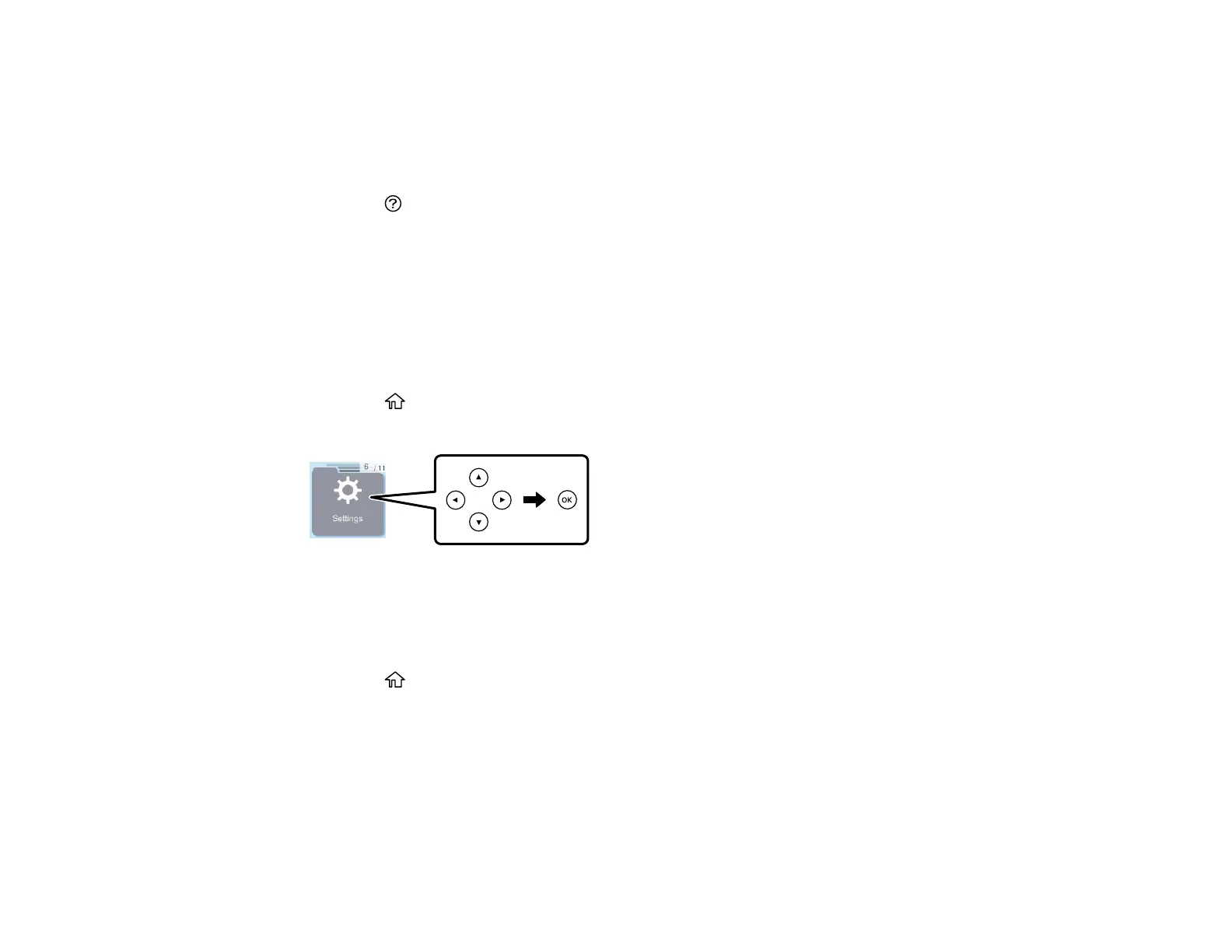
2. Press the arrow buttons to select Settings, then press the OK button.
3. Press the arrow buttons to select Printer Setup and press the OK button.
4. Press the arrow buttons to select Language and press the OK button.
5. Select a language and press the OK button.
6. Press the home button to exit.
Parent topic: Using the Control Panel
Selecting Your Country or Region
Before using your product, select the country or region in which you are using your product.
Note: If you change the country or region, your fax settings return to their defaults and you must select
them again.



 To Next Page