24
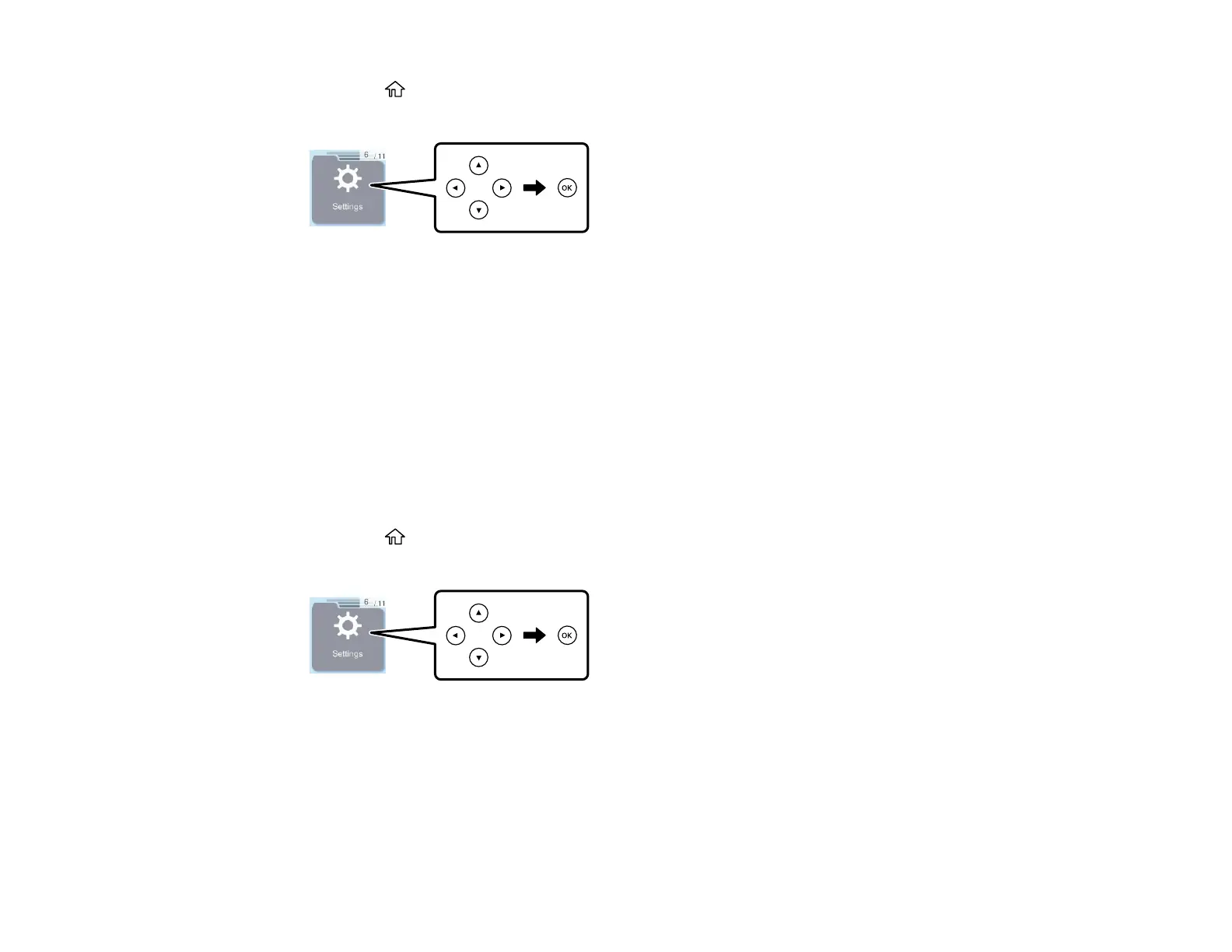
1. Press the home button, if necessary.
2. Press the arrow buttons to select Settings, then press the OK button.
3. Press the arrow buttons to select Printer Setup and press the OK button.
4. Select Country/Region and press the OK button.
5. Scroll up or down, if necessary, and select your country or region.
You see a confirmation screen.
6. If the setting is correct, select Yes. (If not, select No and retry.)
Parent topic: Using the Control Panel
Selecting the Date and Time
Select the current date, time, and daylight saving phase in your area, and choose your preferred date
and time format.
1. Press the home button, if necessary.
2. Press the arrow buttons to select Settings, then press the OK button.
3. Press the arrow buttons to select Printer Setup and press the OK button.
4. Press the arrow buttons to select Date/Time Settings and press the OK button.
5. Select Daylight Saving Time and press the OK button.
6. Select the setting that applies to your area and press the OK button:
• Winter: it is winter or your region does not use Daylight Saving Time (DST)



 To Next Page