52
Note: Before disabling Wi-Fi features, make a note of your product's SSID (network name) and
password, and any network settings selected for the Epson Connect services you may use.
1. Press the home button, if necessary.
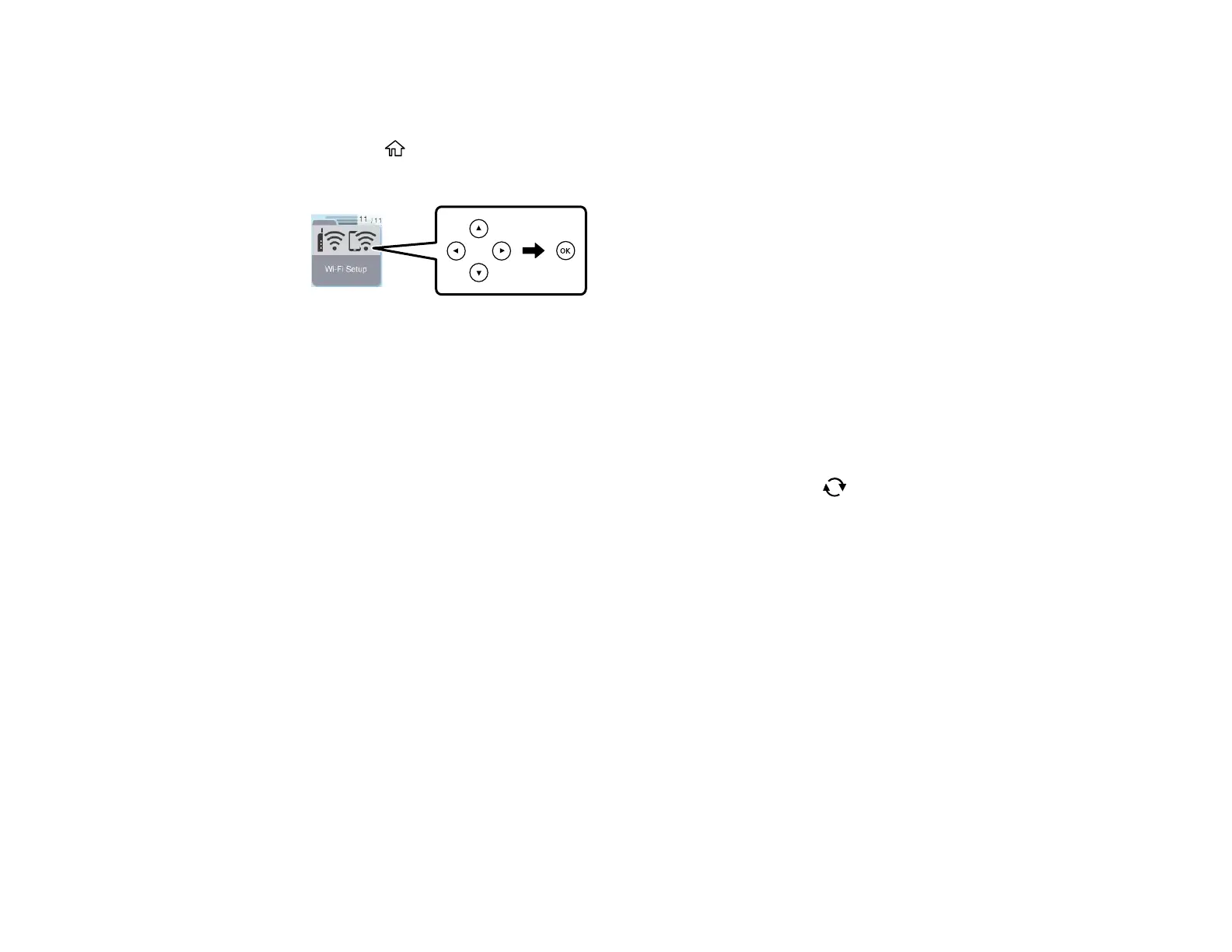
2. Press the arrow buttons to select Wi-Fi Setup, then press the OK button.
3. Press the arrow buttons to select either Wi-Fi (Recommended) or Wi-Fi Direct and press the OK
button.
4. Do one of the following:
• If you selected Wi-Fi (Recommended), press the OK button, press the arrow buttons to select
Others, and press the OK button again. Press the arrow buttons to select Disable Wi-Fi and
press the OK button.
• If you selected Wi-Fi Direct, press the OK button twice. Press the reset button to display the
setting screen, press the arrow buttons to select Disable Wi-Fi Direct, and press the OK button
again.
Note: When the Wi-Fi Direct (Simple AP) connection is disabled, all computers and smart devices
connected to the product in Wi-Fi Direct (Simple AP) mode are disconnected. If you want to
disconnect a specific device, disconnect from the device instead of the product.
5. Press the OK button to disable your product's Wi-Fi features.
Parent topic: Changing or Updating Network Connections
Related references
Status Icon Information



 To Next Page