56
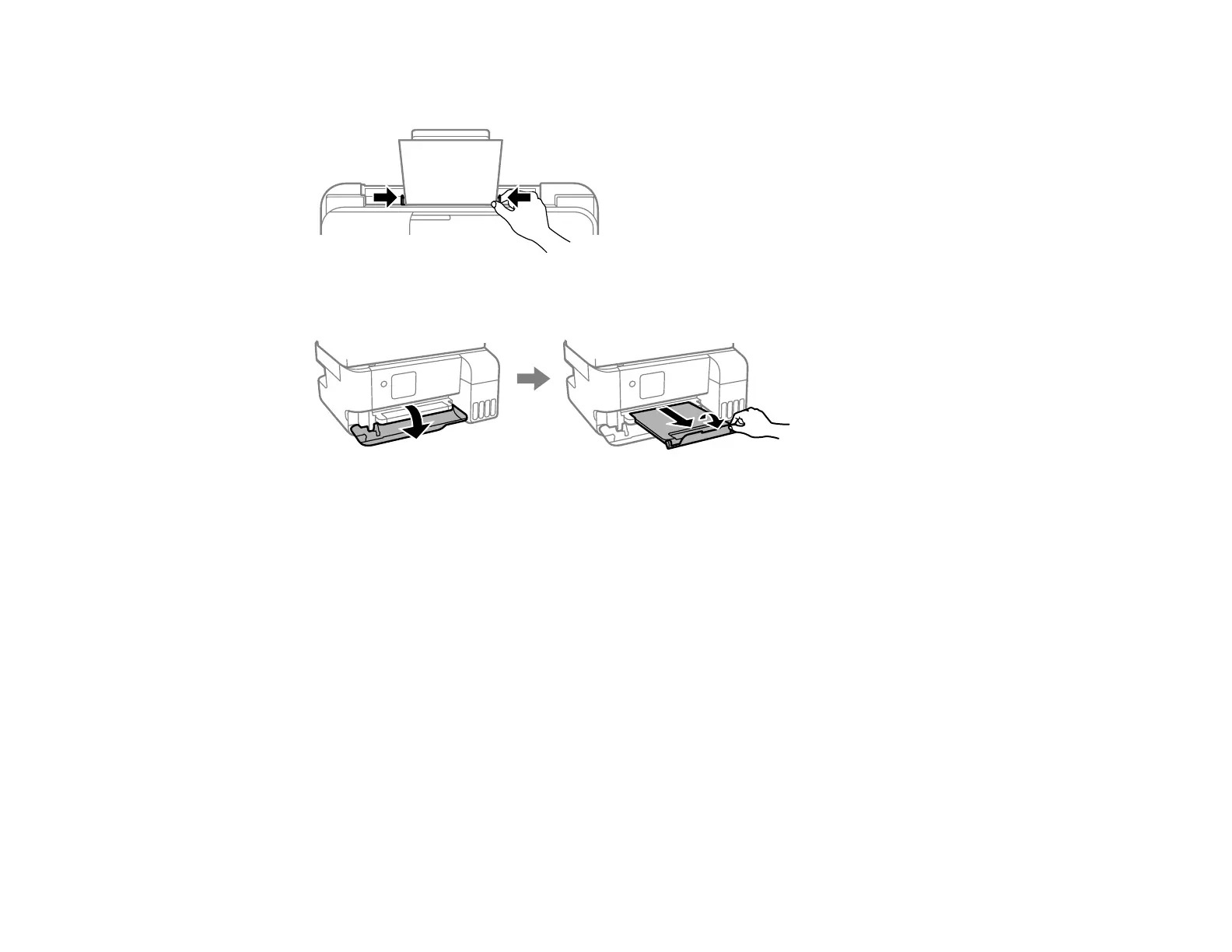
5. Slide the edge guides against the paper, but not too tightly.
6. Open the front cover, then pull out the output tray and open the paper stopper.
7. If prompted by the product's LCD screen, select one of the following:
• If the displayed paper settings match the loaded paper, select Confirm and press the OK button.
• If the displayed paper settings differ from the loaded paper, select Change, select the size and
type of the paper you loaded, and press the OK button.
Note: If you do not want to display the paper settings screen automatically when you load paper,
select Settings > Printer Setup > Paper Source Settings > Paper Setup Auto Display > Off. If
you disable this setting, you cannot use AirPrint.
Always follow these paper loading guidelines:
• Load only the recommended number of sheets.
• Load paper short edge first. You can load paper long edge first only if you have selected the User-
Defined paper size setting and set the width of the paper as the size of the long edge.
• Load letterhead or pre-printed paper top edge first.
• Do not load paper above the arrow mark inside the edge guides.








 To Next Page