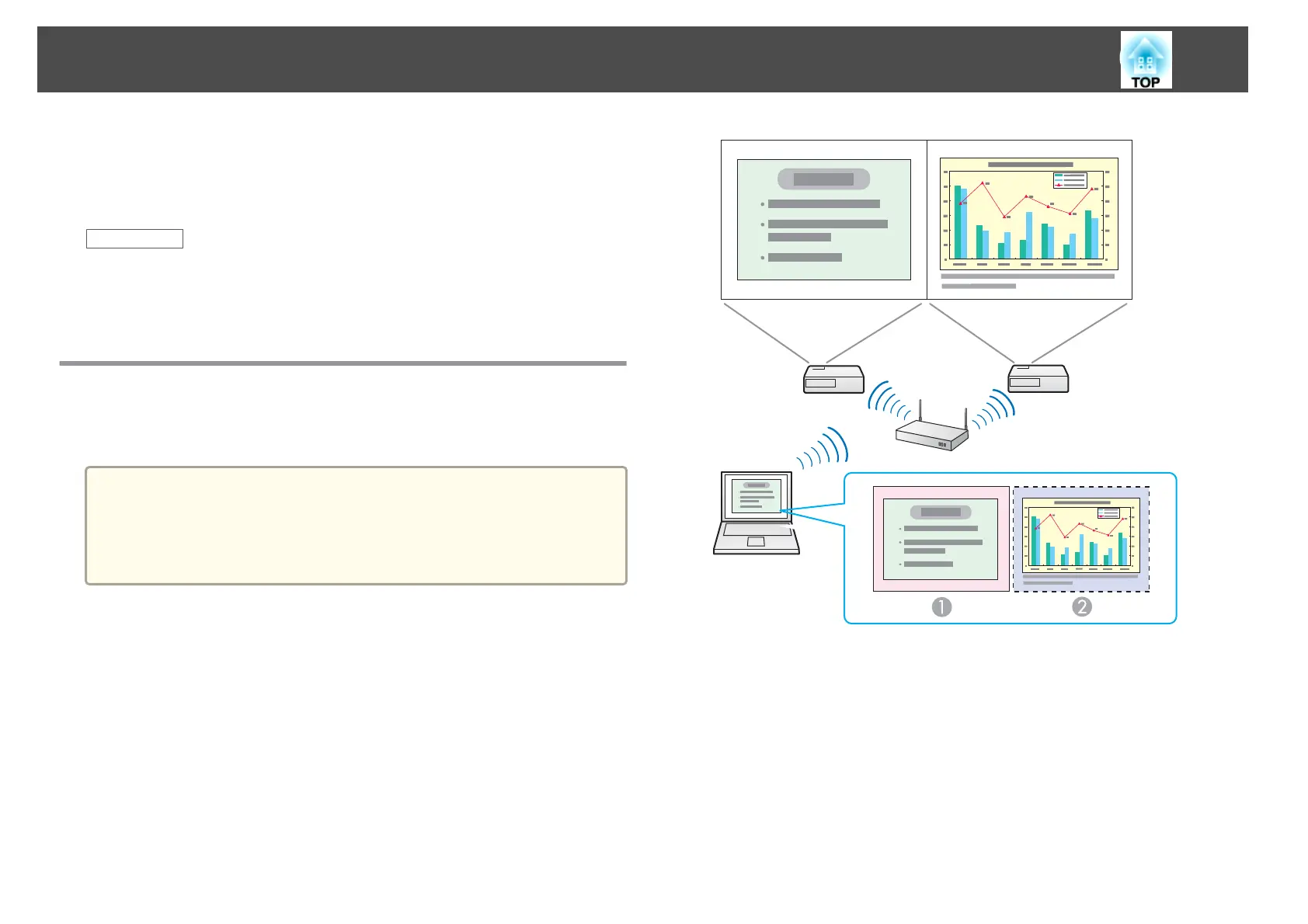
By using the multi-screen display function, you can project different images
from up to four projectors that are connected to one computer. This allows
you to project complex data, such as a business report, in an extra-wide
landscape format.
Related Links
• "Using Additional Functions" p.34
• "Multi-Screen Display Examples" p.40
• "Setting Up Multi-Screen Display" p.41
Multi-Screen Display Examples
By using the multi-screen display function, you can project images in the
following display arrangements.
a
• For Windows, you can set virtual display drivers and project each
image from the projector. Virtual display drivers are not available for
Windows Vista, Windows 7, and Windows 8.
• For Mac OS X, you must connect an external monitor to the
computer to use the multi-screen display function.
If you want to project two different images from your computer to two
projectors, you can assign the additional display as shown below.
A
Actual monitor image: PowerPoint file
B
Additional display image: Excel file
If you want to access two different images or views on your computer but
project only one image to the projector, you can assign the additional
display as shown below.
Projecting Images Using the Multi-Screen Display Function
40






 To Next Page