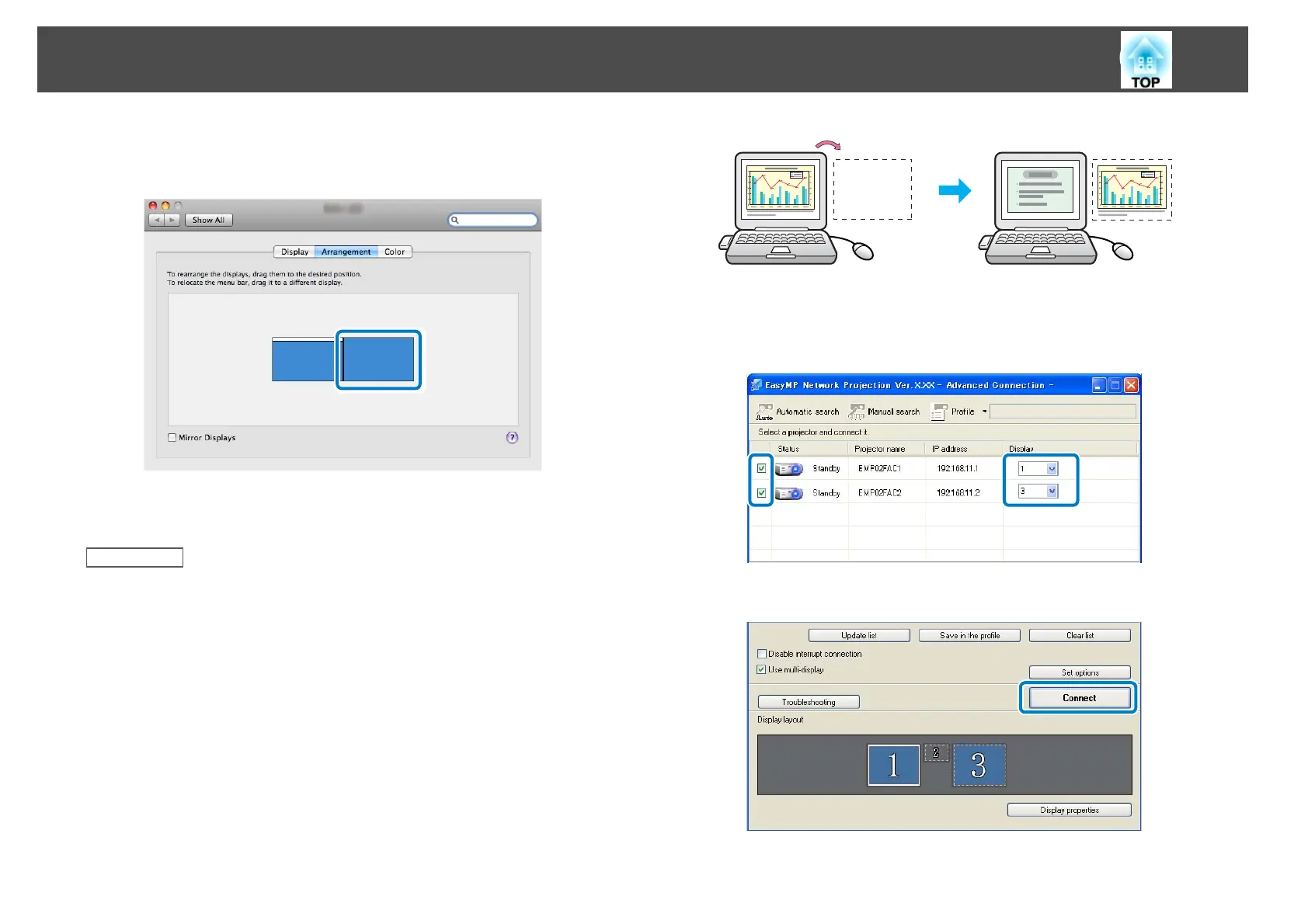
i
Drag the displayed monitor icon and place it where you want the
additional image to appear.
j
Close the Display setting screen.
Related Links
• "Setting Up Multi-Screen Display" p.41
Projecting Images to the Arranged Multi-Screen Display
After setting up multi-screen display, you can assign the images you want
to project to each screen.
a
Open the file you want to project.
b
Drag the window to the desired display, and assign where the
image is to be projected.
c
Select the projector and the number you want to assign from
Display to set which image you want to project from which
projector.
d
Click Connect.
The image assigned to each projector is projected.
Projecting Images Using the Multi-Screen Display Function
47






 To Next Page