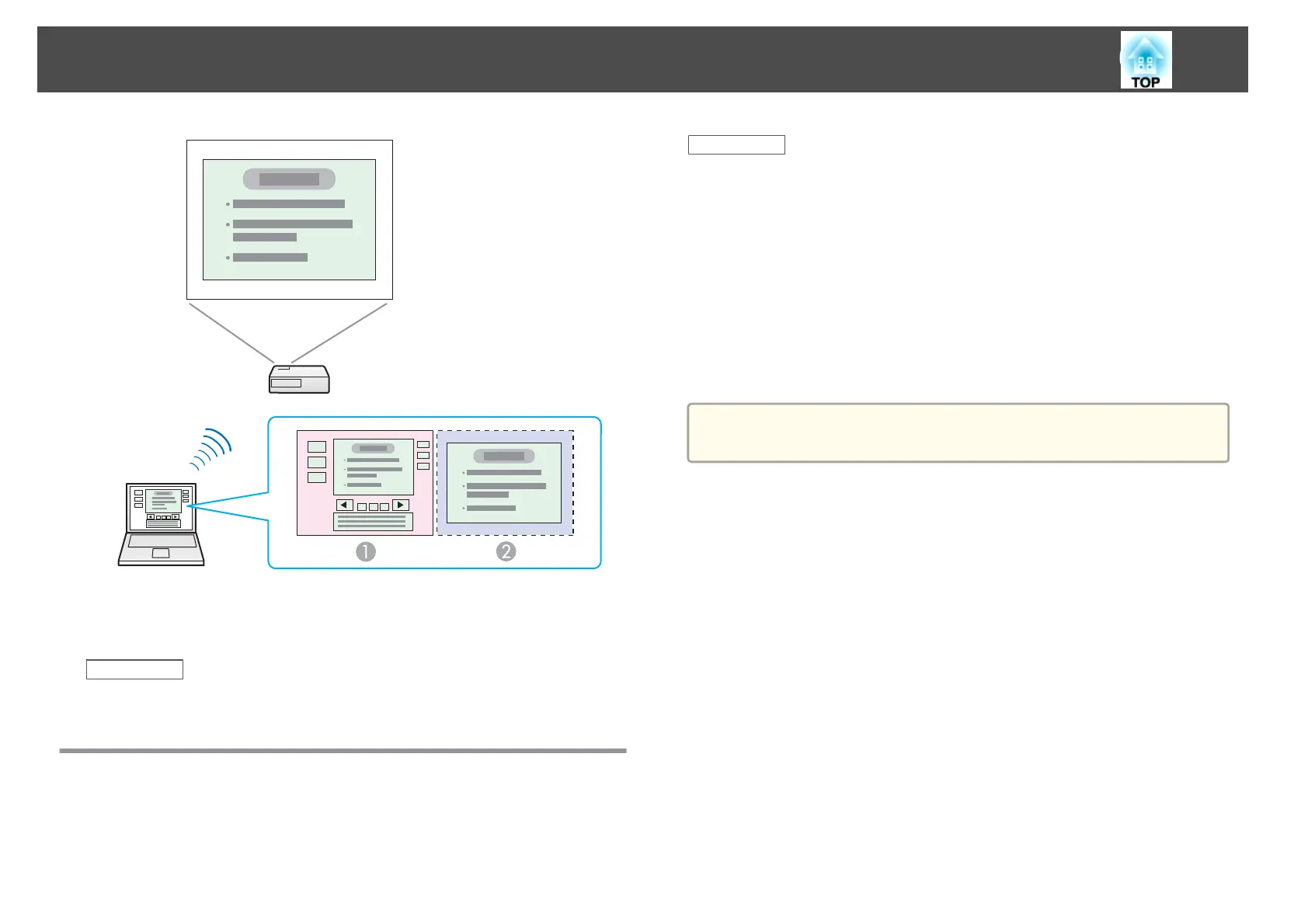
A
Actual monitor image: PowerPoint file presenter tools
B
Additional display image: Slide show using a PowerPoint file
Related Links
• "Projecting Images Using the Multi-Screen Display Function" p.40
Setting Up Multi-Screen Display
Follow these instructions to set up multi-screen display. If you connected an
additional external monitor to your computer, you can skip the steps for
enabling the virtual display driver.
Related Links
• "Projecting Images Using the Multi-Screen Display Function" p.40
• "Enabling the Virtual Display Driver (Windows)" p.41
• "Arranging the Multi-Screen Display (Windows)" p.42
• "Arranging the Multi-Screen Display (Mac OS X)" p.45
• "Projecting Images to the Arranged Multi-Screen Display" p.47
Enabling the Virtual Display Driver (Windows)
Before using the multi-screen display function, you need to enable the
virtual display driver for Windows.
a
If you have already enabled the virtual display while installing EasyMP
Network Projection, you do not need to enable it again.
a
Click Start, select Programs (or All Programs), EPSON Projector,
EasyMP Network Projection, and then click Add-Remove Virtual
Display.
The Add-Remove Virtual Display screen is displayed.
Projecting Images Using the Multi-Screen Display Function
41






 To Next Page