Need help?
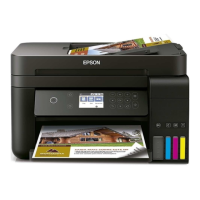
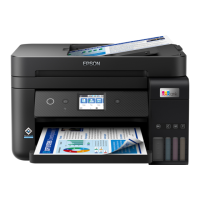
Do you have a question about the Epson L6190 series and is the answer not in the manual?
Guidelines for safe use of the printer to avoid injury or damage.
Precautions to prevent damage to the printer or property during setup and use.
Overview of available connection methods like Ethernet and Wi-Fi.
Guide to manually configuring Wi-Fi settings using the printer's control panel.
How to check ink levels and maintenance box status via control panel or software.
Step-by-step guide for refilling the printer's ink tanks.
Steps to check for clogged print head nozzles and clean them.
Utility to replace ink in ink tubes for print quality improvement.
How to check printer status and interpret error messages on the LCD screen.
Instructions for safely locating and removing jammed paper from the printer.
Troubleshooting steps for issues where paper is not feeding into the printer properly.
Troubleshooting steps for problems preventing printing from a computer.
 General
| Functions | Print, Scan, Copy, Fax |
|---|---|
| Print Resolution | 4800 x 1200 dpi |
| Scan Resolution | 1200 x 2400 dpi |
| Copy Speed (Black) | 11 ipm |
| Copy Speed (Color) | 5.5 ipm |
| Connectivity | USB, Ethernet, Wi-Fi, Wi-Fi Direct |
| Paper Capacity | 250 sheets |
| Paper Handling Output | 30 sheets |
| Dimensions (W x D x H) | 375 x 347 x 231 mm |
| Weight | 6.7 kg |
| Print Speed (Black) | 15 ppm |
| Print Speed (Color) | 8 ppm |
| Scanner Type | Flatbed colour image scanner |
| Fax Transmission Speed | Approx. 3 sec per page |
| Duplex Printing | Yes |
| Mobile Printing Capability | Epson Connect, Apple AirPrint, Google Cloud Print |
| Display | 2.4-inch colour LCD |
| Paper Sizes | A4, A5, A6, B5, Letter, Legal |
| Ink Tank Capacity (Color) | 70 ml |
| Operating Systems | Windows, macOS |
| Print Technology | Inkjet |


 To Next Page