
 Need help?
Do you have a question about the Epson WF-C20750 and is the answer not in the manual?
See these sections to learn about the control panel and select control panel settings.
To help deter unauthorized access to your product over a network, you should protect your network environment using appropriate security measures.
You can copy documents or photos onto various sizes and types of paper, including Epson special papers.
You can print with the standard Epson printer software using any Windows printing program.
Select the basic settings for the document or photo you want to print.
After placing your originals on your product for scanning, start scanning using one of these methods.
Before faxing with your product, set up your fax header and select the fax features you want to use.
See these sections to send faxes using your product.
Your product and its software will let you know when an ink cartridge is low or expended, or when the maintenance box needs to be replaced.
If an ink cartridge is low or expended, a message appears on your product's LCD screen.
If your printouts become too light, or you see dark or light bands across them, you may need to clean the print head nozzles.
You can often diagnose problems with your product by checking the messages and status icons on its LCD screen.
If a printing, scanning, copying, or faxing job does not complete successfully, you can check the error code.
Check these sections if you have problems while setting up your product.
If your product has trouble finding or connecting to a wireless router or access point, try these solutions.
If EpsonNet Setup cannot find your product on a network, try these solutions.
If you have problems scanning over a network, try these solutions.
If your product cannot make copies, try these solutions.
Check these sections if your copies have a quality problem.
Check these sections if you have problems using paper with your product.
If you notice white or dark lines in your prints (also called banding), try these solutions before you reprint:
If your printouts are blurry or smeared, try these solutions:
If your scanning software does not operate correctly, try these solutions.
If you cannot start Epson Scan 2, try these solutions.
If you cannot send or receive faxes, try these solutions.
Before using your Epson product, read and follow these safety instructions.
 General
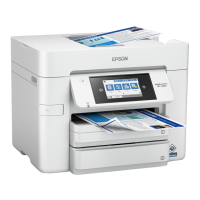
| Category | All in One Printer |
|---|---|
| Max Print Resolution | 4800 x 1200 dpi |
| Duplex Printing | Yes |
| Connectivity | USB, Ethernet, Wi-Fi, Wi-Fi Direct |
| Scanner Type | Flatbed, ADF |
| Max Scan Resolution | 600 dpi |
| Functions | Print, Copy, Scan, Fax |
| Fax Speed | 33.6 Kbps |
| Print Technology | PrecisionCore |
| Mobile Printing | Epson Connect, Apple AirPrint, Google Cloud Print |
| Display | 4.3" touchscreen |











 To Next Page