90
Note: See the help information in Document Capture Pro for details.
5. To assign a scan job to the product control panel, click the Button Assignment icon.
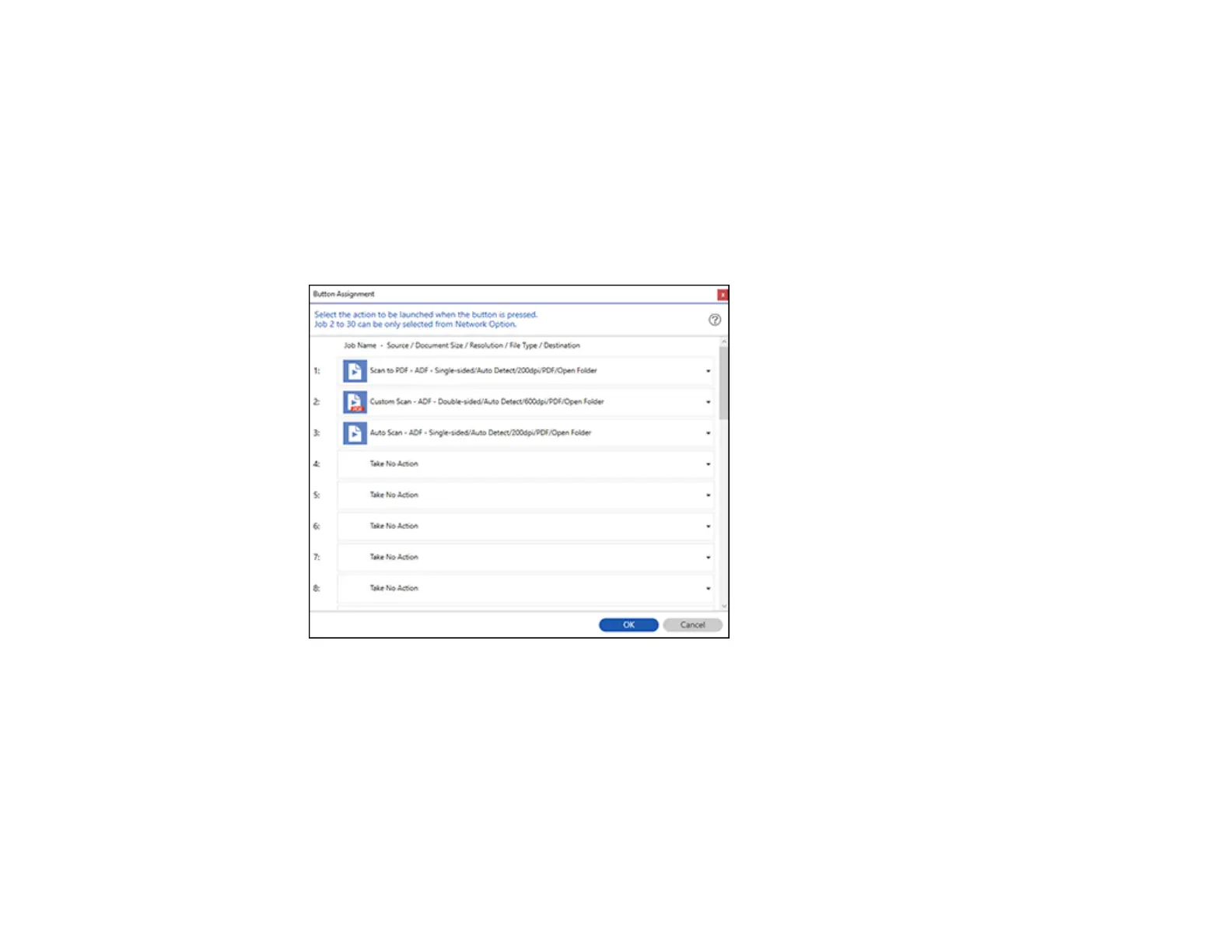
6. Select the jobs that you want to assign using any of the pull-down menus.
Note: The number of pull-down menus available may vary, depending on your product and any
connected options.
You see a screen like this:
7. Click OK, then click Back.
You can now use the added scan jobs when you scan from the product control panel.
Parent topic: Starting a Scan Using the Product Control Panel
Adding and Assigning Scan Jobs with Document Capture - Mac
You can view, change, or add available default scan settings when you scan using the Document
Capture Pro option on the product control panel. You do this by accessing the scan jobs in the Document
Capture program.





 To Next Page