95
Note: The settings may vary, depending on the software version you are using. See the help information
in Document Capture Pro for details.
1. Load your original in the product.
2. Do one of the following to start Document Capture Pro:
• Windows 10: Click and select Epson Software > Document Capture Pro.
• Windows 8.x: Navigate to the Apps screen and select Document Capture Pro.
• Windows (other versions): Click or Start, and select All Programs or Programs. Select
Epson Software > Document Capture Pro.
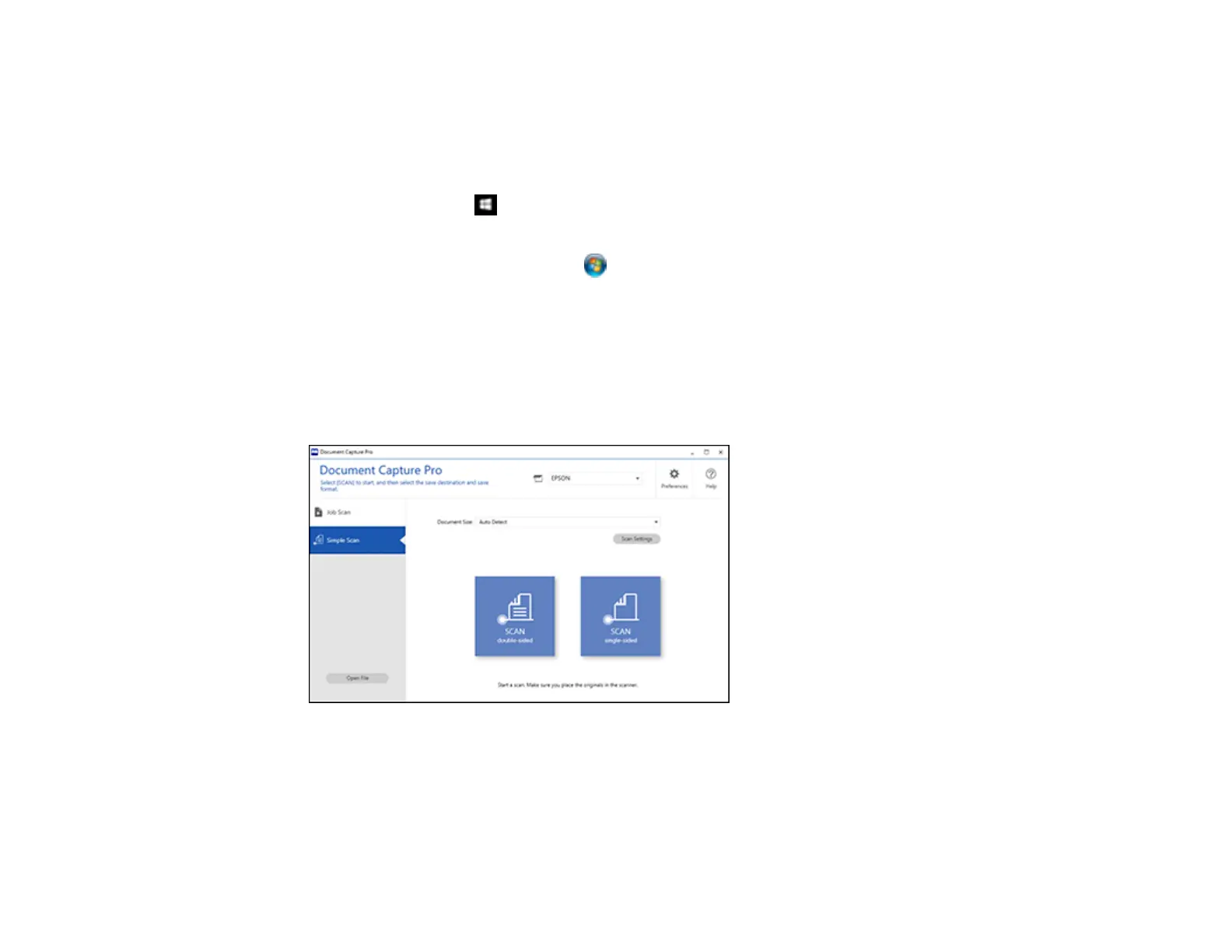
You see the Document Capture Pro window. (You may see a screen asking you to select your
scanner first; if you do, select your product.)
3. Click Select Scanner and select your scanner from the scanner list, if necessary.
4. Select the Simple Scan tab.
You see a window like this:
5. If you want to use a scan job, click the Job Scan tab.
Note: The default job is Scan to PDF. To create more jobs, click the Job Settings button.





 To Next Page