120
Eversense XL CGM User Guide
17
Connection with Smart
Transmitter
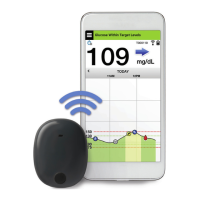
Q: How do I pair my mobile device and smart transmitter
for the first time?
A: Follow the steps below to pair your mobile device
and smart transmitter. Please read this User Guide for
more detailed information.
1. Launch the Eversense App.
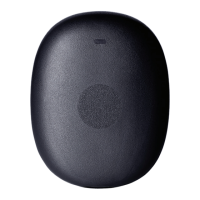
2. Press the smart transmitter power button three
times to get it into “Discoverable” mode.
3. When the smart transmitter blinks green and
orange, tap the smart transmitter ID on the
CONNECT screen. The app will then begin the
searching process.
• Your smart transmitter ID is the same as the
serial number listed on the back of the smart
transmitter.
4. When the app finds your smart transmitter, a
BLUETOOTH PAIRING REQUEST
pop-up screen appears.
5. Tap Pair to confirm the pairing.
6. The app will display Connected next to the
smart transmitter ID once the pairing is completed.
Q: My smart transmitter and mobile device do not
appear to be connected.
A: There may be several reasons why you do not have a
connection.
• Make sure the Bluetooth setting on your mobile
device is ON and the smart transmitter’s name or
serial number appears on the device list.
• The condition may only be temporary. Tap
Menu > Connect. If your smart transmitter
name indicates Disconnected, tap the smart
transmitter name to connect manually.
• Your smart transmitter and mobile device may be
out of wireless range. Move your mobile device
closer to the smart transmitter.
• Close the Eversense App and reopen the app.
In Android devices select ‘Force Stop’ from
Application Manager.
• Your smart transmitter may be turned o, out of
battery power or is currently being charged. You
may need to restart the Bluetooth (BLE) function
on the smart transmitter by following the steps
below.
1. Power o the smart transmitter – Press and hold
the power button for 5 seconds and wait for the
vibration to confirm it is powered o.


 To Next Page