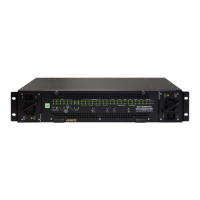
Model 5600ACO2 Automatic Changeover Unit
4.2. UPGRADING THE FIRMWARE
4.2.1. Overview
The firmware in the 5600ACO2 is contained on a FLASH EPROM. From time to time firmware updates
will be provided to add additional features to the unit.
You will need the following equipment in order to update the Firmware:
• PC with available communications port. The communication speed is 57600 baud, therefore a 486
PC or better with a 16550 UART based communications port is recommended.
• “Straight-thru” serial extension cable (DB9 female to DB9 male) or (DB25 female to DB9 male).
• Terminal program that is capable of Xmodem file transfer protocol. (such as HyperTerminal)
• New firmware supplied by Evertz.
4.2.2. Terminal Program Setup
1. Connect the serial cable to the COM DB9 connector on the rear panel.
2. Connect the 9 pin connector on the end of the serial update cable to the PCs’ RS-232
communications port.
3. Start the terminal program.
4. Configure the port settings of the terminal program as follows:
Baud
57600
Parity
no
Data bits
8
Stop bits
2
Flow Control
None
5. Power up the 5600ACO2 unit.
4.2.3. Initiating Firmware Upgrade Mode From The Terminal Program
7. Power up the 5600ACO2. After the unit powers up, a banner with the boot code version information
should appear in the terminal window. The cursor to the right of the word “BOOT>” should be
spinning.
For example:
EVERTZ MFC5407 MONITOR 2.1.3
COPYRIGHT 1997, 1998, 1999, 2000, 2001 EVERTZ MICROSYSTEMS LTD.
COLD BOOT |
8. The following is a list of possible reasons for failed communications:
• Defective Serial Upgrade cable.
• Wrong communications port selected in the terminal program.
• Improper port settings in the terminal program. (Refer to step 4 for settings). Note that
HyperTerminal will not change port settings while connected. Click on HyperTerminal’s
“Disconnect” Button then click the “Reconnect” button to activate changes to the port settings.
TECHNICAL DESCRIPTION
Revision 1.3 Page 4-3



 To Next Page