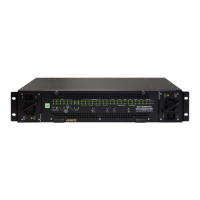
Model 5600ACO2 Automatic Changeover Unit
9. While the cursor is spinning press the <CTRL> and <X> keys, this should stop the cursor from
spinning. The spinning prompt will only remain for about 5 seconds. You must press <CTRL-X>
during this 5 second delay. If the unit continues to boot-up, simply cycle the power and repeat this
step.
10. Hit the <ENTER> key on your computer once.
11. Type the word “upgrade”, without quotes, and hit the <ENTER> key once.
12. The boot code will ask for confirmation. Type "y", without quotes.
4.2.4. Uploading the New Firmware
13. You should now see a prompt asking you to upload the file.
14. Upload the “*.bin” file supplied using the X-Modem transfer protocol of your terminal program. If
you do not start the upload within 10 minutes the unit’s Boot code will time out. You can restart the
upgrade process by power cycling the unit.
The 5600ACO2 application firmware in the bin file will have a name similar to:
5600ACO2.bin
15. The boot code will indicate whether the operation was successful upon completion of the upload.
For Example:
UPLOAD OKAY
MFC5407 WARM BOOT> |
16. The following is a list of possible reasons for a failed upload:
• If you get the message "transfer cancelled by remote" you must restart the terminal program and
load the bin file, then remove and install the module again.
• The supplied “*.bin” file is corrupt.
• Wrong file specified to be uploaded.
• Wrong file transfer protocol used – make sure you specify Xmodem, not Xmodem 1K.
• The PCs’ RS-232 communications port cannot handle a port speed of 57600.
• Noise induced into the Serial Upgrade cable.
4.2.5. Completing the Upgrade
17. Power cycle the unit. The unit should now reboot.
18. You can now close the terminal program and disconnect the RS-232 serial cable from the PC.
4.3. SERIAL PORT CONFIGURATION AND STATUS
The COM serial port is used to configure the 5600ACO2 and read back status.
Page 4-4
Revision 1.3 TECHNICAL DESCRIPTION



 To Next Page