Topaz Router
Revision 2.0 Page 23
5. CONFIGURING THE SYSTEM: WINSETUP
The WinSetup program is used to configure most of the routing functions, including control panel
operation. It allows such things as the number of signal levels to be defined, which routing frames and
panels are connected to the system, and what the names are for the inputs and outputs.
WinSetup is supplied with a comprehensive help system that can be accessed by pressing F1 (function
key F1) from any screen (dialog). The help system can also be entered from the Help, Index menu. The
following notes will briefly guide you through the process of setting up WinSetup.
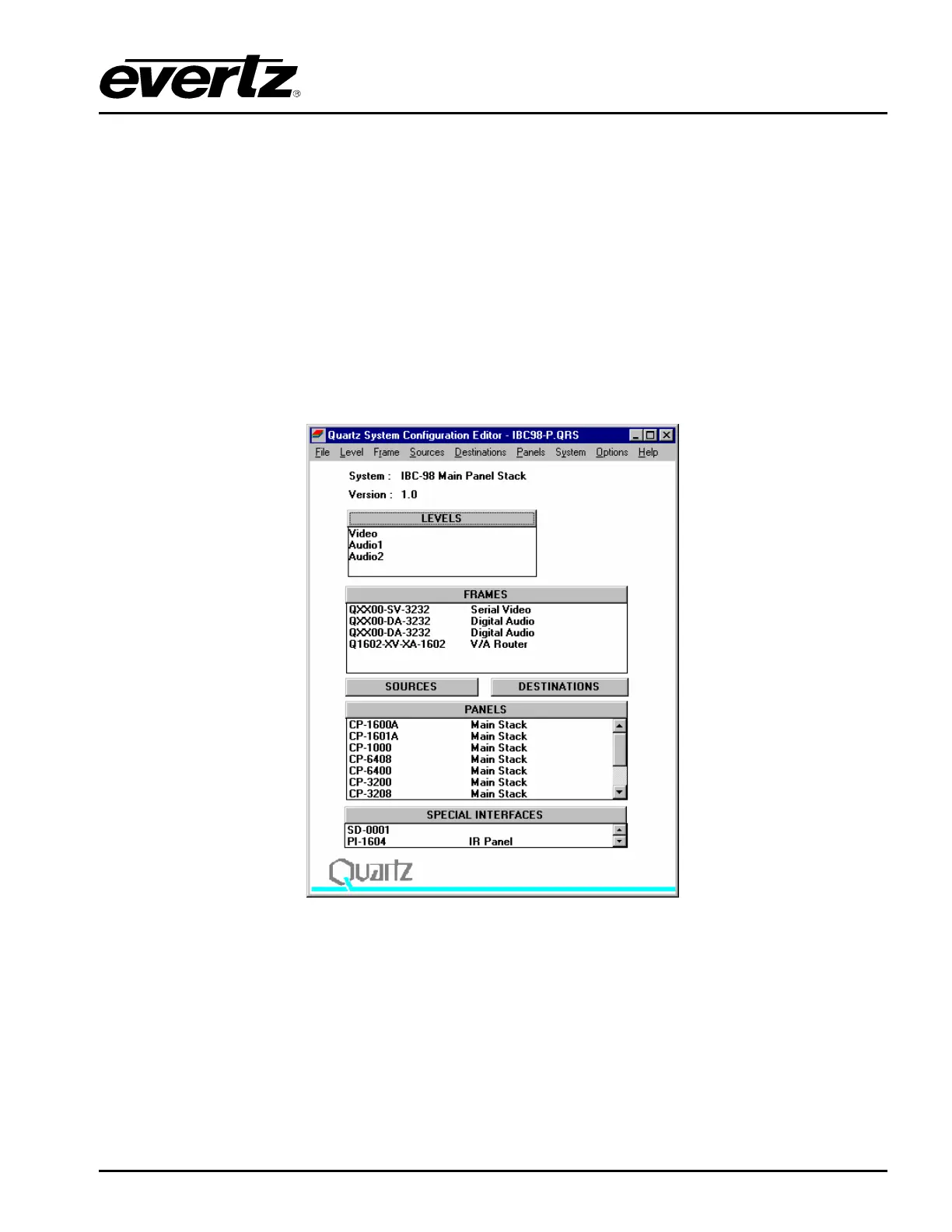
The following dialog is the WinSetup main screen. Any part of the system can be configured from the
menu at the top of the screen. The grey bars above each main section and the line items within the main
sections can both be used for quick access to specific items.
Figure 5-1: Quartz System Configuration Editor Window
If you are generating a new system configuration then some of the menu’s and functions are greyed out
(not available). This is deliberate to ‘lead you through’ the functions that need to be set up. Carry out the
following functions to configure your system.
(1) Levels: Enter the level names for each of the signal levels you want to control. The
example above shows a typical small system with video and stereo audio. Do not tick the
Complex box at this stage.
(2) Frames: Enter the frames dialog and use the new button. This will show all Quartz
routers listed by part number. Select the part number that matches the part number on



 To Next Page