© Boule Medical AB, March 2018. Article no. 1504496 Page 47
6.
Calibration
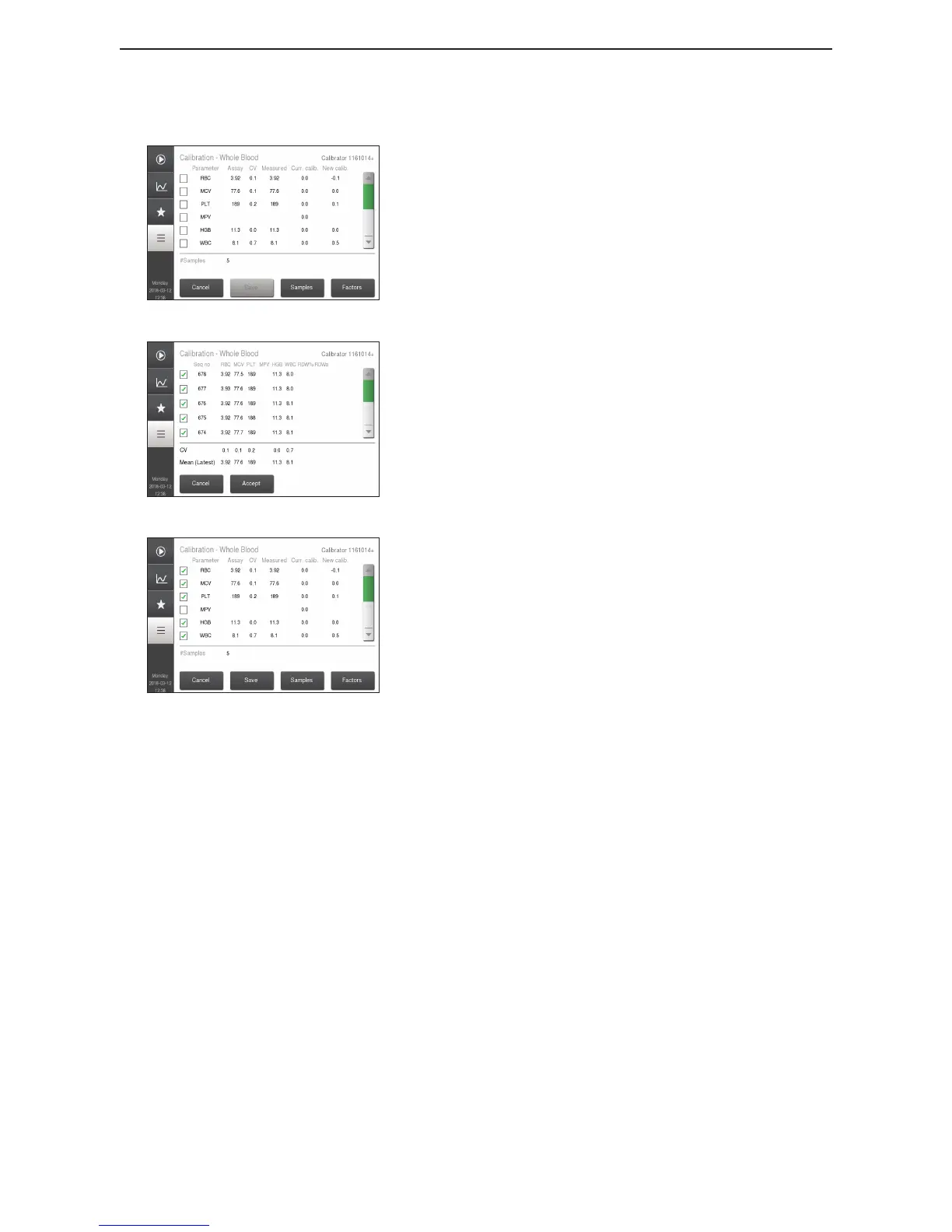
Figure 67: Calibration Results
Figure 68: Calibration Parameter Values
Figure 69: Accepted Calibration
Go to Main Menu and login using Authorization
Code 5075.
Select Calibration and then Whole Blood, Advanced
Calibration.
Analyses will be displayed, along with the following for
each parameter:
− Assay Value
− CV%
− Measured Value
− Current Calibration Factors
− New Calibration Factors - displayed if CV and
measured values are within acceptance limits.
Select Samples button to view your sample results.
Verify that the CVs for the parameters given are within
the stated limits, as shown in gure 68.
− This step is only needed if some parameters don't
have new calibration factors showing, otherwise the
mean and CV are acceptable and no verication is
needed.
− If the Mean or CV% are outside of the limits they
will be displayed in red and operator will be unable
to perform calibration.
− Analyses that had a system information indicator
will have been automatically inactivated as an
analyses from the CV calculation. Depending on the
indicator it may not be stored on the list at all.
− If a known sample handling error or erroneous
result is present, then that specic sample may be
inactivated by pressing the checked box on the left.
If CV% are acceptable, select Accept.
If a CV% is red and not acceptable, rerun calibration.
New calibration factors will now be displayed.
Mark the parameters to be calibrated.
Select Save to accept and store these calibration factors.
Note: After the new calibration factors have been saved, the last patient sample analyzed can
be recalculated with the new calibration factors by selecting Recalculate Last Sample. (The
recalculated sample will be stored with the next sequence number and the text “Recalculated” for
Sample ID 1.)
Method 2
Follow Method 1 but replace the calibrator with reference
sample and analyze it in desired blood prole.


 To Next Page