© Boule Medical AB, March 2018. Article no. 1504496 Page 61
7. Menu Structure and Advanced Setup
Advanced Parameter Setup
X Sequence Number Setup
To reset the sequence number, enter Sample Storage, choose desired sequence number, and then
press to save.
X Set Default Proles
During routine daily operation often the same patient type or patient prole is analyzed.
The operator has the option to select a default prole.
Choose Setup and then Prole.
Choose desired prole and press the circle next to Default to select this prole, and then Save.
X Touch Screen Test
To test the alignment of the touch screen perform the following:
By touching any of the four circles, the error in pixels will be shown in the X and Y boxes.
If the error in pixels is too large, the user can calibrate the touch screen under Touch Screen
Calibration in Advanced Setup.
Press Back to exit.
Advanced Setup Menus with Login
These are advanced menus which are password protected. To enter go to Main Menu, then Service
login and enter password 5075.
The operator should be thoroughly familiar with the analyzer and the setup procedure before
performing function.
X Regional Setup
In this setup menu the operator can choose preferences for parameter names and units, keyboard
and language.
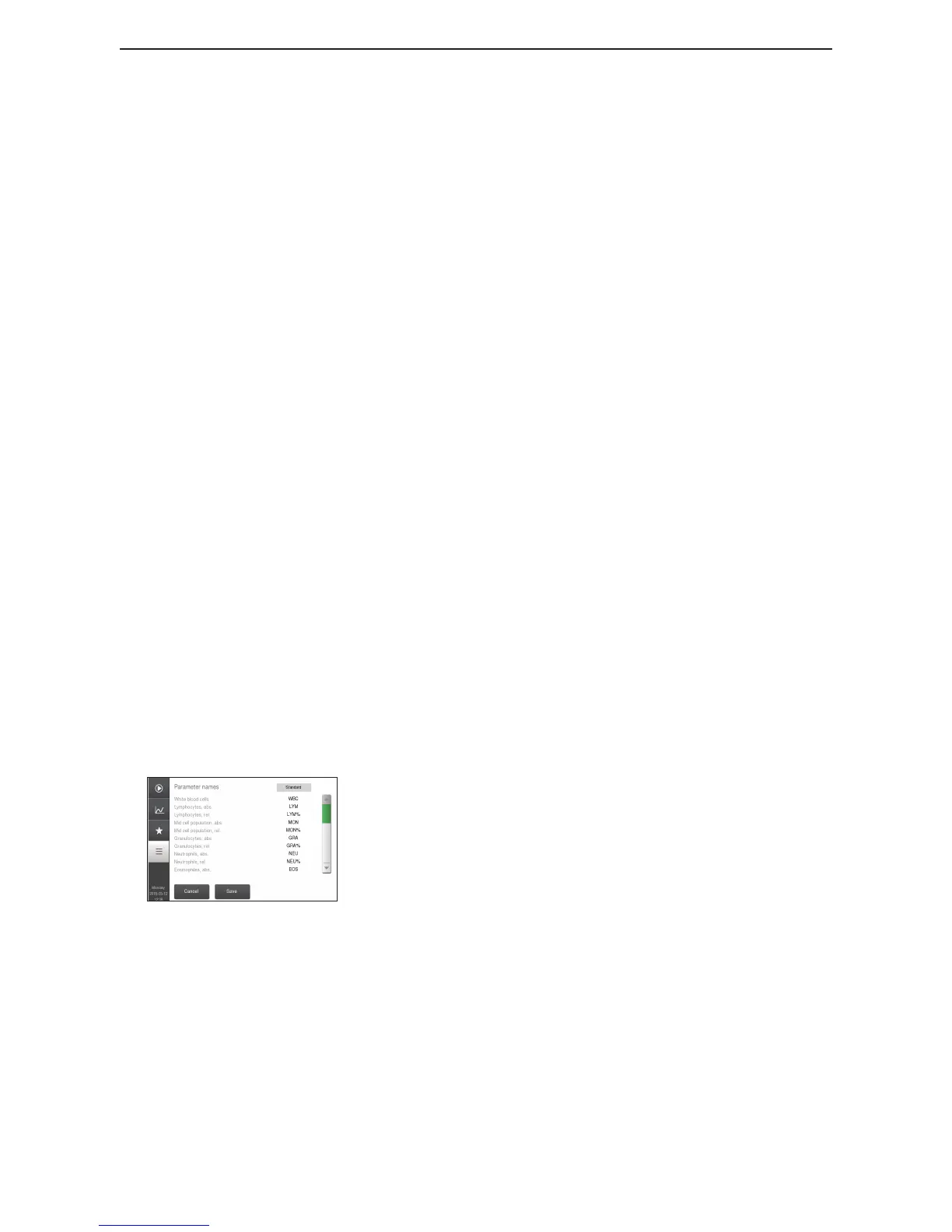
Figure 100: Parameter Name Setup
Parameter Names
The rst screen shows the currently selected parameter
names and units.
The parameter names are in settable groups.
To view parameter group press Name button and then
select name group by pressing the button to the right of
Parameter names.
A list will be displayed with group names.
To choose specied name group press circle next to desired
Group and then Accept to view changes, and then Save.


 To Next Page