CFI EXTEL WESV 82500 - 12/2011 - V1
*%
CFI EXTEL WESV 82500 - 12/2011 - V1
*%
7. DISPLAY ON OTHER PERIPHERAL (TV OR PC)
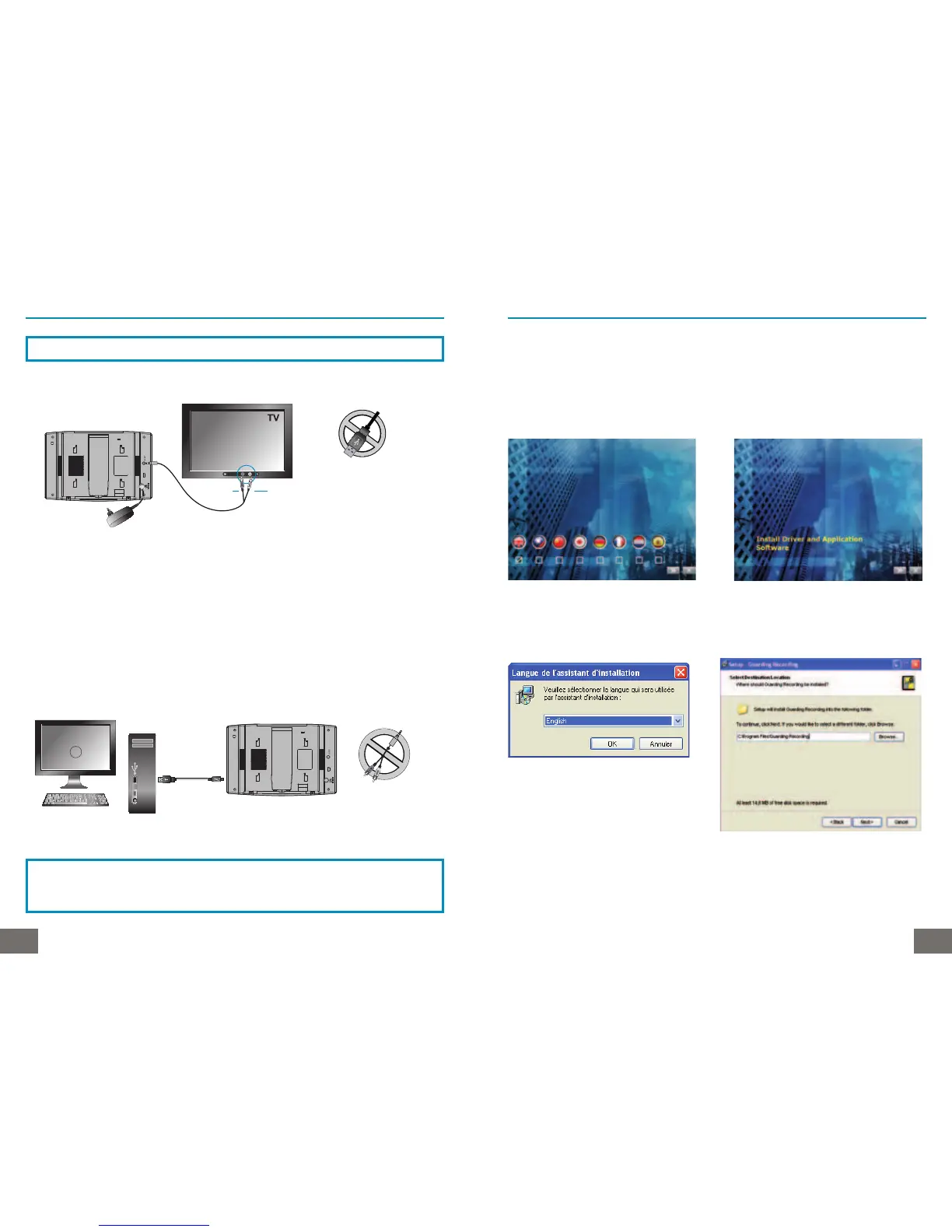
a. Connecting the monitor of the kit to a TV
In case of a bad image, check that the format of the video signal selected is compatible with
your additional screen (Chap. 6 paragraph g “Setting the A/V output”).
1. Switch the monitors off.
2. Connect the two monitors with the RCA/Jack cord supplied
3. Connect the mini jack cable at the back of the monitor to the AV output and the RCA
yellow jack (video) and white (audio) terminal ends. (See image below)
4. Switch the monitors on.
5. When connecting the mini jack at the back of the monitor, the video switches off to appear
on the additional monitor (example TV)
b. Connecting the monitor of the kit to a PC
Video
Audio
SUB
Do not use the
USB cable for
this type of
connection.
2
SUB
Do not use the
RCA cable for
this type of
connection.
CAUTION
You must have installed on your PC the software supplied in
order to connect the monitor.
IMPORTANT : When connecting to the peripheral, the image of the monitor is cut.
8. USING THE KIT WITH A PC
a. Installing the software with CD-ROM supplied “GUARDING HOME EDI-
TION”
Insert the CD-ROM supplied in your CD drive to install the software “GUARDING RE-
CORDER”.
Start of installation “Autorun”
Check the box with the desired language,
validate with » Validate with »
Follow the instructions “ok”
Click “next” to continue
Click “browse” to change folder



 To Next Page