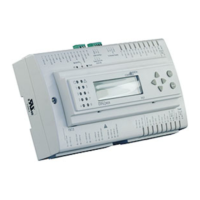
FX16 Master Controller Technical Bulletin
112
Downloading the Application from the Programming Key to
the FX16
To download the application from the Programming Key to the FX16:
1. Turn off the FX16 controller.
2. Connect the Programming Key to the Remote Display terminals.
3. Turn on the FX16 controller. The Programming Key turns on, and
the two LEDs blink alternately. This indicates that an operation has
to be selected.
4. Press the Programming Key button to move from upload mode to
download mode and vice-versa (the corresponding LED also
blinks). Make sure the yellow Download LED is blinking and then
confirm the download action by pressing the button for more than
3 seconds.
During the download process, the yellow LED blinks. When the
operation ends successfully, the two LEDs begin to blink alternatively
and the controller starts running the new application. If the operation
fails, the two LEDs blink together.
Security
The uploading to the Programming Key is always performed with no
restrictions (such as Customer ID or Family ID). The program uploaded
is in a compiled format. You cannot download the program to a
computer nor can you open and edit the program with FX Builder.
Application privacy and security are not compromised.
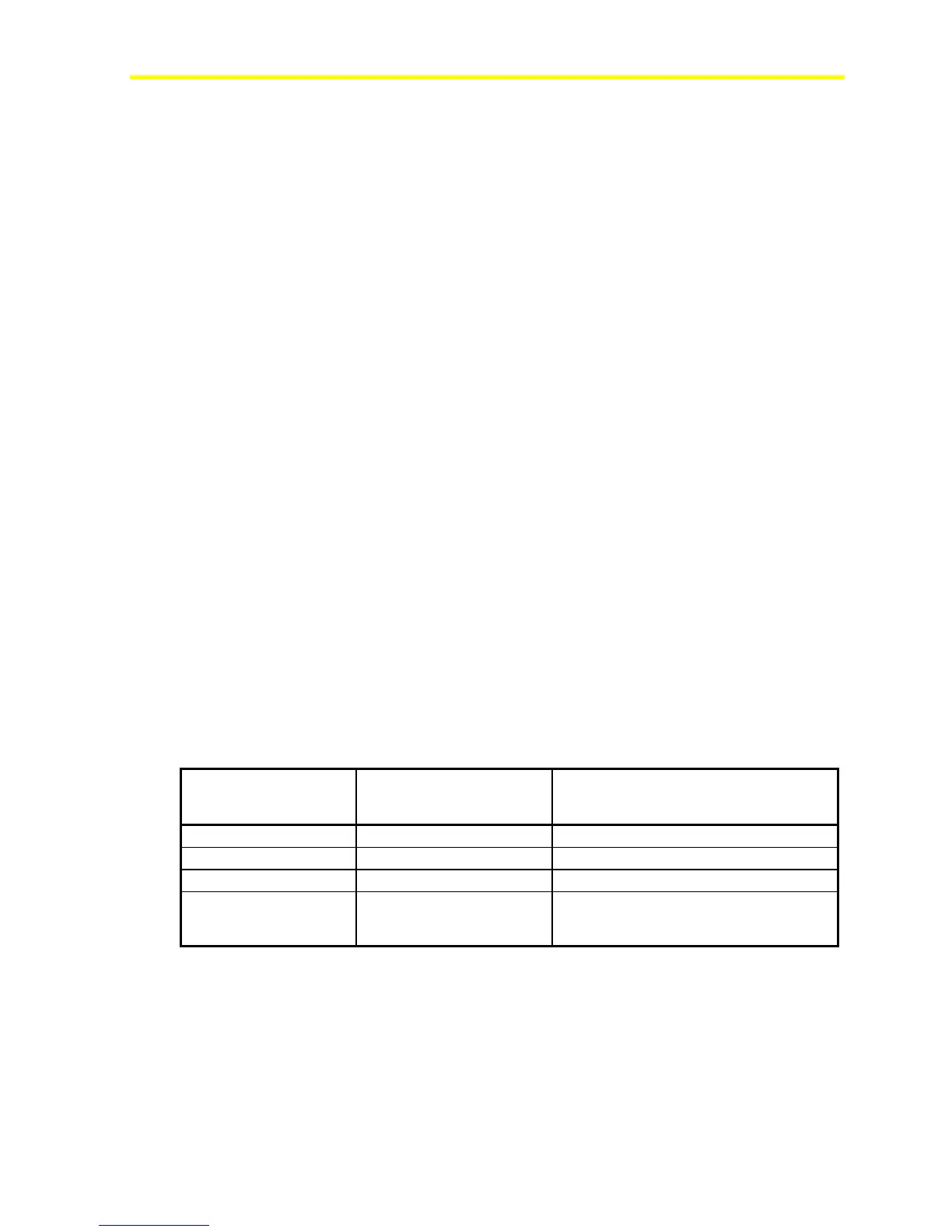
The downloading process follows the security rules implemented via the
customer ID. See Table 26.
Table 26: Security Rules for Download
Customer ID of the
Application in the
Programming Key
Customer ID in the
Controller
Download
Public ID
Public ID Executed
Public ID
Private ID Not Executed
Private ID
Private ID Executed only if Customer IDs match.
Private ID
Public ID Executed and controller is given the
customer ID of the program in Programming
Key.



 To Next Page