6
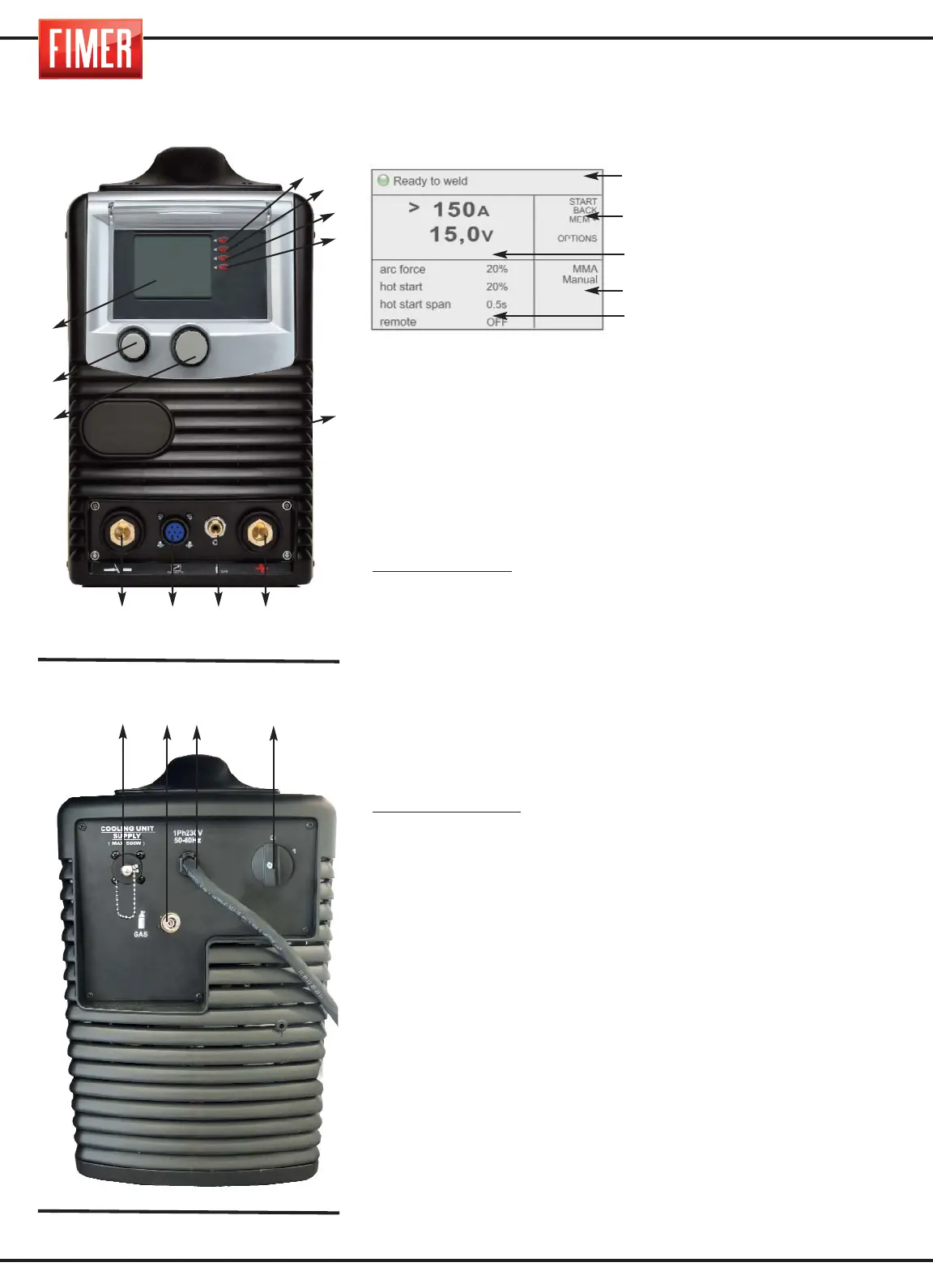
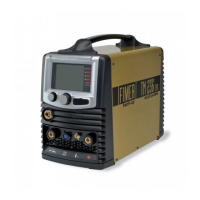
FIGURE 1:
In weld mode the display is divided into five principal:
Part 1: Machine status
Part 2: Meaning of the active buttons (buttons 2, 3, 4, 5 of fig.1)
Part 3: Size values set
Part 4: Type of process selected
Part 5: Indicates the values that can be set for the various welding
settings (to change the values select using switch 10 and confirm the
selection by pressing the same switch; the value will be highlighted
in a contrasting colour. The values can be changed by turning the
switch, to confirm the new value press the switch again. 10).
Highlighted value:
Indicates the parameter that is being changed
using switch 10.
DISPLAYS:
- When the screen comes on, the Fimer logo will appear and the
Firmware revisions will load.
CONTROL BUTTONS: (2, 3, 4, 5 of fig.1)
Each control button is associated with a specific function shown on
the display.
9. Switch for adjusting the principal welding settings: This
switch is used to set the principal welding parameters:
MMA/TIG Welding;
set the welding current
11. Air grills (must never be obstructed).
12. “-” dinse front connector: negative pole inlet.
Connection socket TIG torch mode.
MMA Mode: Ground clamp
13. Connector for remote control.
14. “+” dinse front connector: positive pole inlet.
MMA Mode:Electrode holder
TIG Mode:Ground clamp
15. Gas Outlet:
MMA Mode: inactive
TIG Mode: Gas connection to the welding torch
FIGURE 2:
17. ON-OFF switch: turns the machine on and off.
18. Input cable: connection cable to the mains power equipped.
19. Gas Outlet:
MMA Mode: inactive
TIG Mode: Gas connection to the welding torch
20. CONNECTOR OF THE POWER SUPPLY UNIT (OPTION)
Fig. 1
2. DESCRIPTION OF THE EQUIPMENT
Part 1
Part 2
Part 3
Part 4
Part 5
1. Graphic display:
The 3,5’’ colour
screen displays
different screens,
according to the
welding mode or
settings.
17
18
Fig. 2
20 19
10
9
15
14
13
12
2
3
4
5
1
11


 To Next Page