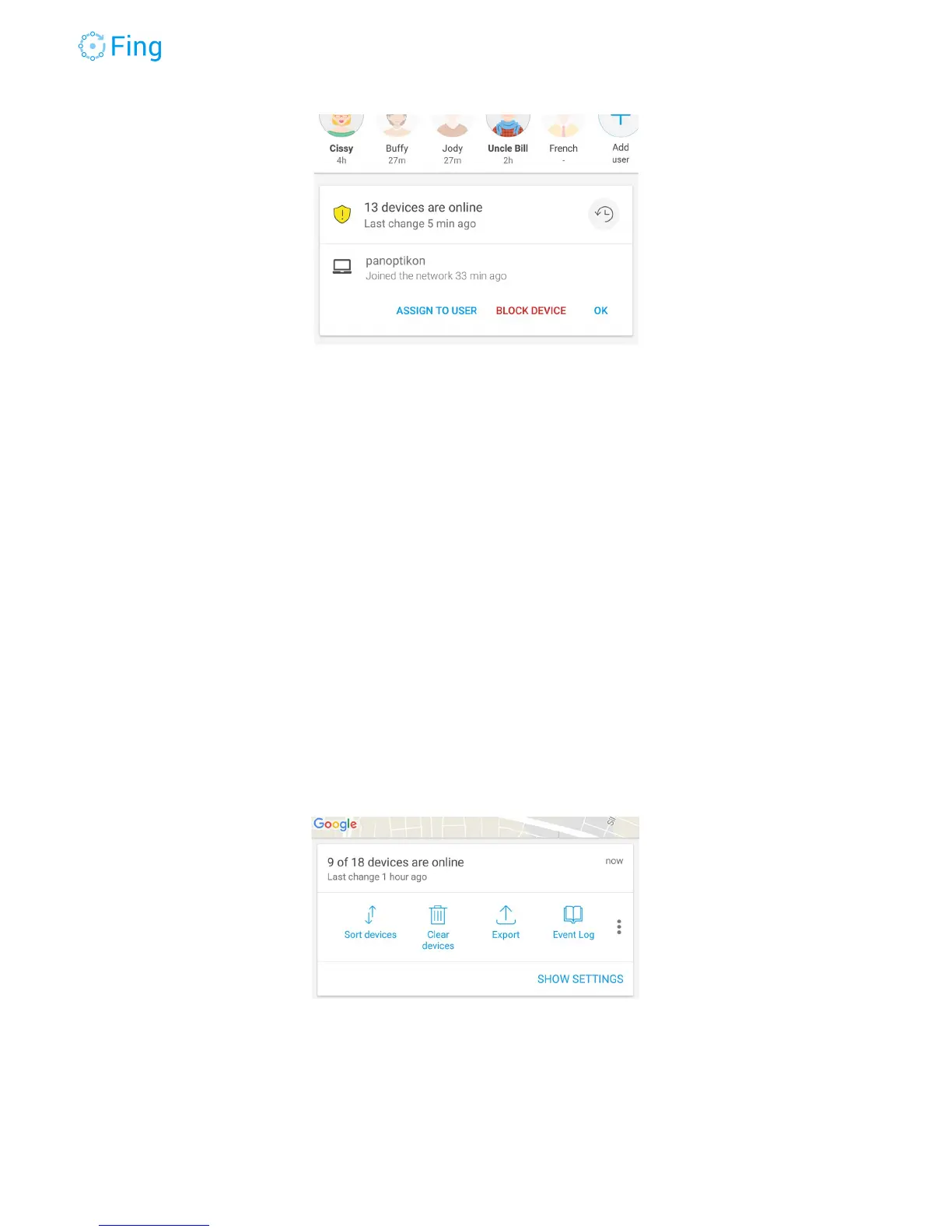
The attention area with a message waiting for your action
When you see this message you can do three things.
ASSIGN the new device to a family member (e.g. a new game console or a new phone or
laptop).
BLOCK - If you didn’t expect or don’t recognize the device, you can immediately block it from
accessing the network. You can come back later and unblock it from the bottom of the
Dashboard screen.
ACKNOWLEDGE - You can simply tap OK to acknowledge without any special action. Fingbox
top lights will get back to the normal blue circle.
Alerts on new devices are so important for your network security that we chose to make them
active by default. If you want to change this setting, go to the Devices screen and tap on the
network name at the top. Look for the section in the picture below and tap on SHOW
SETTINGS.
Now you see the alert settings for this Fingbox. You can change it for “Alert on new device” by
flipping the switch.
Fingbox User’s Guide - App v6.2.1 Page 12


 To Next Page