ESC and ENTER keys
Table 51: ESC and ENTER key function in USB
Key Function
ESC Use to exit from the USB activity
result screen
ENTER No function
Note: The default first language is Italian and
cannot be overwritten. The default second
language is English and can be overwritten at
the first panel power-up or at the end of the
FW upgrade process of the control panel. The
available second language files are contained
in a folder on a USB stick connected to the
control panel before the first power up. The
loaded languages are the languages of the
control panel. See Figure 33 and Figure 34.
At the end of the FW upgrade process, the
panel will start the procedure Language strings
download from USB key at the first panel
power-up to load the correct version of the
required language. See Figure 35.
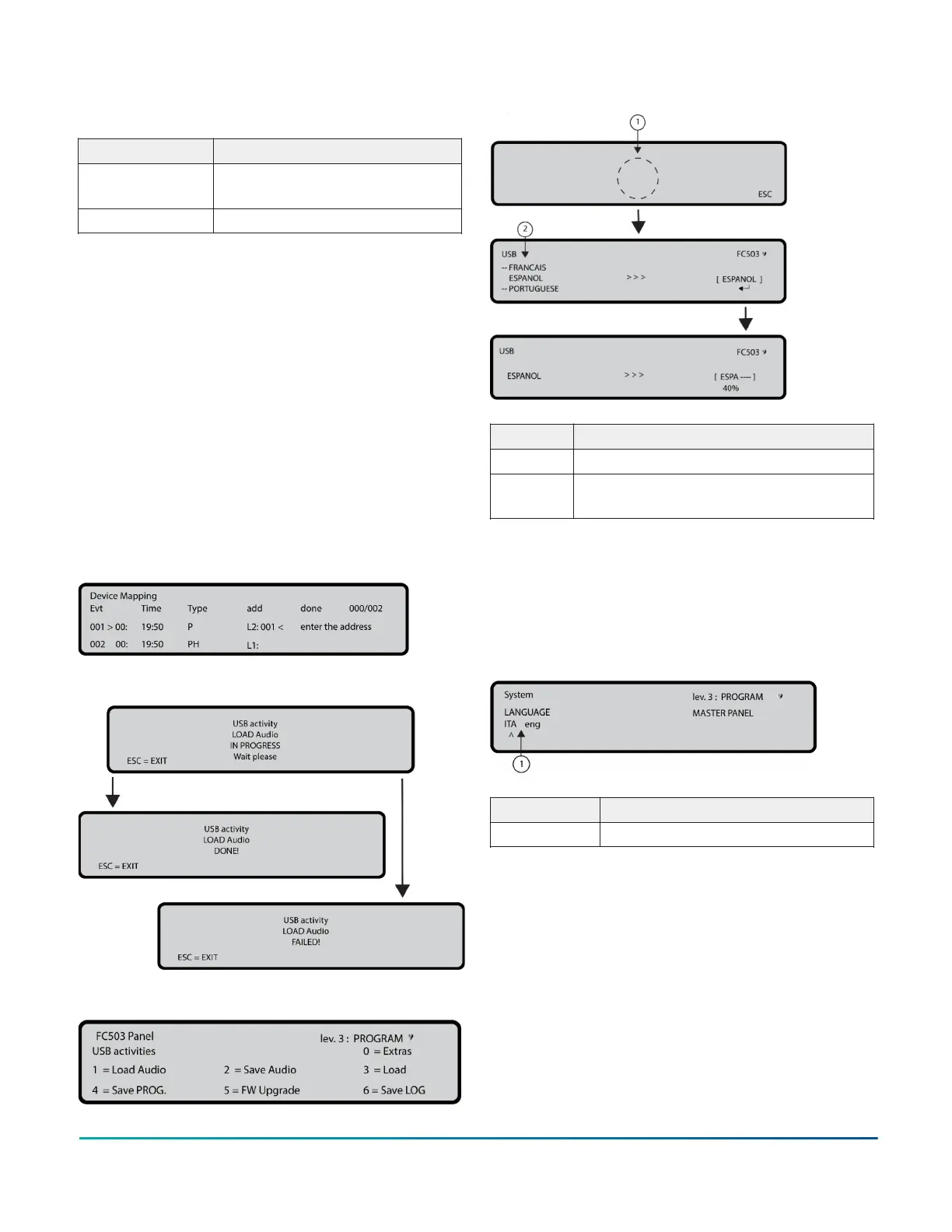
Figure 33: Display On Demand Device Mapping
Figure 34: Example USB activity
Figure 35: USB activities
Figure 36: LCD screen sequence
Callout Description
1 Language list waiting page
2 List of languages in the USB memory
stick
Note: At the end of the process the initial
configuration steps will continue. If the
language string transfer process from USB to
panel fails, a fault page is displayed and the
default Italian language is restored.
Figure 37: Select the language of the system
Callout Description
1 Choose language
8 Key – System
Use the System option in the PROGRAM screen to
activate the system language selection screen. See
Figure 26, 0.
Note: Other languages can be loaded from the
software.
After selecting the language, program the following
options:
• PANEL ID
• PANEL TYPE (FC503 or FC506)
FC503 and FC506 Addressable Fire Control Panels 59
Johnson Controls - CONFIDENTIAL



 To Next Page