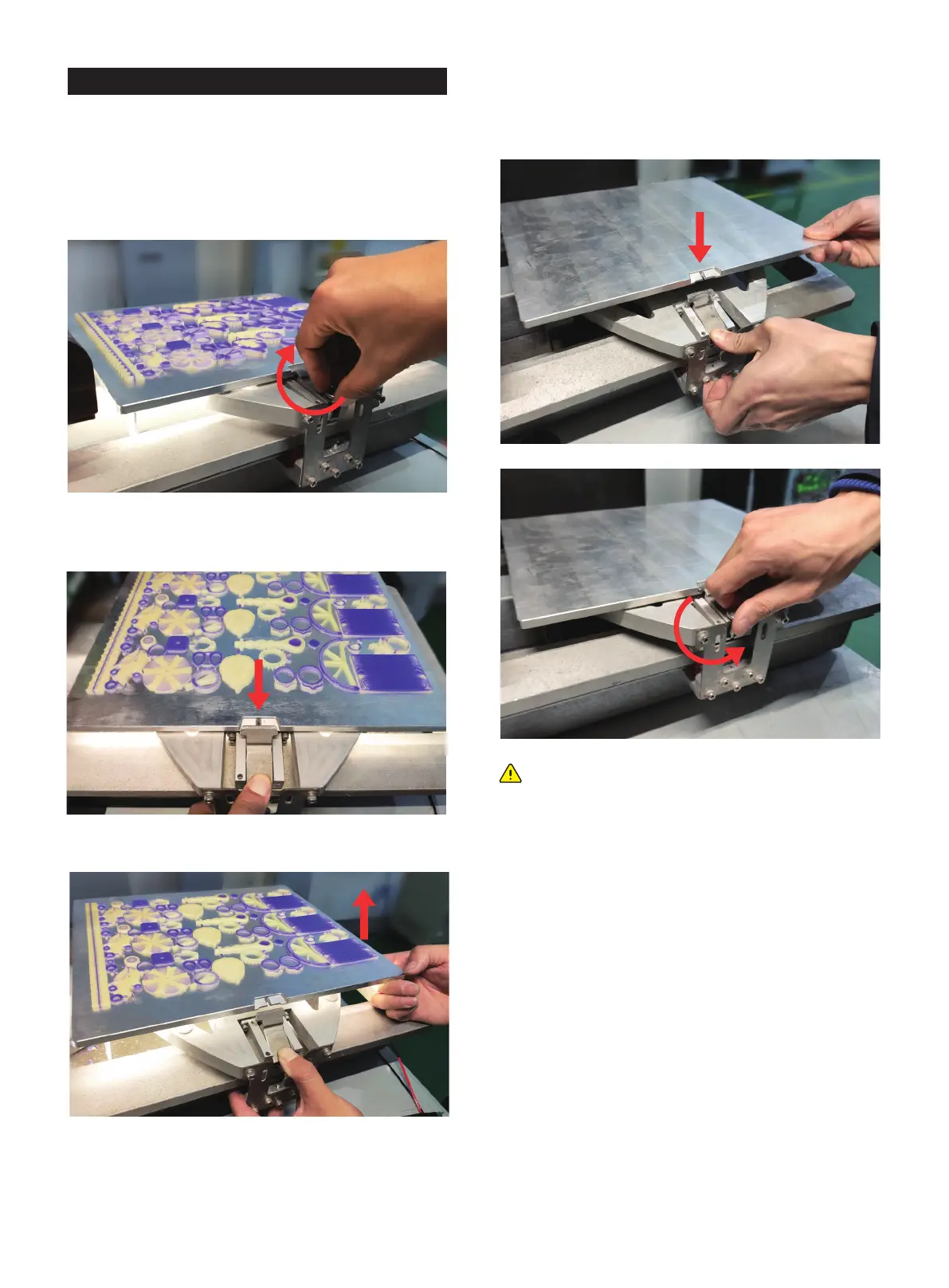
5. Lift the build plate and remove it
6. Install the new and clean build plate
7. Fasten the pressing nut and rotate the pressing nut counter-
clockwise until it feels the pressing plate is pressing the build
plate.
Note: Always ensure that the build plate is clean and
no dust on both sides to avoid any printing problems.
Also, make sure that the build plate does not cause
damage caused by any object loosing or falling. Metal
objects on the build plate can touch the print extrud-
ers and cause serious damage.
3.5 Removal and installation of build plate
status is in ready mode.
2. Open the building chamber door.
3. Rotate the pressing nut clockwise and loosen the pressing
nut.
4. Press down the pressing plate until the pressing plate is out
of the build plate.
01 02 03 04 05 06 07 08
09 10 11 12 13 14
15 16 17
18 19 20 21 22 23 24 25 26
27 28 29 30 31 32 33 34 35
36 37 38 39 40 41 42 43
44 45 46 47 48 49 50 51
52 53 54
55 56 57 58 59 60 61
62 63 64 65 66 67 68 69
70 71 72 73 74 75 76 77
78 79 80 81 82 83 84 85
86 87 88 89 90 91 92 93
94 95 96 97 98 99 100 101
102 103











 To Next Page