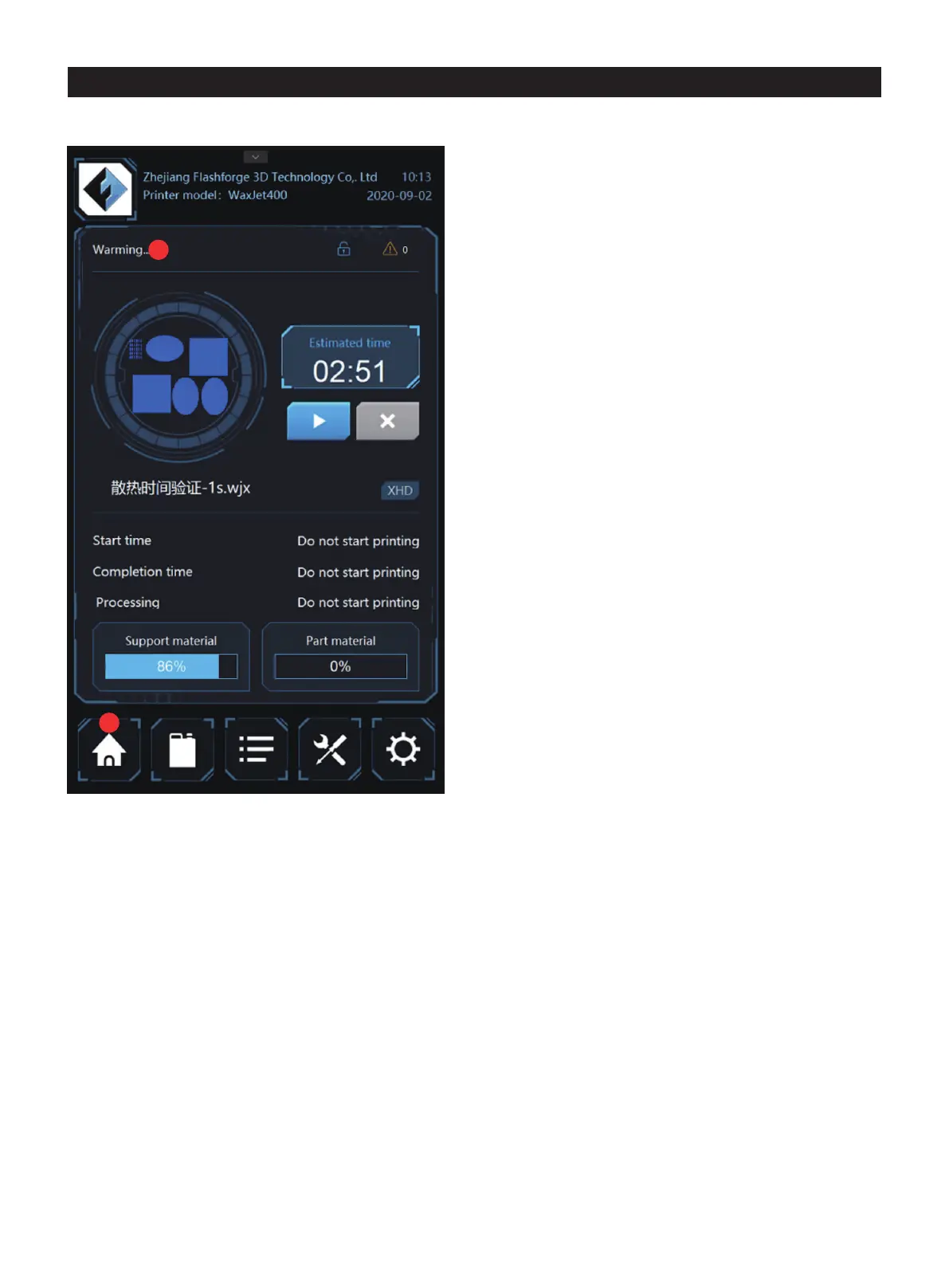
4.1 Print status interface
1
2
1. Tap here to access the device print status interface.
2. Print status: check the status of the printer at any given
time. For information on the various statuses of the printer,
see below:
Ready:the printer is ready to accept printing tasks;
Load build plate:the printer status is ready and wait for
installing a clean build plate;
Printing: the printer is printing now;
Busy: the printer is in maintenance;
Sleep mode: the printer is in a low power state;
Pause: Print is currently paused and can be resumed by
selecting the button;
Completed: The print is currently complete and the part can
be removed from the printer;
Remove the build plate: printing completed; to take down the
build plate from the printer;
Interrupting/Interrupted: Current printing is interrupting
/interrupted;
Warming: The printer is warming up to "ready";
The material box is warming up: the printer material bottle is
tapping the UI icon in the interface when both material bottles
are warmed up at the same time, but printing will only start
when the material cartridge is melted and ready for use;
Waiting for the modeling room to cool down: the printer
waits for the modeling room to cool down before continuing
to print;
Shutdown: The printer is shutting down, and remind the user
Recovery: The printer has failed and is attempting to recover;
Diagnostics: The printer is in diagnostic mode, if needed,
please contact the after-sales service;
Error: The printer is in an error state and needs to make a
service call ;
Materials required: The printer needs more material to print.
01 02 03 04 05 06 07 08
09 10 11 12 13 14 15 16 17
18 19 20 21 22 23 24 25 26
27 28 29 30 31 32 33 34 35
36 37 38 39 40 41 42 43
44 45 46 47 48 49 50 51
52 53 54
55 56 57 58 59 60 61
62 63 64 65 66 67 68 69
70 71 72 73 74 75 76 77
78 79 80 81 82 83 84 85
86 87 88 89 90 91 92 93
94 95 96 97 98 99 100 101
102 103











 To Next Page