FT-112(D) Panel Weighing Indicator, Technical Manual, Rev.1.0.0, May 2019 Page 87 of 170
8. The [ TAREMAX : 1,20 ] prompt appears on the display. Enter new value with numerical keys. Press
the key to save it or press key to return operation without saving.
9. The [ EMPTY : 1,00 ] prompt appears on the display. Enter new value with numerical keys.
10. Press the key to go to the following memory after saving it or press key to return operation
without saving.
Select product from SET memory
1. Press key. The current target value appears on the display as [ TARGET: 1250 kg ].
2. Press key to more than 2 seconds enter Set memory. The last used Set memory code appears
on the display as [ SET :001 ].
3. Enter the memory code of the product by pressing the numerical keys and press key.
4. The selected product limits are loaded for usage after displaying values.
5. Or press key to exit without saving.
10.3.2 Start and Stop the filling
One of the following ways can be used to start the filling operation;
1. Function key: If you want to start the Filling operation by pressing key, program one of the function key
for SmartAPP (Refer to parameter 241, 242 and 243).
2. Digital input: The digital input-1 can be used to start the filling operation.
3. Serial interface: Transmit “Start SmartAPP” command via serial interface (Refer to parameter 111,
121, 131, 141 or 151).
4. If you will use the scale only for Filling and you prefer to activate Filling operation automatically after
loading, set the parameter 321 to automatic filling operation.
To end the filling;
1. Unload the platform,
2. Disable the operation by pressing the function key which is programmed as SmartAPP key or.
3. Reset the filling with digital input-2 or,
4. Send the “Stop SmartAPP” command via serial interface.
10.3.3 SmartAPP at filling
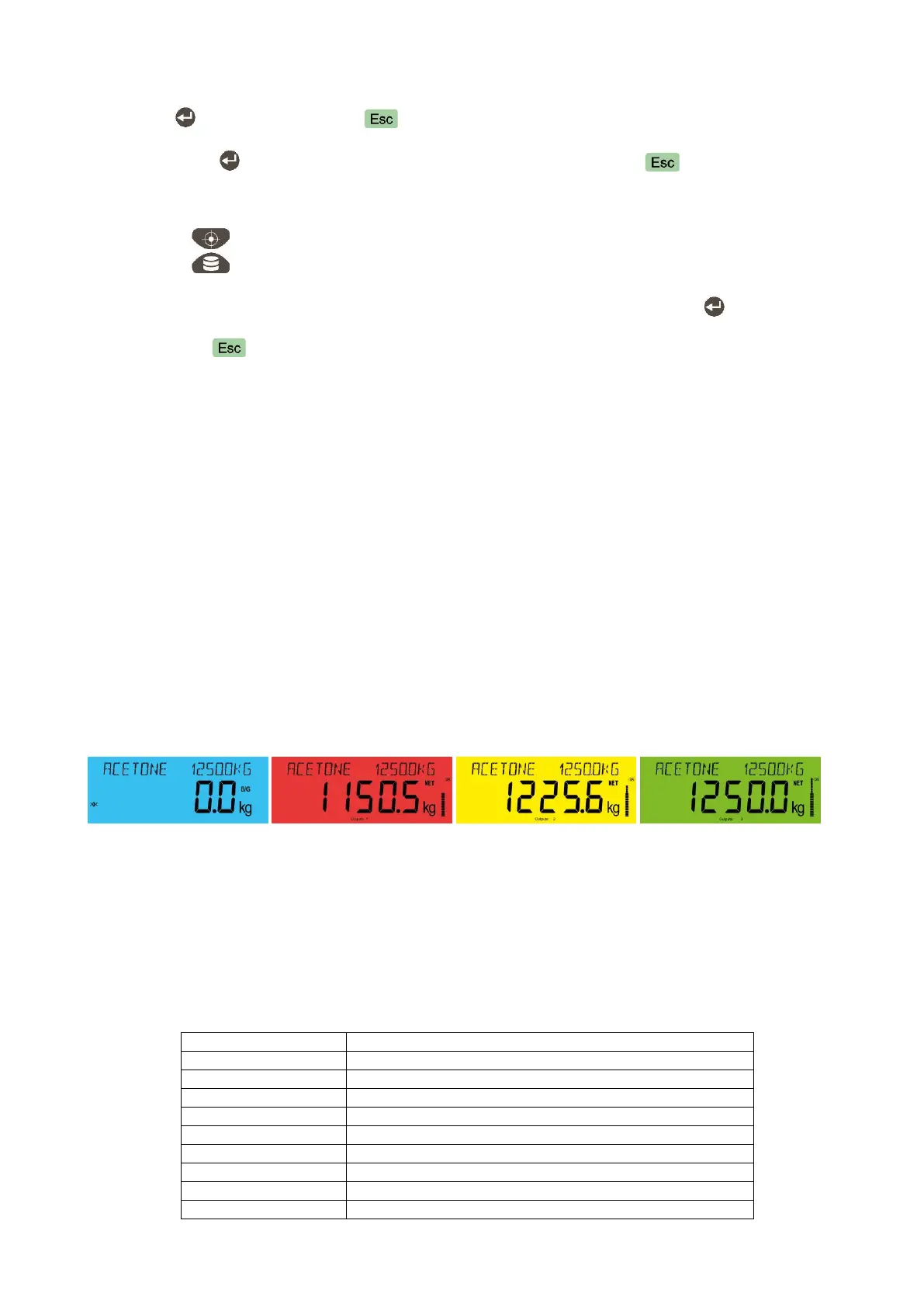
The SmartAPP announces the filling process with backlight color, with bar on the right of the display and
acoustically. Refer to parameter 315, page 58 to set up the SmartAPP.
Figure 10.6 - Weight display and toolbar at filling.
Digital inputs and outputs
If one of the applications is selected, digital inputs and outputs are set according to the selected application
requirements automatically even they have been previously set to the different functions.
You may control your scale via these digital inputs and outputs. Non-used inputs and outputs of the application
can be programmed freely in the related parameter for any function or as a Remote IO of the PLC to control
them over fieldbus.


 To Next Page