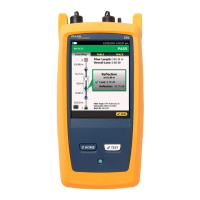
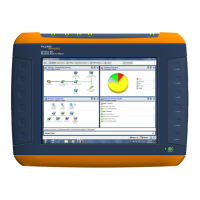
The OptiView Wireless Network Analyzer is a portable, rugged, and user-friendly device designed for managing and troubleshooting wireless local area networks (WLANs). It extends the capabilities of the OptiView Network Analyzer to the wireless domain, making it suitable for various tasks from initial WLAN deployment to ongoing monitoring and problem resolution.
Function Description:
The primary function of the OptiView Wireless Network Analyzer is to provide comprehensive visibility into wireless networks. It helps users design new WLAN deployments, detect unauthorized or "rogue" Access Points, verify recent installations, and monitor for and troubleshoot wireless connectivity issues. The analyzer is equipped with a wireless network access card that supports 802.11a/b/g specifications, allowing it to interact with a wide range of wireless devices and networks.
The software, OptiView Wireless Network Analyzer (OPVWNA-V2), is central to its operation. Once installed and launched, it automatically begins monitoring the WLAN, discovering and displaying Access Points present on the network. The main interface, referred to as the "Front Page" screen, offers immediate insights into network security levels and potential vulnerabilities through color-coded icons and statistics. It continuously monitors 802.11a/b/g channels, reporting key statistics such as signal strength, retry rates, and signal-to-noise ratios, which are crucial for maintaining network health.
The analyzer operates in three main modes:
Active Channel Scan: This is the default mode for the Front Page, Channels, and Survey screens. In this mode, the wireless radio card sweeps through all channels (250 milliseconds per channel) and performs an active scan by sending out probe requests to solicit responses from Access Points. This active phase can be disabled if desired.
Monitor Mode: This mode is active for most Detail screens, excluding Top Talkers. Here, the WLAN card is parked on a specific channel, reporting key packet and WLAN statistics. This includes information on packet types, destinations, retries, utilization, and signal strength. It also provides an inventory of passively discovered WLAN devices and their configurations.
Linked Mode: This mode is used for all Tools screens and periodically on the Front Page screen. When a Tools screen is selected, the user is prompted to link (or connect) to an Access Point (SSID). This link is disabled when exiting the Tools screens. On the Front Page, the analyzer re-establishes a link for about 15 seconds with the default and configured SSID before resuming Active Channel Scan. This mode is essential for active discovery of WLAN devices, and users can set a default SSID for autolinking.
A key feature is the Authorization List, accessible via the Detail | Authorization screen. This helps in detecting rogue Access Points or Clients. Initially, all discovered devices are classified as "Unauthorized" (rogue). Users can re-classify them as "Authorized" or "Neighbor" (a device not authorized but not considered rogue, such as one belonging to an adjacent company). This classification is visually represented by icons next to the SSID list, providing quick identification of device status.
The Packet Capture capability allows users to diagnose complex problems by capturing packets between selected source and destination devices. Users can specify source and destination MAC addresses, filter packets based on direction (from source to destination, destination to source, or both), and choose to include or exclude management, beacon, control, or data frames. It also allows for slicing packets to capture only the first 128, 256, or 512 bytes, or full packets. For encrypted data packets (WEP/WPA), the analyzer can decrypt them if the appropriate security settings are configured. Captured files can be viewed directly or saved for later analysis.
Usage Features:
Software Installation: The OptiView Wireless Network Analyzer software (OPVWNA-V2.EXE) must be installed on the OptiView Integrated Network Analyzer before the wireless LAN card is inserted. The software can be moved to the analyzer via an external USB CD-ROM drive, by transferring from a PC using a point-to-point connection, TFTP server application, or mapped network drive, or by direct download from the Fluke Networks website if the analyzer has Internet connectivity. The InstallShield Wizard guides the installation process, followed by a reboot.
Wireless LAN Card Installation: After software installation, the 802.11a/b/g wireless LAN card is inserted into the PC Card (PCMCIA) slot on the right side of the analyzer. Windows will detect the card and configure it with the correct driver.
Starting the Analyzer: The software is launched by clicking the OptiView Wireless Network Analyzer (OPVWNA-V2) icon on the desktop. It is important to shut down the OptiView Integrated Network Analyzer user interface software before starting the wireless analyzer software, as they should not run concurrently.
Firewall Management (Windows XP Service Pack 2): If running Windows XP Service Pack 2 with the firewall enabled, the user will be prompted to allow discovery through the Windows XP Firewall. Selecting "Unblock" allows limited discovery, while "Keep Blocking" prevents any discovery. For efficient discovery, the firewall should ideally be turned off. The firewall settings can be managed through the Windows Security Center.
Initial Setup and Configuration:
Country Location: A critical first step is selecting the correct country in the Setup | Options screen. This determines which channels are legally allowed for operation, displaying illegal channels in red. Users are responsible for using only legal channels.
Global Settings: The Setup | Options screen also allows configuration of global settings such as:
Enable Active Channel Scan: To disable active querying of devices.
Enable Vendor Prefix for MAC: To display the vendor prefix with the last 3 bytes of the MAC address, or the full hexadecimal MAC address if unchecked.
Show signal strength in dBm: To display signal strength in dBm units or as a percentage.
Enable Control Frame Packet Parsing: To turn on/off the display of control frames in Top Talkers and Packet Stats screens.
Enable Sounds for Wireless Discovery Events: To trigger beeps for SSIDs becoming inactive, newly discovered, or re-discovered.
Remove Devices not seen for To set a time limit after which inactive devices are removed from the discovered list.
Security Settings for Packet Capture: To decrypt data packets during capture, WEP or WPA settings for the specific SSID must be configured in the Security Settings screen, accessed via Tools | Link. If linking to a WPA device with "Data" checked, the analyzer can decrypt broadcast, multicast, and unicast packets destined for itself.
Help System: An integrated help system is available via the "Help" button on the bottom-right of the user interface. It displays context-sensitive topics, and users can navigate through contents, index, or perform full-text searches. Features include "Back" and "Forward" buttons, "Hide/Show" buttons for the left pane, and a "Print" option.
Maintenance Features:
Registration: Users are encouraged to register their analyzer online at www.flukenetworks.com. Registration provides access to entry-level product support, including free telephone support incidents, an online Knowledge Base, and web-based trouble ticketing, as well as product information updates. A registration card is also supplied in the shipping box.
Warranty: The product comes with a one-year warranty covering defects in material and workmanship under normal use and service. Parts, accessories, product repairs, and services have a 90-day warranty. The warranty is limited to the original buyer and does not cover misuse, alteration, neglect, contamination, or damage. Software is warranted to operate substantially according to specifications for 90 days.
Troubleshooting: The manual provides basic troubleshooting steps:
Windows Locked Up: Press the "Reset" button to reset the Windows portion of the analyzer without affecting the data acquisition board.
Analyzer Locked Up: For a complete power-down, press and hold the "On/Off" button for approximately 7 seconds.
Power-up Issues: Connect the AC adapter/charger to determine if the internal or external batteries are discharged. The external battery has a charge indicator button for checking its status.
Taskbar Overlay: If the taskbar covers the OptiView Wireless Network Analyzer on OptiView Classic models (Windows 98), change the taskbar setting from "Always on top" to "Auto hide" in the Taskbar Options.
Wireless Security Settings (Windows XP Service Pack 1): If Windows security settings do not support the wireless network, users may need to download wireless patches from Microsoft support, which are included in Service Pack 2.
Bail Replacement: Instructions are provided for installing a replacement bail on older OptiView Analyzers. The bail should be nearly shut before removal or installation to prevent damage to the analyzer case. It pops out and in with gentle pulling/pushing of the pivot arm.
Software Updates: The manual mentions that the OptiView Resource CD-ROM for Classic Analyzers contains the latest OptiView Analyzer installation software, indicating that software updates are available and important for compatibility.
Disk Recovery: Storing the OPVWNA-V2.EXE file on the D: drive is recommended, as it allows for disk recovery on the C: drive without losing the OptiView Wireless Network Analyzer setup file.

 Need help?
 General

 To Next Page