102
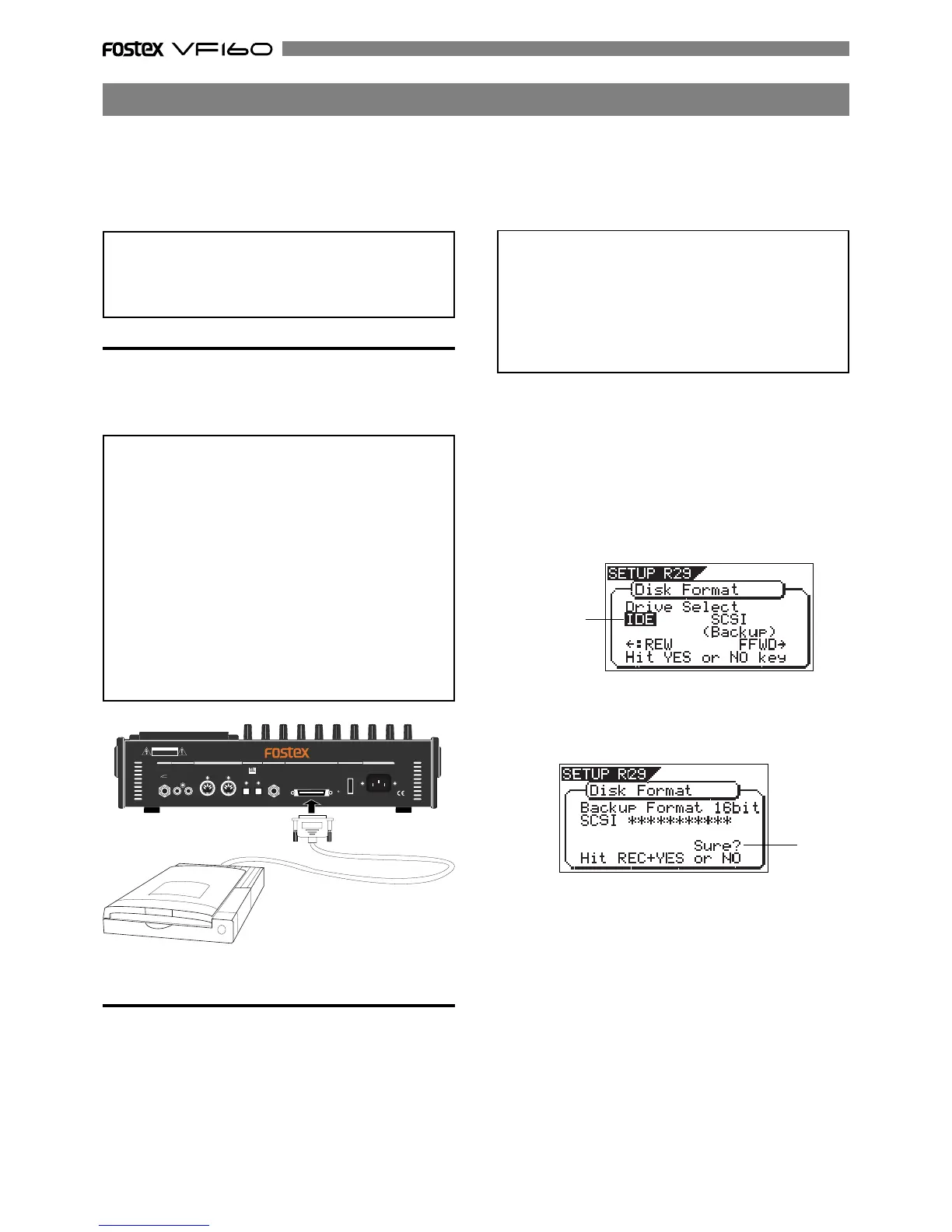
zip or MO drive
SCSI cable
Flashing
Flashing
You can save/load song data using a SCSI backup disk (MO, zip).
Normally a backup SCSI disk should be formatted by the backup format (for backup use only). You can also save
data to or load data from a WAV file on a SCSI disk formatted for DOS format (for computer use). Since song data
written in a WAV file can be read by a computer as well as be loaded in the VF160, you can use such data with a
music software. For details about save/load using an external SCSI-type CD-RW drive or the optional CD-RW
drive (Model CD-1A), see page 114.
Connecting to an external device
Connect the unit's SCSI connector (half pitch 50-pin
type for Macintosh) to an external SCSI device.
Before connecting to a SCSI device, read the following
notes carefully.
<Notes>
• Make connection with the power turned off.
• You can connect only one SCSI device via the SCSI
connector of the VF160.
When connecting a external SCSI device to the unit,
insert a SCSI terminator to the other (unused) SCSI
connector of the device. Or, if the device provides a
switch that switches the SCSI termination, set it to ON.
• There is no limitation for the ID number of the backup
SCSI device. The unit automatically recognizes the
device as a backup SCSI device.
• You must format the disk used with the backup SCSI
device after connecting the device.
See "Formatting a backup disk" below for the detail
information.
Formatting a backup disk
You can use an unformatted disk or disk currently
used for a computer, etc.
When formatting a disk currently used for a computer,
make sure that you do not need the data recorded on
the disk. Once you start formatting, you cannot stop
or cancel formatting. The following procedure assumes
that a removable disk is used.
<Notes>
• A write-protected disk cannot be used. Release the
protection before using.
• The disk formatted by the VF160 can be used for
saving/loading by the FDMS-3.
The VF160 cannot DOS-format a disk for saving/
loading by a WAV file. So, to DOS-format a disk, use a
personal computer, etc.
1. After connecting a backup SCSI device to the VF160, turn
on the both machine.
2. Insert a backup disk into the SCSI device.
3. Press the [SETUP] key to enter the Setup mode.
The display shows the screen for selecting the Setup menu.
4. Use the [JOG] dial to select "Disk Format" and press the
[ENTER/YES] key.
The display shows the screen for selecting a drive.
"IDE" (E-IDE hard disk) flashes.
5. Use the [F FWD] key to make "SCSI" flash and press the
[ENTER/YES] key.
The display shows the name of the SCSI device connected,
and "Sure?" flashes.
6. While holding down the [RECORD] key, press the [ENTER/
YES] key.
The unit starts formatting the backup disk.
When formatting is completed, "Completed!" appears on
the screen.
7. Press the [EXIT/NO] key (or the [STOP] key) repeatedly until
exiting the Setup mode.
A backup SCSI disk is formatted and ready to be used
for data saving/loading by the FDMS-3.
If you continue to format another disk, remove the
current disk and repeat the procedure above.
To remove a disk, press the [EJECT] key on the SCSI
device.
<Note>
You can save (load) scene memories and scene event
memories only to (from) a FDMS-3 formatted SCSI disk.
Scene memories and scene event memories can be saved
or loaded when using a SCSI device (except WAV).
2
1
RL
IN OUT
IN OUT
AVIS:VIS:
OPTICAL
AC-IN
POWER
SCSI
FOOT SW
DIGITAL/DATA
MIDI
ST OUT
AUX SEND
CAUTION
RISK OF ELECTRIC SHOCK
DO NOT OPEN
RISQUE DE CHOC ELECTRIQUE NE PAS OUVRIR
WARNING:
TO REDUCE THE RISK OF FIRE OR ELECTRIC
SHOCK, DO NOT EXPOSE THIS EQUIPMENT
TO RAIN OR MOISTURE.
Saving/Loading data using SCSI (MO, zip)


 To Next Page