S90-010 CS (APR 08) FRICK
QUANTUM™ COMPRESSOR CONTROL PANEL
Page 46 COMMUNICATIONS SETUP
Testing Communications
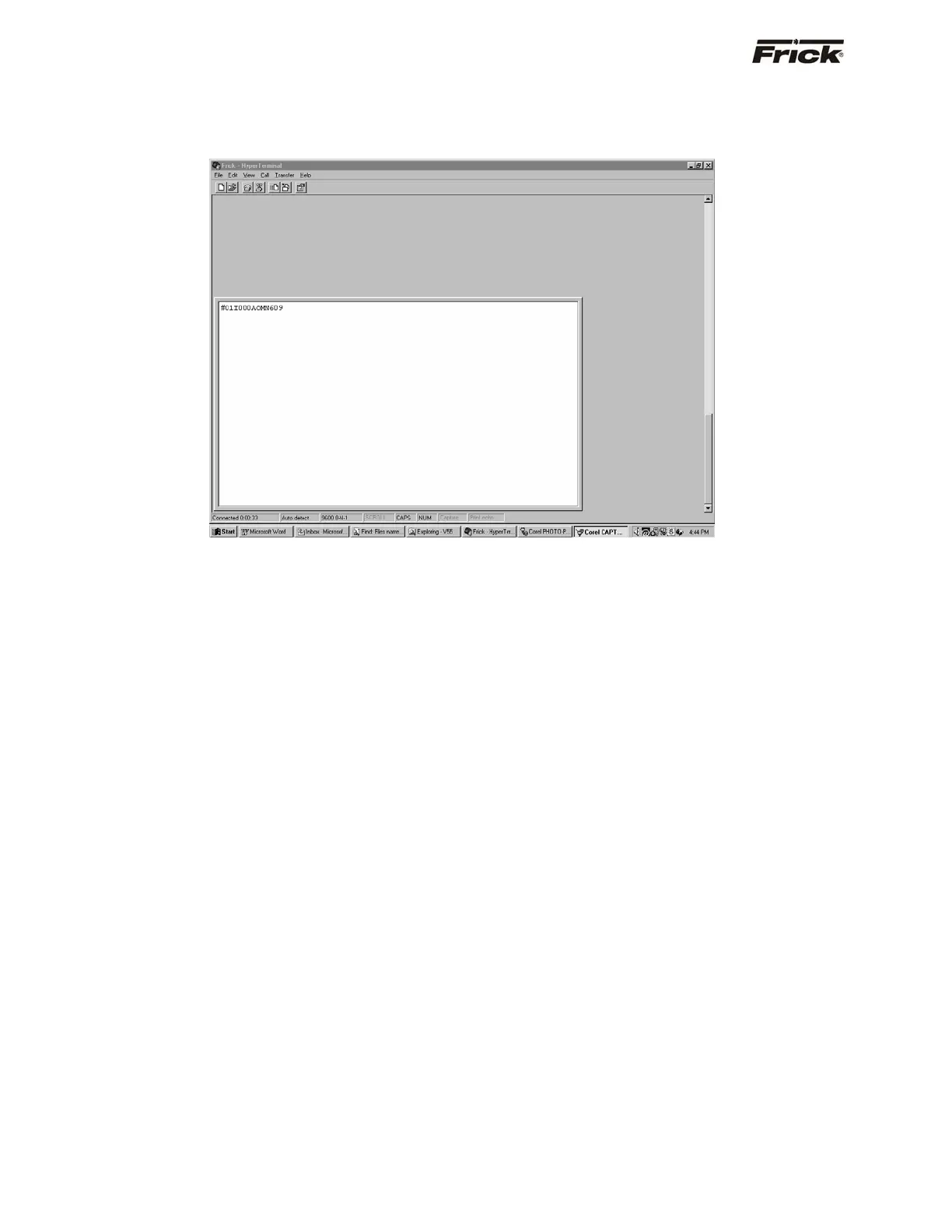
Set the keyboard for CAPS (so that all capital letters will
be typed). Type in the following command: #01I, then
press [ENTER]. (This command will request the
Quantum™ with ID 01 to send a packet of Information.)
If the communications is working properly, there should be
an immediate response from the first Quantum™. The
response should look something (but not necessarily
exactly) like #01I000AOMN609.
Go to the first Quantum™ in line, and check the Show
Comms screen that was described earlier. You should
see your message (and the Quantum™ reply) displayed
there.
If this portion of the test has passed, you can try to
communicate to the next (or any Quantum™, by changing
the value that you type into the HyperTerminal screen as
follows:
Instead of [#01], replace the 01 portion with the ID
that you would like to access. For instance, if you
wanted to talk to a fourth Quantum™ (ID 4), type in
[#04]. This should return a message from that
Quantum™.
This has been just a brief description of how to check your
communications and verify that it is working. Greater detail
can be found by consulting tables for each of the protocols
in this manual.
General Notes:
Ensure that the Quantum™ is set for the correct ID
number, BAUD rate and type of communications protocol
that is to be used. This setup can be found by pressing the
[Menu] key on the keypad, then pressing the [Panel
Setup] key that will appear at the right side of the display.
When the panel setup appears, look at the information at
the CHANGE COMMS line of the screen. This info must
match the communications that you are trying to establish
at the other end.
There are two red LED’s associated with the Com-2 port
on the Quantum™ (TX2 & RX2). Ensure that neither of
these LED’s are on continuously. If one or the other (or
both) are on constantly, disconnect the Com cable. If the
status of the LED’s does not change, check the wiring
connections to the communications port. Ensure that the
wiring is not backwards. If the wiring is correct, power the
Quantum™ down, then back up. If either or both of the
LED’s is still on, a bad driver chip may be suspected on
the Quantum™, and the board should be replaced.
Once everything has been inspected (cables, jumpers,
and setup), try to develop communications from the
master. You should see the LED’s on the Com-2 port
flickering as the Quantum™ talks to the master. If nothing
happens, it would be best to consult the HyperTerminal
section of this memo for more detailed troubleshooting.
If you do see the LED’s flickering, but data at the master
device does not look correct, you can verify what is being
sent and received at the Quantum™ by:
Pressing the [Menu] key on the keypad, then when the
Main Menu screen appears, find and press the [MORE…]
button.
A second Main Menu screen will appear. Find and press
the [Service Screen] key


 To Next Page