Setting Keywords in PDF Files
If the document is black & white, character strings (such as the page heading and the title) can be
set as keywords and used for a PDF file search.
To set keywords for PDF files, mark a character string to be set as a keyword with a water-based
highlight pen so that the character string is completely covered. When you perform a scan, the
marked character strings are recognized and set as keywords for the PDF file.
For details about marking a character string with a water-based highlight pen, refer to "How to Mark
Character Strings" (page 110).
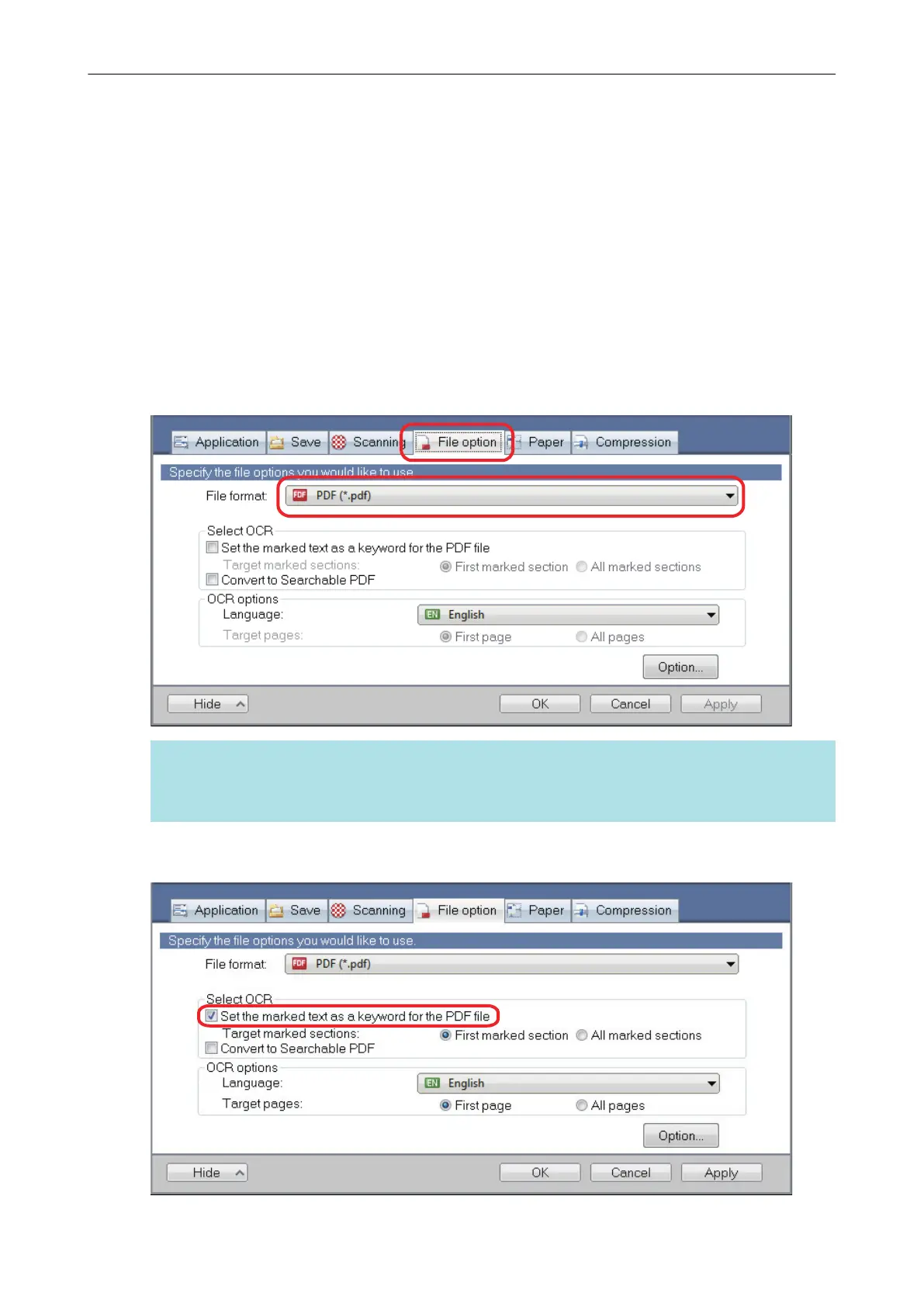
1. In the ScanSnap setup window, select [PDF (*.pdf)] from the [File format]
drop-down list in the [File option] tab.
HINT
It is recommended that you select [Better] or [Best] for [Image quality] in the [Scanning] tab of the
ScanSnap setup window.
2. Select the [Set the marked text as a keyword for the PDF file] checkbox.
Setting Keywords in PDF Files
106















 To Next Page