Posting to Salesforce Chatter
This section explains how to post a scanned image as a PDF or a JPEG file to Salesforce Chatter.
ATTENTION
l A Salesforce CRM license is required separately.
l ScanSnap Manager can link with the following Salesforce editions:
- Unlimited
- Enterprise
l A maximum of 100 scanned image files can be posted to Salesforce Chatter at once.
l [Scan to Salesforce Chatter] is not available in a proxy environment that requires authentication
upon connecting to the Internet.
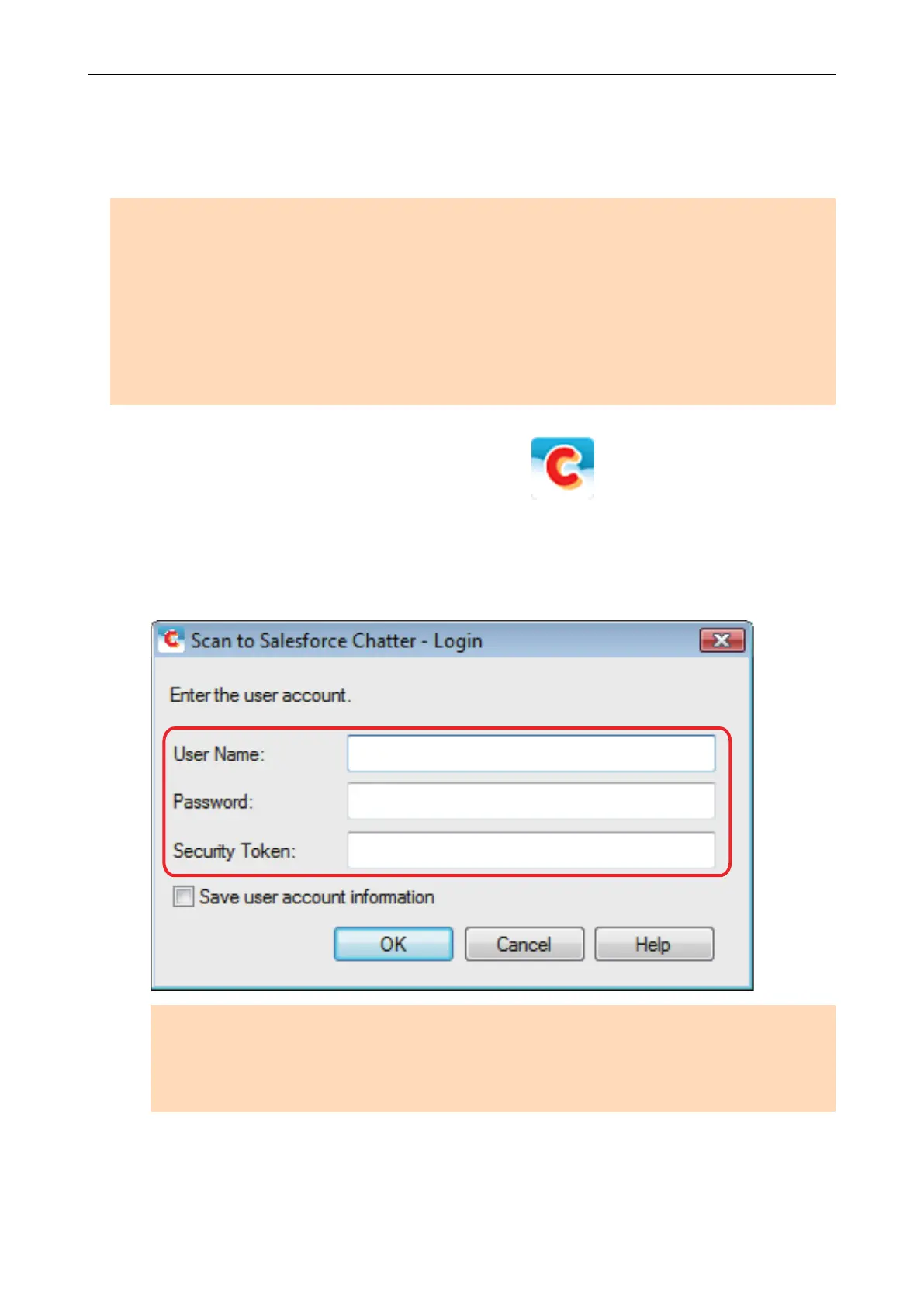
1. Click the [Scan to Salesforce Chatter] icon in the Quick Menu.
a The [Scan to Salesforce Chatter - Login] window appears.
2. Enter your user name and password, and then click the [OK] button.
Enter a security token if needed.
ATTENTION
If the computer is shared with other users, the shared environment automatically allows other
users to log into Salesforce when the [Save user account information] checkbox is selected.
To prevent this from happening, do not select the [Save user account information] checkbox.
a The [Scan to Salesforce Chatter] window appears.
3. Check the scanned image in the preview area.
Posting to Salesforce Chatter
46















 To Next Page