Saving Documents to Evernote (as a PDF File)
This section explains how to save the scanned image as a PDF file to Evernote.
When you save a scanned image to Evernote after converting it into a searchable PDF, the PDF file
becomes searchable in Evernote.
ATTENTION
l You need to create an Evernote account (free or paid).
l To save a file to Evernote, you first need to sign in to Evernote for Windows.
1. Click the [Scan to Evernote (Document)] icon
in the Quick Menu.
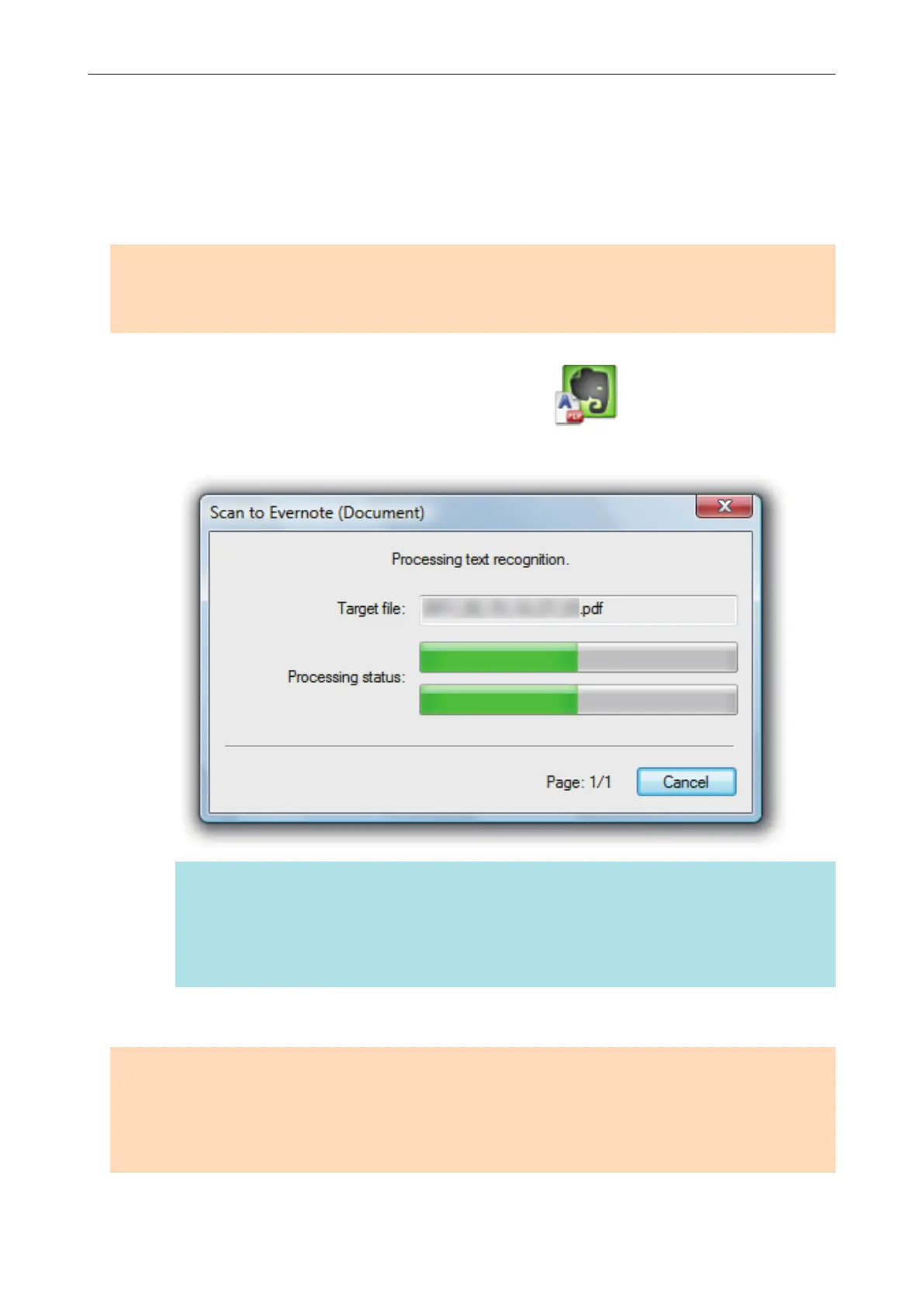
a Text recognition is performed. The following window appears during text recognition.
HINT
l If [JPEG(*.jpg)] is selected for [File format] in the [File option] tab of the ScanSnap setup
window, a separate PDF file will be created from each JPEG file.
l Note that text recognition will be performed only on pages containing text which is not yet
recognized.
a Evernote for Windows starts up, and the PDF file is saved to Evernote.
ATTENTION
l You cannot start scanning when the Quick Menu is displayed. Save the PDF file to Evernote before
scanning the next document.
l Do not move, delete, or rename scanned images using other applications while the Quick Menu is
displayed.
Saving Documents to Evernote (as a PDF File)
40















 To Next Page