ATTENTION
The file will not be synced with SugarSync unless you select a SugarSync folder as the
destination folder.
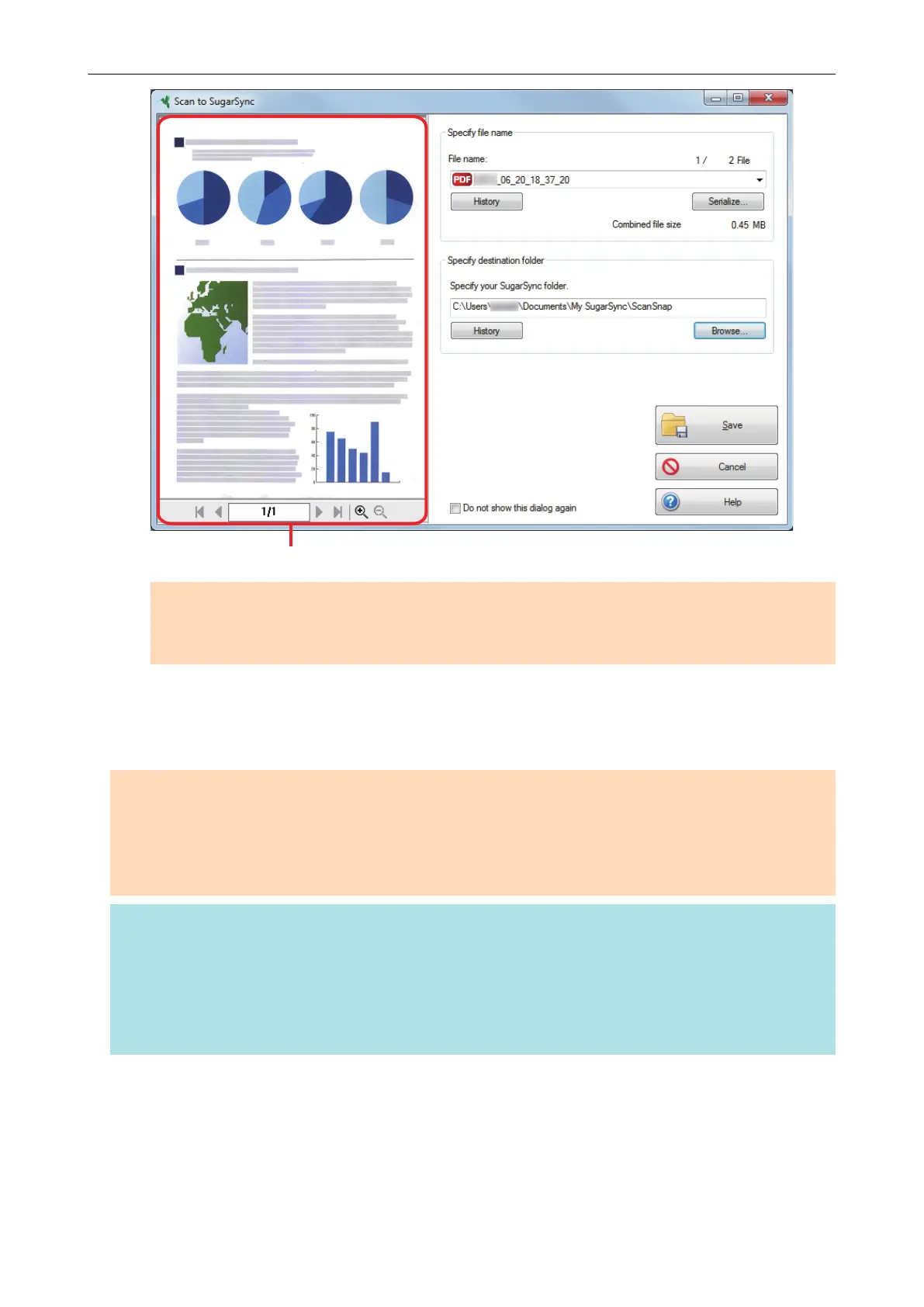
3. Click the [Save] button.
a The scanned image is saved to your SugarSync folder.
ATTENTION
l You cannot start scanning after the Quick Menu is displayed and before the [Scan to SugarSync]
window is closed. Close the [Scan to SugarSync] window before scanning the next document.
l Do not move, delete, or rename the scanned image in other applications after the Quick Menu is
displayed and before the [Scan to SugarSync] window is closed.
HINT
l You can change the settings for [Scan to SugarSync]. For details, refer to "Changing the Settings of
Linked Applications" (page 133).
l Profiles can also be used for the linkage function. For details, refer to "Profile" (page 60).
l ScanSnap Folder can also be used to save scanned images to SugarSync. For details, refer to
"ScanSnap Folder Operations" (page 75).
Saving Data to Your SugarSync Folder
50















 To Next Page